Ceci est une ancienne révision du document !
Table des matières
Version : 2022.02
Dernière mise-à-jour : 2022/03/10 08:00
DOF505 - Utilisation d'Ansible avec Windows
Contenu du Module
- DOF505 - Utilisation d'Ansible avec Windows
- Contenu du Module
- Pré-requis Windows
- LAB #1 - Préparer Windows 10
- 1.1 - Mettre à Jour PowerShell et .NET
- 1.2 - Configurer WinRM
- 1.3 - Consulter les Informations sur WinRM
- 1.4 - Créer un Utilisateur Local pour Ansible
- LAB #2 - Préparer le Contrôleur Ansible
- 2.1 - Installer pywinrm
- 2.2 - Tester la Configuration
- LAB #3 - Travailler avec Ansible et Windows
- 3.1 - Obtenir les Informations sur Windows10
- 3.2 - Exécuter une Commande
- 3.3 - Exécuter un script PowerShell
- 3.4 - Installer un Logiciel avec Chocolatey
- 3.5 - Créer un Utilisateur Local
Pré-requis Windows
Ansible est capable de travailler avec les versions de Windows™ suivantes :
- Windows™ 7,
- Windows™ 8.1,
- Windowst™ 10,
- Windowst™ 11,
- Windows™ Server 2008,
- Windows™ Server 2008 R2,
- Wondows™ Server 2012,
- Windows™ Server 2012 R2,
- Windows™ Server 2016,
- Windows™ Server 2019,
- Windows™ Server 2022.
Ansible nécessite sur chaque hôte :
- PowerShell 3.0 ou supérieur
- Au moins .NET 4.0.
LAB #1 - Préparer Windows 10
1.1 - Mettre à Jour PowerShell et .NET
Afin de mettre à jour les versions de PowerShell et .NET, Ansible fournit un script appelé Upgrade-PowerShell.ps1. Exécutez PowerShell en tant qu'Administrateur :
Windows PowerShell
Copyright (C) Microsoft Corporation. Tous droits réservés.

Testez le nouveau système multiplateforme PowerShell https://aka.ms/pscore6

PS C:\Windows\system32> $url = "https://raw.githubusercontent.com/jborean93/ansible-windows/master/scripts/Upgrade-PowerShell.ps1"
PS C:\Windows\system32> $file = "$env:temp\Upgrade-PowerShell.ps1"
PS C:\Windows\system32> $username = "trainee"
PS C:\Windows\system32> $password = "a39dae707d"
PS C:\Windows\system32> (New-Object -TypeName System.Net.WebClient).DownloadFile($url, $file)
PS C:\Windows\system32> Set-ExecutionPolicy -ExecutionPolicy Unrestricted -Force
PS C:\Windows\system32> &$file -Version 5.1 -Username $username -Password $password -Verbose
COMMENTAIRES : 2019-10-24T09:36:23 - INFO - starting script
COMMENTAIRES : 2019-10-24T09:36:23 - INFO - current and target PS version are the same, no action is required
COMMENTAIRES : 2019-10-24T09:36:23 - INFO - clearing auto logon registry properties
Au cas où, vous pouvez enlever l'auto-login de l'administrateur et remettre la politique d'exécution à Restricted avec les commandes suivantes :
PS C:\Windows\system32> Set-ExecutionPolicy -ExecutionPolicy Restricted -Force
PS C:\Windows\system32> $reg_winlogon_path = "HKLM:\Software\Microsoft\Windows NT\CurrentVersion\Winlogon"
PS C:\Windows\system32> Set-ItemProperty -Path $reg_winlogon_path -Name AutoAdminLogon -Value 0
PS C:\Windows\system32> Remove-ItemProperty -Path $reg_winlogon_path -Name DefaultUserName -ErrorAction SilentlyContinue
PS C:\Windows\system32> Remove-ItemProperty -Path $reg_winlogon_path -Name DefaultPassword -ErrorAction SilentlyContinue
PS C:\Windows\system32>
1.2 - Configurer WinRM
Pour mettre en place un listener WinRM en HTTP et un listener WinRM en HTTPS, créer un certificat auto-signé et activer l'authentification de base sur le service WinRM, utilisez le script ConfigureRemotingForAnsible.ps1 :
PS C:\Windows\system32> $url = "https://raw.githubusercontent.com/ansible/ansible/devel/examples/scripts/ConfigureRemotingForAnsible.ps1"
PS C:\Windows\system32> $file = "$env:temp\ConfigureRemotingForAnsible.ps1"
PS C:\Windows\system32> (New-Object -TypeName System.Net.WebClient).DownloadFile($url, $file)
PS C:\Windows\system32> powershell.exe -ExecutionPolicy ByPass -File $file
Self-signed SSL certificate generated; thumbprint: 17502EEEAC259F4C76D0F199A4B803E94E980CAD


wxf                 : http://schemas.xmlsoap.org/ws/2004/09/transfer
a                   : http://schemas.xmlsoap.org/ws/2004/08/addressing
w                   : http://schemas.dmtf.org/wbem/wsman/1/wsman.xsd
lang                : fr-FR
Address             : http://schemas.xmlsoap.org/ws/2004/08/addressing/role/anonymous
ReferenceParameters : ReferenceParameters

Ok.


PS C:\Windows\system32>
1.3 - Consulter les Informations sur WinRM
Pour voir la liste des listeners ainsi créés, utilisez la commande suivante :
PS C:\Windows\system32> winrm enumerate winrm/config/Listener
Listener
    Address = *
    Transport = HTTP
    Port = 5985
    Hostname
    Enabled = true
    URLPrefix = wsman
    CertificateThumbprint
    ListeningOn = 10.0.2.58, 10.29.0.34, 127.0.0.1, ::1

Listener
    Address = *
    Transport = HTTPS
    Port = 5986
    Hostname = DESKTOP-1OV5NMP
    Enabled = true
    URLPrefix = wsman
    CertificateThumbprint = 17502EEEAC259F4C76D0F199A4B803E94E980CAD
    ListeningOn = 10.0.2.58, 10.29.0.34, 127.0.0.1, ::1

PS C:\Windows\system32>
Pour obtenir les informations concernant le certificat, exécutez les commandes suivantes en remplacant le contenu de $thumbprint avec la valeur que vous avez obtenue :
PS C:\Windows\system32> $thumbprint = "17502EEEAC259F4C76D0F199A4B803E94E980CAD"
PS C:\Windows\system32> Get-ChildItem -Path cert:\LocalMachine\My -Recurse | Where-Object { $_.Thumbprint -eq $thumbprint } | Select-Object *


PSPath                   : Microsoft.PowerShell.Security\Certificate::LocalMachine\My\17502EEEAC259F4C76D0F199A4B803E94
                           E980CAD
PSParentPath             : Microsoft.PowerShell.Security\Certificate::LocalMachine\My
PSChildName              : 17502EEEAC259F4C76D0F199A4B803E94E980CAD
PSDrive                  : Cert
PSProvider               : Microsoft.PowerShell.Security\Certificate
PSIsContainer            : False
EnhancedKeyUsageList     : {Authentification du serveur (1.3.6.1.5.5.7.3.1)}
DnsNameList              : {DESKTOP-1OV5NMP, DESKTOP-1OV5NMP}
SendAsTrustedIssuer      : False
EnrollmentPolicyEndPoint : Microsoft.CertificateServices.Commands.EnrollmentEndPointProperty
EnrollmentServerEndPoint : Microsoft.CertificateServices.Commands.EnrollmentEndPointProperty
PolicyId                 :
Archived                 : False
Extensions               : {System.Security.Cryptography.Oid, System.Security.Cryptography.Oid,
                           System.Security.Cryptography.Oid, System.Security.Cryptography.Oid}
FriendlyName             :
IssuerName               : System.Security.Cryptography.X509Certificates.X500DistinguishedName
NotAfter                 : 22/10/2022 11:45:21
NotBefore                : 23/10/2019 11:45:21
HasPrivateKey            : True
PrivateKey               : System.Security.Cryptography.RSACryptoServiceProvider
PublicKey                : System.Security.Cryptography.X509Certificates.PublicKey
RawData                  : {48, 130, 5, 49...}
SerialNumber             : 73F2EADFBABB86B7438B30B157A1C3FB
SubjectName              : System.Security.Cryptography.X509Certificates.X500DistinguishedName
SignatureAlgorithm       : System.Security.Cryptography.Oid
Thumbprint               : 17502EEEAC259F4C76D0F199A4B803E94E980CAD
Version                  : 3
Handle                   : 2829331536176
Issuer                   : CN=DESKTOP-1OV5NMP
Subject                  : CN=DESKTOP-1OV5NMP


PS C:\Windows\system32>
Dernièrement pour obtenir des informations concernant le service, exécutez les deux commandes suivantes :
PS C:\Windows\system32> winrm get winrm/config/Service
Service
    RootSDDL = O:NSG:BAD:P(A;;GA;;;BA)(A;;GR;;;IU)S:P(AU;FA;GA;;;WD)(AU;SA;GXGW;;;WD)
    MaxConcurrentOperations = 4294967295
    MaxConcurrentOperationsPerUser = 1500
    EnumerationTimeoutms = 240000
    MaxConnections = 300
    MaxPacketRetrievalTimeSeconds = 120
    AllowUnencrypted = false
    Auth
        Basic = true
        Kerberos = true
        Negotiate = true
        Certificate = false
        CredSSP = false
        CbtHardeningLevel = Relaxed
    DefaultPorts
        HTTP = 5985
        HTTPS = 5986
    IPv4Filter = *
    IPv6Filter = *
    EnableCompatibilityHttpListener = false
    EnableCompatibilityHttpsListener = false
    CertificateThumbprint
    AllowRemoteAccess = true

PS C:\Windows\system32> winrm get winrm/config/Winrs
Winrs
    AllowRemoteShellAccess = true
    IdleTimeout = 7200000
    MaxConcurrentUsers = 2147483647
    MaxShellRunTime = 2147483647
    MaxProcessesPerShell = 2147483647
    MaxMemoryPerShellMB = 2147483647
    MaxShellsPerUser = 2147483647

PS C:\Windows\system32>
1.4 - Créer un Utilisateur Local pour Ansible
Exécutez ensuite la commande suivante :
PS C:\Windows\system32> winrm configSDDL default
Service
    RootSDDL = O:NSG:BAD:P(A;;GA;;;BA)(A;;GR;;;IU)(A;;GXGR;;;S-1-5-21-1664865965-3091009943-3054596003-1002)S:P(AU;FA;GA;;;WD)(AU;SA;GXGW;;;WD)
    MaxConcurrentOperations = 4294967295
    MaxConcurrentOperationsPerUser = 1500
    EnumerationTimeoutms = 240000
    MaxConnections = 300
    MaxPacketRetrievalTimeSeconds = 120
    AllowUnencrypted = false
    Auth
        Basic = true
        Kerberos = true
        Negotiate = true
        Certificate = false
        CredSSP = false
        CbtHardeningLevel = Relaxed
    DefaultPorts
        HTTP = 5985
        HTTPS = 5986
    IPv4Filter = *
    IPv6Filter = *
    EnableCompatibilityHttpListener = false
    EnableCompatibilityHttpsListener = false
    CertificateThumbprint
    AllowRemoteAccess = true

PS C:\Windows\system32>
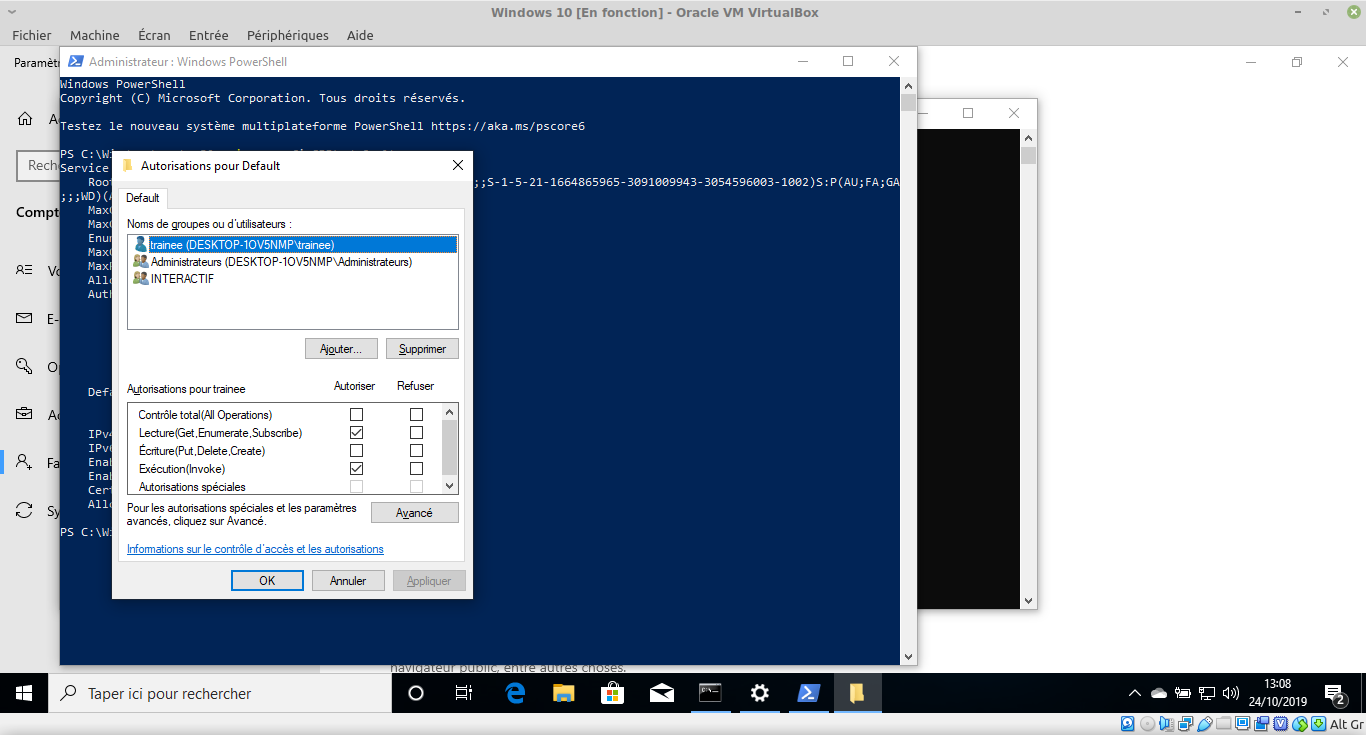
Dans la fenêtre Autorisations pour Default, ajoutez l'utilisateur pour Ansible ( trainee ) et accordez lui les permissions Exécution en plus des permissions Lecture :
LAB #2 - Préparer le Contrôleur Ansible
2.1 - Installer pywinrm
Dans la machine virtuelle centos8, installez le support python pour WinRM :
[trainee@centos8 ~]$ su -
Password: fenestros

[root@centos8 ~]# pip3 install "pywinrm>=0.3.0"
Collecting pywinrm>=0.3.0
  Downloading pywinrm-0.4.2-py2.py3-none-any.whl (44 kB)
     |████████████████████████████████| 44 kB 250 kB/s
Collecting xmltodict
  Downloading xmltodict-0.12.0-py2.py3-none-any.whl (9.2 kB)
Requirement already satisfied: requests>=2.9.1 in /usr/lib/python3.6/site-packages (from pywinrm>=0.3.0) (2.20.0)
Requirement already satisfied: six in /usr/lib/python3.6/site-packages (from pywinrm>=0.3.0) (1.11.0)
Collecting requests-ntlm>=0.3.0
  Downloading requests_ntlm-1.1.0-py2.py3-none-any.whl (5.7 kB)
Requirement already satisfied: chardet<3.1.0,>=3.0.2 in /usr/lib/python3.6/site-packages (from requests>=2.9.1->pywinrm>=0.3.0) (3.0.4)
Requirement already satisfied: idna<2.8,>=2.5 in /usr/lib/python3.6/site-packages (from requests>=2.9.1->pywinrm>=0.3.0) (2.5)
Requirement already satisfied: urllib3<1.25,>=1.21.1 in /usr/lib/python3.6/site-packages (from requests>=2.9.1->pywinrm>=0.3.0) (1.24.2)
Collecting ntlm-auth>=1.0.2
  Downloading ntlm_auth-1.5.0-py2.py3-none-any.whl (29 kB)
Requirement already satisfied: cryptography>=1.3 in /usr/local/lib64/python3.6/site-packages (from requests-ntlm>=0.3.0->pywinrm>=0.3.0) (36.0.1)
Requirement already satisfied: cffi>=1.12 in /usr/local/lib64/python3.6/site-packages (from cryptography>=1.3->requests-ntlm>=0.3.0->pywinrm>=0.3.0) (1.15.0)
Requirement already satisfied: pycparser in /usr/local/lib/python3.6/site-packages (from cffi>=1.12->cryptography>=1.3->requests-ntlm>=0.3.0->pywinrm>=0.3.0) (2.21)
Installing collected packages: ntlm-auth, xmltodict, requests-ntlm, pywinrm
Successfully installed ntlm-auth-1.5.0 pywinrm-0.4.2 requests-ntlm-1.1.0 xmltodict-0.12.0
WARNING: Running pip as the 'root' user can result in broken permissions and conflicting behaviour with the system package manager. It is recommended to use a virtual environment instead: https://pip.pypa.io/warnings/venv
Modifiez ensuite le fichier /etc/hosts :
[trainee@centos8 ~]$ su -
Password: fenestros
[root@centos8 ~]# vi /etc/hosts
[root@centos8 ~]# cat /etc/hosts
127.0.0.1   localhost localhost.localdomain localhost4 localhost4.localdomain4
::1         localhost localhost.localdomain localhost6 localhost6.localdomain6
10.0.2.45 centos8.ittraining.loc centos8
10.0.2.54 web01.i2tch.loc web01
10.0.2.55 web02.i2tch.loc web02
10.0.2.56 web03.i2tch.loc web03
10.0.2.57 web04.i2tch.loc web04
10.0.2.52 targeta.i2tch.loc targeta
10.0.2.53 targetb.i2tch.loc targetb
10.0.2.58 windows10
2.2 - Tester la Configuration
Pour tester la configuration, commencez par modifier le fichier inventory en tant que trainee :
[root@centos8 ~]# exit
logout
[trainee@centos8 ~]$ vi inventory
[trainee@centos8 ~]$ cat inventory
[windows]
windows10

[windows:vars]
ansible_user=trainee
ansible_password=a39dae707d
ansible_connection=winrm
ansible_winrm_server_cert_validation=ignore
Procédez au test :
[trainee@centos8 ~]$ ansible windows -i inventory -m win_ping
windows10 | SUCCESS => {
    "changed": false,
    "ping": "pong"
}
LAB #3 - Travailler avec Ansible et Windows
3.1 - Obtenir les Informations sur Windows 10
De la même façon qu'avec Linux, il est possible d'utiliser le module setup pour obtenir des Facts :
[trainee@centos8 ~]$ ansible windows -i inventory -m setup
windows10 | SUCCESS => {
    "ansible_facts": {
        "ansible_architecture": "64 bits",
        "ansible_architecture2": "x86_64",
        "ansible_bios_date": "04/01/2014",
        "ansible_bios_version": "rel-1.14.0-0-g155821a1990b-prebuilt.qemu.org",
        "ansible_date_time": {
            "date": "2022-03-10",
            "day": "10",
            "epoch": "1646895432,89327",
            "epoch_int": 1646895433,
            "epoch_local": "1646899032,89327",
            "hour": "07",
            "iso8601": "2022-03-10T06:57:12Z",
            "iso8601_basic": "20220310T075712893274",
            "iso8601_basic_short": "20220310T075712",
            "iso8601_micro": "2022-03-10T06:57:12.893274Z",
            "minute": "57",
            "month": "03",
            "second": "12",
            "time": "07:57:12",
            "tz": "Romance Standard Time",
            "tz_offset": "+01:00",
            "weekday": "Thursday",
            "weekday_number": "4",
            "weeknumber": "9",
            "year": "2022"
        },
        "ansible_distribution": "Microsoft Windows 10 Professionnel",
        "ansible_distribution_major_version": "10",
        "ansible_distribution_version": "10.0.19042.0",
        "ansible_domain": "",
        "ansible_env": {
            "ALLUSERSPROFILE": "C:\\ProgramData",
            "APPDATA": "C:\\Users\\trainee\\AppData\\Roaming",
            "COMPUTERNAME": "DESKTOP-P0SAHCP",
            "ComSpec": "C:\\Windows\\system32\\cmd.exe",
            "CommonProgramFiles": "C:\\Program Files\\Common Files",
            "CommonProgramFiles(x86)": "C:\\Program Files (x86)\\Common Files",
            "CommonProgramW6432": "C:\\Program Files\\Common Files",
            "DriverData": "C:\\Windows\\System32\\Drivers\\DriverData",
            "HOMEDRIVE": "C:",
            "HOMEPATH": "\\Users\\trainee",
            "LOCALAPPDATA": "C:\\Users\\trainee\\AppData\\Local",
            "LOGONSERVER": "\\\\DESKTOP-P0SAHCP",
            "NUMBER_OF_PROCESSORS": "8",
            "OS": "Windows_NT",
            "OneDrive": "C:\\Users\\trainee\\OneDrive",
            "PATHEXT": ".COM;.EXE;.BAT;.CMD;.VBS;.VBE;.JS;.JSE;.WSF;.WSH;.MSC;.CPL",
            "PROCESSOR_ARCHITECTURE": "AMD64",
            "PROCESSOR_IDENTIFIER": "Intel64 Family 15 Model 6 Stepping 1, GenuineIntel",
            "PROCESSOR_LEVEL": "15",
            "PROCESSOR_REVISION": "0601",
            "PROMPT": "$P$G",
            "PSExecutionPolicyPreference": "Unrestricted",
            "PSModulePath": "C:\\Users\\trainee\\Documents\\WindowsPowerShell\\Modules;C:\\Program Files\\WindowsPowerShell\\Modules;C:\\Windows\\system32\\WindowsPowerShell\\v1.0\\Modules",
            "PUBLIC": "C:\\Users\\Public",
            "Path": "C:\\Windows\\system32;C:\\Windows;C:\\Windows\\System32\\Wbem;C:\\Windows\\System32\\WindowsPowerShell\\v1.0\\;C:\\Windows\\System32\\OpenSSH\\;C:\\Users\\trainee\\AppData\\Local\\Microsoft\\WindowsApps",
            "ProgramData": "C:\\ProgramData",
            "ProgramFiles": "C:\\Program Files",
            "ProgramFiles(x86)": "C:\\Program Files (x86)",
            "ProgramW6432": "C:\\Program Files",
            "SystemDrive": "C:",
            "SystemRoot": "C:\\Windows",
            "TEMP": "C:\\Users\\trainee\\AppData\\Local\\Temp",
            "TMP": "C:\\Users\\trainee\\AppData\\Local\\Temp",
            "USERDOMAIN": "DESKTOP-P0SAHCP",
            "USERDOMAIN_ROAMINGPROFILE": "DESKTOP-P0SAHCP",
            "USERNAME": "trainee",
            "USERPROFILE": "C:\\Users\\trainee",
            "windir": "C:\\Windows"
        },
        "ansible_fqdn": "DESKTOP-P0SAHCP",
        "ansible_hostname": "DESKTOP-P0SAHCP",
        "ansible_interfaces": [
            {
                "connection_name": "Ethernet 2",
                "default_gateway": "10.0.2.1",
                "dns_domain": null,
                "interface_index": 13,
                "interface_name": "Intel(R) PRO/1000 MT Network Connection",
                "macaddress": "92:E1:64:91:2B:57"
            }
        ],
        "ansible_ip_addresses": [
            "fe80::1c9:fbad:7f52:9542%13",
            "10.0.2.58"
        ],
        "ansible_kernel": "10.0.19042.0",
        "ansible_lastboot": "2022-03-10 07:13:15Z",
        "ansible_machine_id": "S-1-5-21-309167381-963478272-52300377",
        "ansible_memfree_mb": 14006,
        "ansible_memtotal_mb": 16384,
        "ansible_netbios_name": "DESKTOP-P0SAHCP",
        "ansible_nodename": "DESKTOP-P0SAHCP",
        "ansible_os_family": "Windows",
        "ansible_os_installation_type": "Client",
        "ansible_os_name": "Microsoft Windows 10 Professionnel",
        "ansible_os_product_type": "workstation",
        "ansible_owner_contact": "",
        "ansible_owner_name": "trainee",
        "ansible_pagefilefree_mb": 2432,
        "ansible_pagefiletotal_mb": 2432,
        "ansible_powershell_version": 5,
        "ansible_processor": [
            "0",
            "GenuineIntel",
            "Common KVM processor",
            "1",
            "GenuineIntel",
            "Common KVM processor",
            "2",
            "GenuineIntel",
            "Common KVM processor",
            "3",
            "GenuineIntel",
            "Common KVM processor",
            "4",
            "GenuineIntel",
            "Common KVM processor",
            "5",
            "GenuineIntel",
            "Common KVM processor",
            "6",
            "GenuineIntel",
            "Common KVM processor",
            "7",
            "GenuineIntel",
            "Common KVM processor"
        ],
        "ansible_processor_cores": 8,
        "ansible_processor_count": 1,
        "ansible_processor_threads_per_core": 1,
        "ansible_processor_vcpus": 8,
        "ansible_product_name": "Standard PC (i440FX + PIIX, 1996)",
        "ansible_product_serial": null,
        "ansible_reboot_pending": true,
        "ansible_swaptotal_mb": 0,
        "ansible_system": "Win32NT",
        "ansible_system_description": "",
        "ansible_system_vendor": "QEMU",
        "ansible_uptime_seconds": 2647,
        "ansible_user_dir": "C:\\Users\\trainee",
        "ansible_user_gecos": "",
        "ansible_user_id": "trainee",
        "ansible_user_sid": "S-1-5-21-309167381-963478272-52300377-1001",
        "ansible_virtualization_role": "guest",
        "ansible_virtualization_type": "kvm",
        "ansible_win_rm_certificate_expires": "2025-03-08 07:34:49",
        "ansible_windows_domain": "WORKGROUP",
        "ansible_windows_domain_member": false,
        "ansible_windows_domain_role": "Stand-alone workstation",
        "gather_subset": [
            "all"
        ],
        "module_setup": true
    },
    "changed": false
}
3.2 - Exécutez une Commande
Créez le PlayBook command.yml :
[trainee@centos8 ~]$ vi command.yml
[trainee@centos8 ~]$ cat command.yml
---
- name: ipconfig
  hosts: windows
  tasks:
    - name: run ipconfig
      win_command: ipconfig
      register: ipconfig
    - debug: var=ipconfig
Exécutez le PlayBook :
[trainee@centos8 ~]$ ansible-playbook command.yml -i inventory

PLAY [ipconfig] **************************************************************************************************************************************************************************************************

TASK [Gathering Facts] *******************************************************************************************************************************************************************************************
ok: [windows10]

TASK [run ipconfig] **********************************************************************************************************************************************************************************************
changed: [windows10]

TASK [debug] *****************************************************************************************************************************************************************************************************
ok: [windows10] => {
    "ipconfig": {
        "changed": true,
        "cmd": "ipconfig",
        "delta": "0:00:00.111976",
        "end": "2022-03-10 07:14:51.164294",
        "failed": false,
        "rc": 0,
        "start": "2022-03-10 07:14:51.052317",
        "stderr": "",
        "stderr_lines": [],
        "stdout": "\r\nConfiguration IP de Windows\r\n\r\n\r\nCarte Ethernet Ethernet 2 :\r\n\r\n   Suffixe DNS propre � la connexion. . . : \r\n   Adresse IPv6 de liaison locale. . . . .: fe80::1c9:fbad:7f52:9542%13\r\n   Adresse IPv4. . . . . . . . . . . . . .: 10.0.2.58\r\n   Masque de sous-r�seau. . . .�. . . . . : 255.255.255.0\r\n   Passerelle par d�faut. . . .�. . . . . : 10.0.2.1\r\n",
        "stdout_lines": [
            "",
            "Configuration IP de Windows",
            "",
            "",
            "Carte Ethernet Ethernet 2 :",
            "",
            "   Suffixe DNS propre � la connexion. . . : ",
            "   Adresse IPv6 de liaison locale. . . . .: fe80::1c9:fbad:7f52:9542%13",
            "   Adresse IPv4. . . . . . . . . . . . . .: 10.0.2.58",
            "   Masque de sous-r�seau. . . .�. . . . . : 255.255.255.0",
            "   Passerelle par d�faut. . . .�. . . . . : 10.0.2.1"
        ]
    }
}

PLAY RECAP *******************************************************************************************************************************************************************************************************
windows10                  : ok=3    changed=1    unreachable=0    failed=0    skipped=0    rescued=0    ignored=0
3.3 - Exécuter un script PowerShell
Créez un script PowerShell pour démarrer le service Windows Update :
[trainee@centos8 ~]$ vi script1.ps1
[trainee@centos8 ~]$ cat script1.ps1
Start-Service -Name wuauserv
Créez ensuite un PlayBook appelé winupdate.yml :
[trainee@centos8 ~]$ vi winupdate.yml
[trainee@centos8 ~]$ cat winupdate.yml
- name: "PowerShell script"
  hosts: "windows"
  gather_facts: "false"
  tasks:
    - name: "Windows Update"
      script: "script1.ps1"
Exécutez le PlayBook :
[trainee@centos8 ~]$ ansible-playbook winupdate.yml -i inventory

PLAY [PowerShell script] *****************************************************************************************************************************************************************************************

TASK [Windows Update] ********************************************************************************************************************************************************************************************
changed: [windows10]

PLAY RECAP *******************************************************************************************************************************************************************************************************
windows10                  : ok=1    changed=1    unreachable=0    failed=0    skipped=0    rescued=0    ignored=0
3.4 - Installer un Logiciel avec Chocolatey
Chocolatey est un gestionnaire de paquets pour Windows™.
Créez le PlayBook firefox.yml :
[trainee@centos8 ~]$ vi firefox.yml
[trainee@centos8 ~]$ cat firefox.yml
---
- name: Install Firefox using Chocolatey
  hosts: all
  tasks:
    - name: Install Firefox
      win_chocolatey:
        name: firefox
        state: present
Exécutez le PlayBook :
[trainee@centos8 ~]$ ansible-playbook firefox.yml -i inventory

PLAY [Install Firefox using Chocolatey] **************************************************************************************************************************************************************************

TASK [Gathering Facts] *******************************************************************************************************************************************************************************************
ok: [windows10]

TASK [Install Firefox] *******************************************************************************************************************************************************************************************
[WARNING]: Chocolatey was missing from this system, so it was installed during this task run.
changed: [windows10]

PLAY RECAP *******************************************************************************************************************************************************************************************************
windows10                  : ok=2    changed=1    unreachable=0    failed=0    skipped=0    rescued=0    ignored=0
3.5 - Créer un Utilisateur Local
Créez le PlayBook user.yml :
[trainee@centos8 ~]$ vi users.yml
[trainee@centos8 ~]$ cat users.yml
---
- name: Create a user
  hosts: windows
  tasks:
    - name: Create Jean
      win_user:
        name: jean
        password: P@$$w0rd
        state: present
        groups:
          - utilisateurs
Exécutez le PlayBook :
[trainee@centos8 ~]$ ansible-playbook users.yml -i inventory

PLAY [Create a user] *********************************************************************************************************************************************************************************************

TASK [Gathering Facts] *******************************************************************************************************************************************************************************************
ok: [windows10]

TASK [Create Jean] ***********************************************************************************************************************************************************************************************
changed: [windows10]

PLAY RECAP *******************************************************************************************************************************************************************************************************
windows10                  : ok=2    changed=1    unreachable=0    failed=0    skipped=0    rescued=0    ignored=0
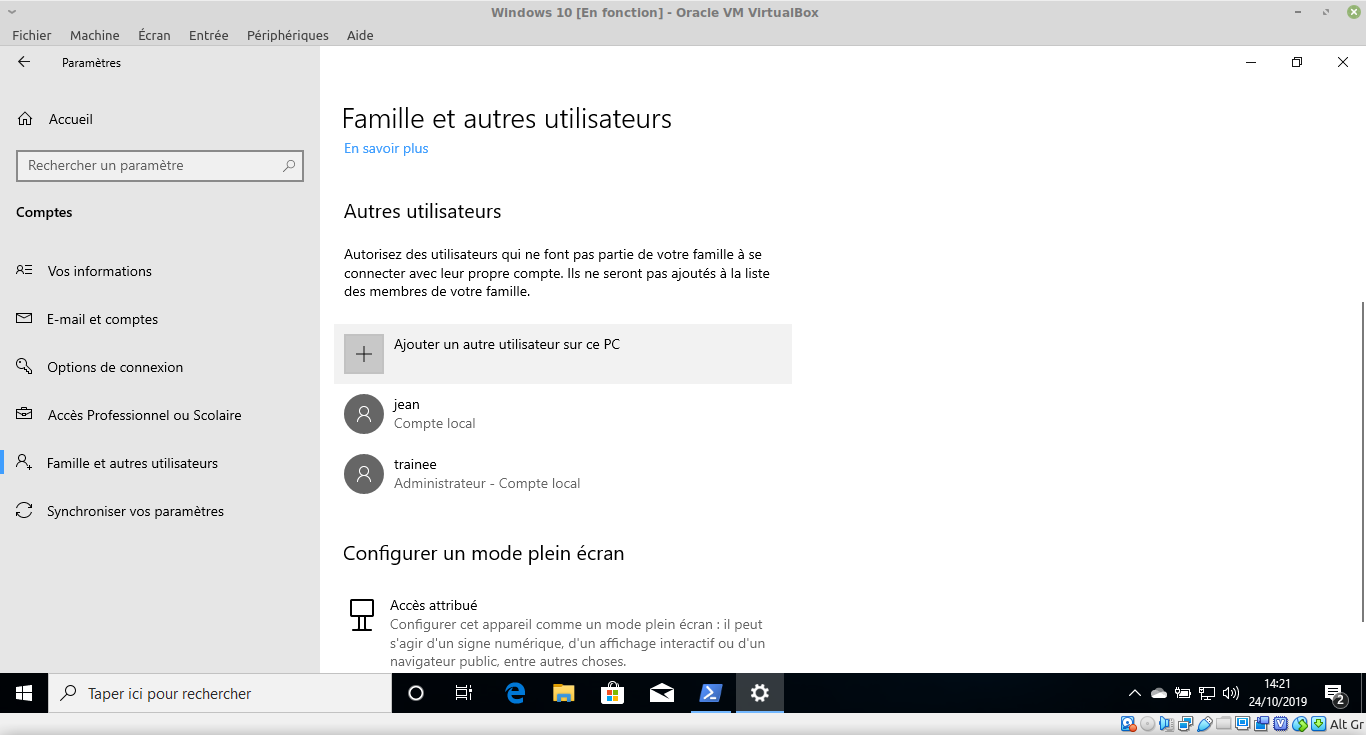
Vérifiez que le compte a été créé :
Copyright © 2022 Hugh Norris.


