Ceci est une ancienne révision du document !
Table des matières
Version : 2020.01
Dernière mise-à-jour : 2020/04/12 09:36
DOF505 - Utilisation d'Ansible avec Windows
Pré-requis Windows
Ansible est capable de travailler avec les versions de Windows™ suivantes :
- Windows™ 7,
- Windows™ 8.1,
- Windowst™ 10,
- Windows™ Server 2008,
- Windows™ 2008 R2,
- Wondows™ 2012,
- Windows™ 2012 R2,
- Windows™ 2016,
- Windows™ 2019.
Ansible nécessite sur chaque hôte :
- PowerShell 3.0 ou supérieur
- Au moins .NET 4.0.
Arrêter les Machines Virtuelles non Indisponsables
Arrêtez les machines virtuelles TargetA, TargetB, Web01, Web02, Web03 et Web04.
Si vous participez à une session en FAD, utilisez les commandes suivantes :
trainee@ansible:~$ exit
déconnexion
Connection to localhost closed.
desktop@server16:~$ VBoxManage controlvm TargetA poweroff
0%...10%...20%...30%...40%...50%...60%...70%...80%...90%...100%
desktop@server16:~$ VBoxManage controlvm TargetB poweroff
0%...10%...20%...30%...40%...50%...60%...70%...80%...90%...100%
desktop@server16:~$ VBoxManage controlvm Web01 poweroff
0%...10%...20%...30%...40%...50%...60%...70%...80%...90%...100%
desktop@server16:~$ VBoxManage controlvm Web02 poweroff
0%...10%...20%...30%...40%...50%...60%...70%...80%...90%...100%
desktop@server16:~$ VBoxManage controlvm Web03 poweroff
0%...10%...20%...30%...40%...50%...60%...70%...80%...90%...100%
desktop@server16:~$ VBoxManage controlvm Web04 poweroff
0%...10%...20%...30%...40%...50%...60%...70%...80%...90%...100%
desktop@server16:~$ ssh -l trainee localhost -p 2222
trainee@localhost's password:
Linux ansible.i2tch.loc 4.9.0-8-amd64 #1 SMP Debian 4.9.130-2 (2018-10-27) x86_64

The programs included with the Debian GNU/Linux system are free software;
the exact distribution terms for each program are described in the
individual files in /usr/share/doc/*/copyright.

Debian GNU/Linux comes with ABSOLUTELY NO WARRANTY, to the extent
permitted by applicable law.
Last login: Sun Apr 12 10:07:57 2020 from 10.0.2.2
trainee@ansible:~$
LAB #14 - Préparer Windows 10
Formations en FFP
Lancez le logiciel VirtuelBox puis lancez la machine virtuelle Windows10.
Formations en FAD
Lancez le logiciel X2Go Client. Cliquez ensuite sur :
Session > Nouvelle session
Dans la fenêtre qui s'ouvre, rensignez les informations suivantes en remplacant XX par le numéro de votre serveur et cliquez sur le bouton OK :
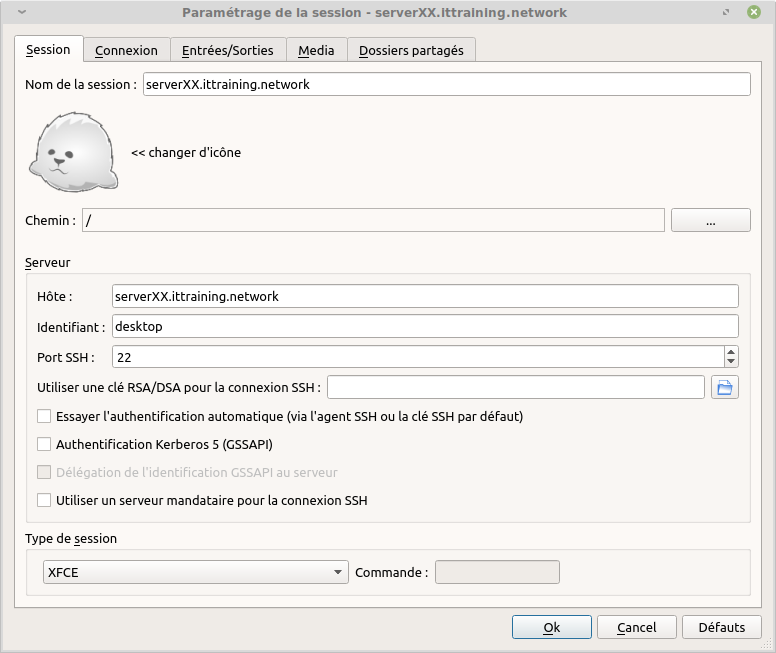
Dans le volet de droite, cliquez sur l'icône du serverXX.ittraining.network :
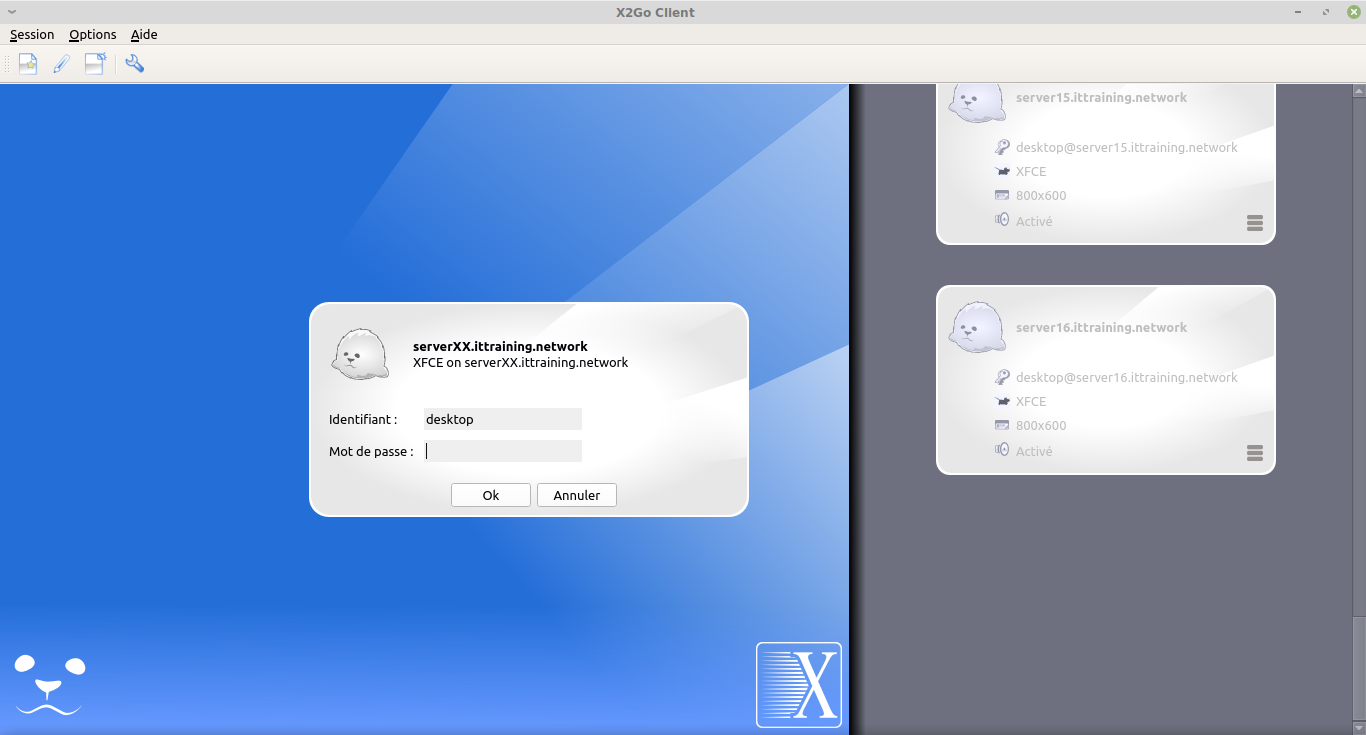
Renseignez le mot de passe qui vous a été communiqué et cliquez sur le bouton OK.
Lancez le logiciel VirtualBox sur sur votre serveur puis lancez la machine virtuelle Windows10.
Mettre à Jour PowerShell et .NET
Afin de mettre à jour les versions de PowerShell et .NET, Ansible fournit un script appelé Upgrade-PowerShell.ps1. Exécutez PowerShell en tant qu'Administrateur :
Windows PowerShell
Copyright (C) Microsoft Corporation. Tous droits réservés.

Testez le nouveau système multiplateforme PowerShell https://aka.ms/pscore6

PS C:\Windows\system32> $url = "https://raw.githubusercontent.com/jborean93/ansible-windows/master/scripts/Upgrade-PowerShell.ps1"
PS C:\Windows\system32> $file = "$env:temp\Upgrade-PowerShell.ps1"
PS C:\Windows\system32> $username = "hughn"
PS C:\Windows\system32> $password = "P@$$w0rd"
PS C:\Windows\system32> (New-Object -TypeName System.Net.WebClient).DownloadFile($url, $file)
PS C:\Windows\system32> Set-ExecutionPolicy -ExecutionPolicy Unrestricted -Force
PS C:\Windows\system32> &$file -Version 5.1 -Username $username -Password $password -Verbose
COMMENTAIRES : 2019-10-24T09:36:23 - INFO - starting script
COMMENTAIRES : 2019-10-24T09:36:23 - INFO - current and target PS version are the same, no action is required
COMMENTAIRES : 2019-10-24T09:36:23 - INFO - clearing auto logon registry properties
Au cas où, vous pouvez enlever l'auto-login de l'administrateur et remettre la politique d'exécution à Restricted avec les commandes suivantes :
PS C:\Windows\system32> Set-ExecutionPolicy -ExecutionPolicy Restricted -Force
PS C:\Windows\system32> $reg_winlogon_path = "HKLM:\Software\Microsoft\Windows NT\CurrentVersion\Winlogon"
PS C:\Windows\system32> Set-ItemProperty -Path $reg_winlogon_path -Name AutoAdminLogon -Value 0
PS C:\Windows\system32> Remove-ItemProperty -Path $reg_winlogon_path -Name DefaultUserName -ErrorAction SilentlyContinue
PS C:\Windows\system32> Remove-ItemProperty -Path $reg_winlogon_path -Name DefaultPassword -ErrorAction SilentlyContinue
PS C:\Windows\system32>
Configurer WinRM
Pour mettre en place un listener WinRM en HTTP et un listener WinRM en HTTPS, créer un certificat auto-signé et activer l'authentification de base sur le service WinRM, utilisez le script ConfigureRemotingForAnsible.ps1 :
PS C:\Windows\system32> $url = "https://raw.githubusercontent.com/ansible/ansible/devel/examples/scripts/ConfigureRemotingForAnsible.ps1"
PS C:\Windows\system32> $file = "$env:temp\ConfigureRemotingForAnsible.ps1"
PS C:\Windows\system32> (New-Object -TypeName System.Net.WebClient).DownloadFile($url, $file)
PS C:\Windows\system32> powershell.exe -ExecutionPolicy ByPass -File $file
Self-signed SSL certificate generated; thumbprint: 17502EEEAC259F4C76D0F199A4B803E94E980CAD


wxf                 : http://schemas.xmlsoap.org/ws/2004/09/transfer
a                   : http://schemas.xmlsoap.org/ws/2004/08/addressing
w                   : http://schemas.dmtf.org/wbem/wsman/1/wsman.xsd
lang                : fr-FR
Address             : http://schemas.xmlsoap.org/ws/2004/08/addressing/role/anonymous
ReferenceParameters : ReferenceParameters

Ok.


PS C:\Windows\system32>
Consulter les Informations sur WinRM
Pour voir la liste des listeners ainsi créés, utilisez la commande suivante :
PS C:\Windows\system32> winrm enumerate winrm/config/Listener
Listener
    Address = *
    Transport = HTTP
    Port = 5985
    Hostname
    Enabled = true
    URLPrefix = wsman
    CertificateThumbprint
    ListeningOn = 10.0.2.15, 10.29.0.34, 127.0.0.1, ::1

Listener
    Address = *
    Transport = HTTPS
    Port = 5986
    Hostname = DESKTOP-1OV5NMP
    Enabled = true
    URLPrefix = wsman
    CertificateThumbprint = 17502EEEAC259F4C76D0F199A4B803E94E980CAD
    ListeningOn = 10.0.2.15, 10.29.0.34, 127.0.0.1, ::1

PS C:\Windows\system32>
Pour obtenir les informations concernant le certificat, exécutez les commandes suivantes :
PS C:\Windows\system32> $thumbprint = "17502EEEAC259F4C76D0F199A4B803E94E980CAD"
PS C:\Windows\system32> Get-ChildItem -Path cert:\LocalMachine\My -Recurse | Where-Object { $_.Thumbprint -eq $thumbprint } | Select-Object *


PSPath                   : Microsoft.PowerShell.Security\Certificate::LocalMachine\My\17502EEEAC259F4C76D0F199A4B803E94
                           E980CAD
PSParentPath             : Microsoft.PowerShell.Security\Certificate::LocalMachine\My
PSChildName              : 17502EEEAC259F4C76D0F199A4B803E94E980CAD
PSDrive                  : Cert
PSProvider               : Microsoft.PowerShell.Security\Certificate
PSIsContainer            : False
EnhancedKeyUsageList     : {Authentification du serveur (1.3.6.1.5.5.7.3.1)}
DnsNameList              : {DESKTOP-1OV5NMP, DESKTOP-1OV5NMP}
SendAsTrustedIssuer      : False
EnrollmentPolicyEndPoint : Microsoft.CertificateServices.Commands.EnrollmentEndPointProperty
EnrollmentServerEndPoint : Microsoft.CertificateServices.Commands.EnrollmentEndPointProperty
PolicyId                 :
Archived                 : False
Extensions               : {System.Security.Cryptography.Oid, System.Security.Cryptography.Oid,
                           System.Security.Cryptography.Oid, System.Security.Cryptography.Oid}
FriendlyName             :
IssuerName               : System.Security.Cryptography.X509Certificates.X500DistinguishedName
NotAfter                 : 22/10/2022 11:45:21
NotBefore                : 23/10/2019 11:45:21
HasPrivateKey            : True
PrivateKey               : System.Security.Cryptography.RSACryptoServiceProvider
PublicKey                : System.Security.Cryptography.X509Certificates.PublicKey
RawData                  : {48, 130, 5, 49...}
SerialNumber             : 73F2EADFBABB86B7438B30B157A1C3FB
SubjectName              : System.Security.Cryptography.X509Certificates.X500DistinguishedName
SignatureAlgorithm       : System.Security.Cryptography.Oid
Thumbprint               : 17502EEEAC259F4C76D0F199A4B803E94E980CAD
Version                  : 3
Handle                   : 2829331536176
Issuer                   : CN=DESKTOP-1OV5NMP
Subject                  : CN=DESKTOP-1OV5NMP


PS C:\Windows\system32>
Dernièrement pour obtenir des informations concernant le service, exécutez les deux commandes suivantes :
PS C:\Windows\system32> winrm get winrm/config/Service
Service
    RootSDDL = O:NSG:BAD:P(A;;GA;;;BA)(A;;GR;;;IU)S:P(AU;FA;GA;;;WD)(AU;SA;GXGW;;;WD)
    MaxConcurrentOperations = 4294967295
    MaxConcurrentOperationsPerUser = 1500
    EnumerationTimeoutms = 240000
    MaxConnections = 300
    MaxPacketRetrievalTimeSeconds = 120
    AllowUnencrypted = false
    Auth
        Basic = true
        Kerberos = true
        Negotiate = true
        Certificate = false
        CredSSP = false
        CbtHardeningLevel = Relaxed
    DefaultPorts
        HTTP = 5985
        HTTPS = 5986
    IPv4Filter = *
    IPv6Filter = *
    EnableCompatibilityHttpListener = false
    EnableCompatibilityHttpsListener = false
    CertificateThumbprint
    AllowRemoteAccess = true

PS C:\Windows\system32> winrm get winrm/config/Winrs
Winrs
    AllowRemoteShellAccess = true
    IdleTimeout = 7200000
    MaxConcurrentUsers = 2147483647
    MaxShellRunTime = 2147483647
    MaxProcessesPerShell = 2147483647
    MaxMemoryPerShellMB = 2147483647
    MaxShellsPerUser = 2147483647

PS C:\Windows\system32>
Créer un Utilisateur Local pour Ansible
Créez un utilisateur local appelé trainee ayant un mot de passe trainee et le type de compte Administrateur.
Exécutez ensuite la commande suivante :
PS C:\Windows\system32> winrm configSDDL default
Service
    RootSDDL = O:NSG:BAD:P(A;;GA;;;BA)(A;;GR;;;IU)(A;;GXGR;;;S-1-5-21-1664865965-3091009943-3054596003-1002)S:P(AU;FA;GA;;;WD)(AU;SA;GXGW;;;WD)
    MaxConcurrentOperations = 4294967295
    MaxConcurrentOperationsPerUser = 1500
    EnumerationTimeoutms = 240000
    MaxConnections = 300
    MaxPacketRetrievalTimeSeconds = 120
    AllowUnencrypted = false
    Auth
        Basic = true
        Kerberos = true
        Negotiate = true
        Certificate = false
        CredSSP = false
        CbtHardeningLevel = Relaxed
    DefaultPorts
        HTTP = 5985
        HTTPS = 5986
    IPv4Filter = *
    IPv6Filter = *
    EnableCompatibilityHttpListener = false
    EnableCompatibilityHttpsListener = false
    CertificateThumbprint
    AllowRemoteAccess = true

PS C:\Windows\system32>
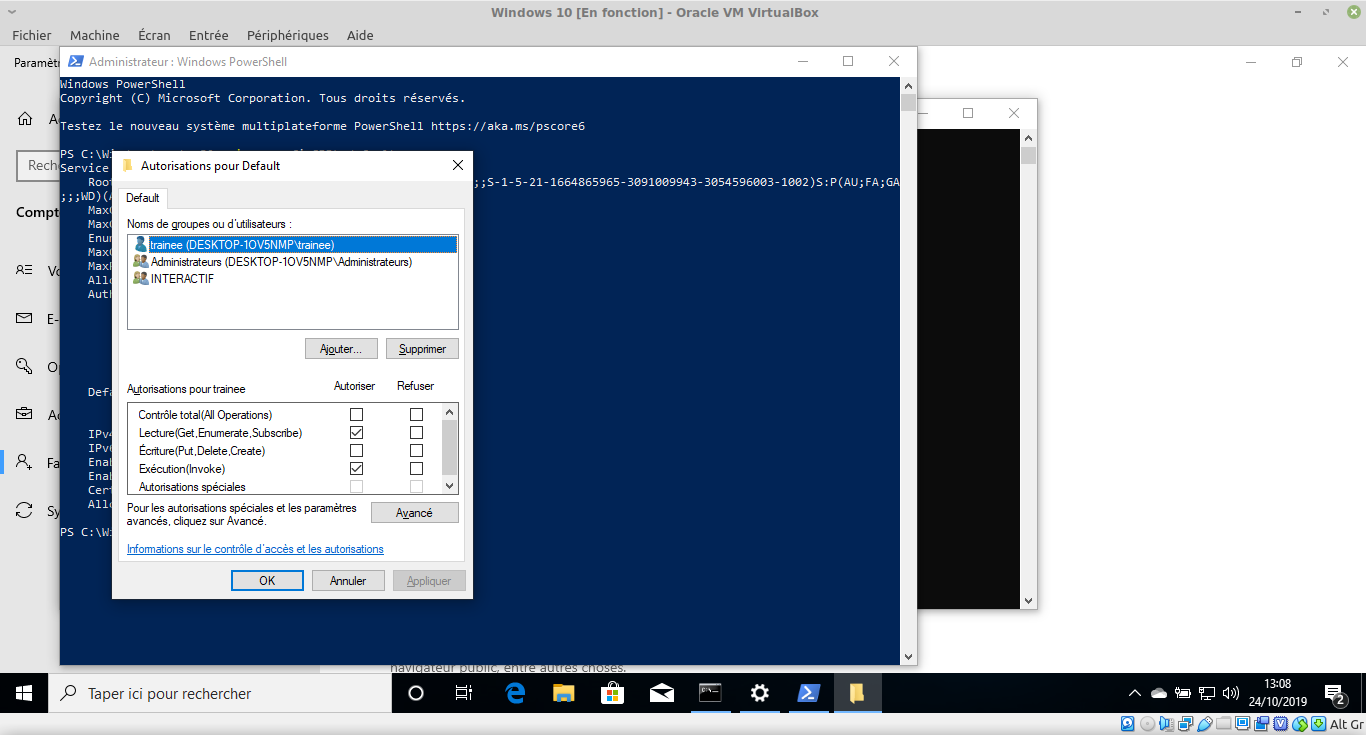
Dans la fenêtre Autorisations pour Default, ajoutez l'utilisateur pour Ansible et accordez lui les permissions Exécution en plus des permissions Lecture :
LAB #15 - Préparer le Contrôleur Ansible
Installer pywinrm
Dans la machine virtuelle Ansible, installez le support python pour WinRM :
root@ansible:~# pip3 install "pywinrm>=0.3.0"
Collecting pywinrm>=0.3.0
  Downloading https://files.pythonhosted.org/packages/0d/12/13a3117bbd2230043aa32dcfa2198c33269665eaa1a8fa26174ce49b338f/pywinrm-0.3.0-py2.py3-none-any.whl
Collecting requests-ntlm>=0.3.0 (from pywinrm>=0.3.0)
  Downloading https://files.pythonhosted.org/packages/03/4b/8b9a1afde8072c4d5710d9fa91433d504325821b038e00237dc8d6d833dc/requests_ntlm-1.1.0-py2.py3-none-any.whl
Collecting xmltodict (from pywinrm>=0.3.0)
  Downloading https://files.pythonhosted.org/packages/28/fd/30d5c1d3ac29ce229f6bdc40bbc20b28f716e8b363140c26eff19122d8a5/xmltodict-0.12.0-py2.py3-none-any.whl
Requirement already satisfied: six in /usr/lib/python3/dist-packages (from pywinrm>=0.3.0)
Requirement already satisfied: requests>=2.9.1 in /usr/lib/python3/dist-packages (from pywinrm>=0.3.0)
Collecting ntlm-auth>=1.0.2 (from requests-ntlm>=0.3.0->pywinrm>=0.3.0)
  Downloading https://files.pythonhosted.org/packages/50/09/5e397eb18685b14fd8b209e26cdb4fa6451c82c1bcc651fef05fa73e7b27/ntlm_auth-1.4.0-py2.py3-none-any.whl
Requirement already satisfied: cryptography>=1.3 in /usr/lib/python3/dist-packages (from requests-ntlm>=0.3.0->pywinrm>=0.3.0)
Installing collected packages: ntlm-auth, requests-ntlm, xmltodict, pywinrm
Successfully installed ntlm-auth-1.4.0 pywinrm-0.3.0 requests-ntlm-1.1.0 xmltodict-0.12.0
Tester la Configuration
Pour tester la configuration, modifiez le fichier /etc/hosts :
root@ansible:~# vi /etc/hosts
root@ansible:~# cat /etc/hosts
127.0.0.1	localhost
127.0.1.1	ansible.i2tch.loc   	ansible
10.0.2.9	ansible.i2tch.loc   	ansible
10.0.2.10   targeta.i2tch.loc    	targeta
10.0.2.11	web01.i2tch.loc		web01
10.0.2.12	web02.i2tch.loc		web02
10.0.2.13	web03.i2tch.loc		web03
10.0.2.14	web04.i2tch.loc		web04
10.0.2.15   windows10.i2tch.loc windows10

# The following lines are desirable for IPv6 capable hosts
::1     localhost ip6-localhost ip6-loopback
ff02::1 ip6-allnodes
ff02::2 ip6-allrouters
root@ansible:~# exit
déconnexion
trainee@ansible:~$
Créez ensuite un Inventory file en tant que trainee :
trainee@ansible:~$ vi inventory
trainee@ansible:~$ cat inventory
[windows]
windows10

[windows:vars]
ansible_user=trainee
ansible_password=trainee
ansible_connection=winrm
ansible_winrm_server_cert_validation=ignore
Procédez au test :
trainee@ansible:~$ ansible windows -i inventory -m win_ping
windows10 | SUCCESS => {
    "changed": false,
    "ping": "pong"
}
LAB #16 - Travailler avec Ansible et Windows
Obtenir les Informations sur Windows10
De la même façon qu'avec Linux, il est possible d'utiliser le module setup pour obtenir des Facts :
trainee@ansible:~$ ansible windows -i inventory -m setup
windows10 | SUCCESS => {
    "ansible_facts": {
        "ansible_architecture": "64 bits",
        "ansible_bios_date": "12/01/2006",
        "ansible_bios_version": "VirtualBox",
        "ansible_date_time": {
            "date": "2019-10-24",
            "day": "24",
            "epoch": "1571923636,11092",
            "hour": "13",
            "iso8601": "2019-10-24T11:27:16Z",
            "iso8601_basic": "20191024T132716094254",
            "iso8601_basic_short": "20191024T132716",
            "iso8601_micro": "2019-10-24T11:27:16.094254Z",
            "minute": "27",
            "month": "10",
            "second": "16",
            "time": "13:27:16",
            "tz": "Romance Standard Time",
            "tz_offset": "+02:00",
            "weekday": "Thursday",
            "weekday_number": "4",
            "weeknumber": "42",
            "year": "2019"
        },
        "ansible_distribution": "Microsoft Windows 10 Professionnel",
        "ansible_distribution_major_version": "10",
        "ansible_distribution_version": "10.0.18362.0",
        "ansible_domain": "",
        "ansible_env": {
            "ALLUSERSPROFILE": "C:\\ProgramData",
            "APPDATA": "C:\\Users\\trainee\\AppData\\Roaming",
            "COMPUTERNAME": "DESKTOP-1OV5NMP",
            "ComSpec": "C:\\Windows\\system32\\cmd.exe",
            "CommonProgramFiles": "C:\\Program Files\\Common Files",
            "CommonProgramFiles(x86)": "C:\\Program Files (x86)\\Common Files",
            "CommonProgramW6432": "C:\\Program Files\\Common Files",
            "DriverData": "C:\\Windows\\System32\\Drivers\\DriverData",
            "LOCALAPPDATA": "C:\\Users\\trainee\\AppData\\Local",
            "NUMBER_OF_PROCESSORS": "4",
            "OS": "Windows_NT",
            "PATHEXT": ".COM;.EXE;.BAT;.CMD;.VBS;.VBE;.JS;.JSE;.WSF;.WSH;.MSC;.CPL",
            "PROCESSOR_ARCHITECTURE": "AMD64",
            "PROCESSOR_IDENTIFIER": "Intel64 Family 6 Model 142 Stepping 10, GenuineIntel",
            "PROCESSOR_LEVEL": "6",
            "PROCESSOR_REVISION": "8e0a",
            "PROMPT": "$P$G",
            "PSExecutionPolicyPreference": "Unrestricted",
            "PSModulePath": "C:\\Users\\trainee\\Documents\\WindowsPowerShell\\Modules;C:\\Program Files\\WindowsPowerShell\\Modules;C:\\Windows\\system32\\WindowsPowerShell\\v1.0\\Modules",
            "PUBLIC": "C:\\Users\\Public",
            "Path": "C:\\Windows\\system32;C:\\Windows;C:\\Windows\\System32\\Wbem;C:\\Windows\\System32\\WindowsPowerShell\\v1.0\\;C:\\Windows\\System32\\OpenSSH\\;C:\\Users\\trainee\\AppData\\Local\\Microsoft\\WindowsApps",
            "ProgramData": "C:\\ProgramData",
            "ProgramFiles": "C:\\Program Files",
            "ProgramFiles(x86)": "C:\\Program Files (x86)",
            "ProgramW6432": "C:\\Program Files",
            "SystemDrive": "C:",
            "SystemRoot": "C:\\Windows",
            "TEMP": "C:\\Users\\trainee\\AppData\\Local\\Temp",
            "TMP": "C:\\Users\\trainee\\AppData\\Local\\Temp",
            "USERDOMAIN": "DESKTOP-1OV5NMP",
            "USERNAME": "trainee",
            "USERPROFILE": "C:\\Users\\trainee",
            "windir": "C:\\Windows"
        },
        "ansible_fqdn": "DESKTOP-1OV5NMP.",
        "ansible_hostname": "DESKTOP-1OV5NMP",
        "ansible_interfaces": [
            {
                "connection_name": "Ethernet",
                "default_gateway": "10.0.2.1",
                "dns_domain": "expressvpn",
                "interface_index": 5,
                "interface_name": "Intel(R) PRO/1000 MT Desktop Adapter",
                "macaddress": "08:00:27:07:68:97"
            }
        ],
        "ansible_ip_addresses": [
            "10.0.2.15"
        ],
        "ansible_kernel": "10.0.18362.0",
        "ansible_lastboot": "2019-10-24 12:05:22Z",
        "ansible_machine_id": "S-1-5-21-1664865965-3091009943-3054596003",
        "ansible_memtotal_mb": 2048,
        "ansible_nodename": "DESKTOP-1OV5NMP.",
        "ansible_os_family": "Windows",
        "ansible_os_name": "Microsoft Windows 10 Professionnel",
        "ansible_os_product_type": "workstation",
        "ansible_owner_contact": "",
        "ansible_owner_name": "hugh.norris@i2tch.eu",
        "ansible_powershell_version": 5,
        "ansible_processor": [
            "GenuineIntel",
            "Intel(R) Core(TM) i5-8250U CPU @ 1.60GHz",
            "GenuineIntel",
            "Intel(R) Core(TM) i5-8250U CPU @ 1.60GHz",
            "GenuineIntel",
            "Intel(R) Core(TM) i5-8250U CPU @ 1.60GHz",
            "GenuineIntel",
            "Intel(R) Core(TM) i5-8250U CPU @ 1.60GHz"
        ],
        "ansible_processor_cores": 4,
        "ansible_processor_count": 1,
        "ansible_processor_threads_per_core": 1,
        "ansible_processor_vcpus": 4,
        "ansible_product_name": "VirtualBox",
        "ansible_product_serial": "0",
        "ansible_reboot_pending": false,
        "ansible_swaptotal_mb": 0,
        "ansible_system": "Win32NT",
        "ansible_system_description": "",
        "ansible_system_vendor": "innotek GmbH",
        "ansible_uptime_seconds": 4921,
        "ansible_user_dir": "C:\\Users\\trainee",
        "ansible_user_gecos": "",
        "ansible_user_id": "trainee",
        "ansible_user_sid": "S-1-5-21-1664865965-3091009943-3054596003-1002",
        "ansible_virtualization_role": "guest",
        "ansible_virtualization_type": "VirtualBox",
        "ansible_win_rm_certificate_expires": "2022-10-22 11:45:21",
        "ansible_windows_domain": "WORKGROUP",
        "ansible_windows_domain_member": false,
        "ansible_windows_domain_role": "Stand-alone workstation",
        "gather_subset": [
            "all"
        ],
        "module_setup": true
    },
    "changed": false
}
Exécutez une Commande
Créez le PlayBook command.yml :
trainee@ansible:~$ vi command.yml
trainee@ansible:~$ cat command.yml
---
- name: ipconfig
  hosts: windows
  tasks:
    - name: run ipconfig
      win_command: ipconfig
      register: ipconfig
    - debug: var=ipconfig
Exécutez le PlayBook :
trainee@ansible:~$ ansible-playbook command.yml -i inventory

PLAY [ipconfig] *********************************************************************************************************************************************************

TASK [Gathering Facts] **************************************************************************************************************************************************
ok: [windows10]

TASK [run ipconfig] *****************************************************************************************************************************************************
changed: [windows10]

TASK [debug] ************************************************************************************************************************************************************
ok: [windows10] => {
    "ipconfig": {
        "changed": true,
        "cmd": "ipconfig",
        "delta": "0:00:00.087233",
        "end": "2019-10-24 12:09:59.585841",
        "failed": false,
        "rc": 0,
        "start": "2019-10-24 12:09:59.498608",
        "stderr": "",
        "stderr_lines": [],
        "stdout": "\r\nConfiguration IP de Windows\r\n\r\n\r\nCarte Ethernet Ethernet 2 :\r\n\r\n   Statut du m�dia. . . . . . . . . . . . : M�dia d�connect�\r\n   Suffixe DNS propre � la connexion. . . : \r\n\r\nCarte Ethernet Ethernet :\r\n\r\n   Suffixe DNS propre � la connexion. . . : expressvpn\r\n   Adresse IPv4. . . . . . . . . . . . . .: 10.0.2.15\r\n   Masque de sous-r�seau. . . .�. . . . . : 255.255.255.0\r\n   Passerelle par d�faut. . . .�. . . . . : 10.0.2.1\r\n",
        "stdout_lines": [
            "",
            "Configuration IP de Windows",
            "",
            "",
            "Carte Ethernet Ethernet 2 :",
            "",
            "   Statut du m�dia. . . . . . . . . . . . : M�dia d�connect�",
            "   Suffixe DNS propre � la connexion. . . : ",
            "",
            "Carte Ethernet Ethernet :",
            "",
            "   Suffixe DNS propre � la connexion. . . : expressvpn",
            "   Adresse IPv4. . . . . . . . . . . . . .: 10.0.2.15",
            "   Masque de sous-r�seau. . . .�. . . . . : 255.255.255.0",
            "   Passerelle par d�faut. . . .�. . . . . : 10.0.2.1"
        ]
    }
}

PLAY RECAP **************************************************************************************************************************************************************
windows10                  : ok=3    changed=1    unreachable=0    failed=0    skipped=0    rescued=0    ignored=0
Exécuter un script PowerShell
Créez un script PowerShell pour démarrer le service Windows Update :
trainee@ansible:~$ vi script1.ps1
trainee@ansible:~$ cat script1.ps1
Start-Service -Name wuauserv
Créez ensuite un PlayBook appelé winupdate.yml :
trainee@ansible:~$ vi winupdate.yml
trainee@ansible:~$ cat winupdate.yml
- name: "PowerShell script"
  hosts: "windows"
  gather_facts: "false"
  tasks:
    - name: "Windows Update"
      script: "script1.ps1"
Exécutez le PlayBook :
trainee@ansible:~$ ansible-playbook winupdate.yml -i inventory

PLAY [PowerShell script] ************************************************************************************************************************************************

TASK [Windows Update] ***************************************************************************************************************************************************
changed: [windows10]

PLAY RECAP **************************************************************************************************************************************************************
windows10                  : ok=1    changed=1    unreachable=0    failed=0    skipped=0    rescued=0    ignored=0
Installer un Logiciel avec Chocolatey
Chocolatey est un gestionnaire de paquets pour Windows™.
Créez le PlayBook firefox.yml :
trainee@ansible:~$ vi firefox.yml
trainee@ansible:~$ cat firefox.yml
---
- name: Install Firefox using Chocolatey
  hosts: all
  tasks:
    - name: Install Firefox
      win_chocolatey:
        name: firefox
        state: present
Exécutez le PlayBook :
trainee@ansible:~$ ansible-playbook firefox.yml -i inventory

PLAY [Install Firefox using Chocolatey] *********************************************************************************************************************************

TASK [Gathering Facts] **************************************************************************************************************************************************
ok: [windows10]

TASK [Install Firefox] **************************************************************************************************************************************************
[WARNING]: Chocolatey was missing from this system, so it was installed during this task run.

changed: [windows10]

PLAY RECAP **************************************************************************************************************************************************************
windows10                  : ok=2    changed=1    unreachable=0    failed=0    skipped=0    rescued=0    ignored=0
Créer un Utilisateur Local
Créez le PlayBook user.yml :
trainee@ansible:~$ vi users.yml
trainee@ansible:~$ cat users.yml
---
- name: Create a user
  hosts: windows
  tasks:
    - name: Create Jean
      win_user:
        name: jean
        password: P@$$w0rd
        state: present
        groups:
          - utilisateurs
Exécutez le PlayBook :
trainee@ansible:~$ ansible-playbook users.yml -i inventory

PLAY [Create a user] ****************************************************************************************************************************************************

TASK [Gathering Facts] **************************************************************************************************************************************************
ok: [windows10]

TASK [Create Jean] ******************************************************************************************************************************************************
changed: [windows10]

PLAY RECAP **************************************************************************************************************************************************************
windows10                  : ok=2    changed=1    unreachable=0    failed=0    skipped=0    rescued=0    ignored=0
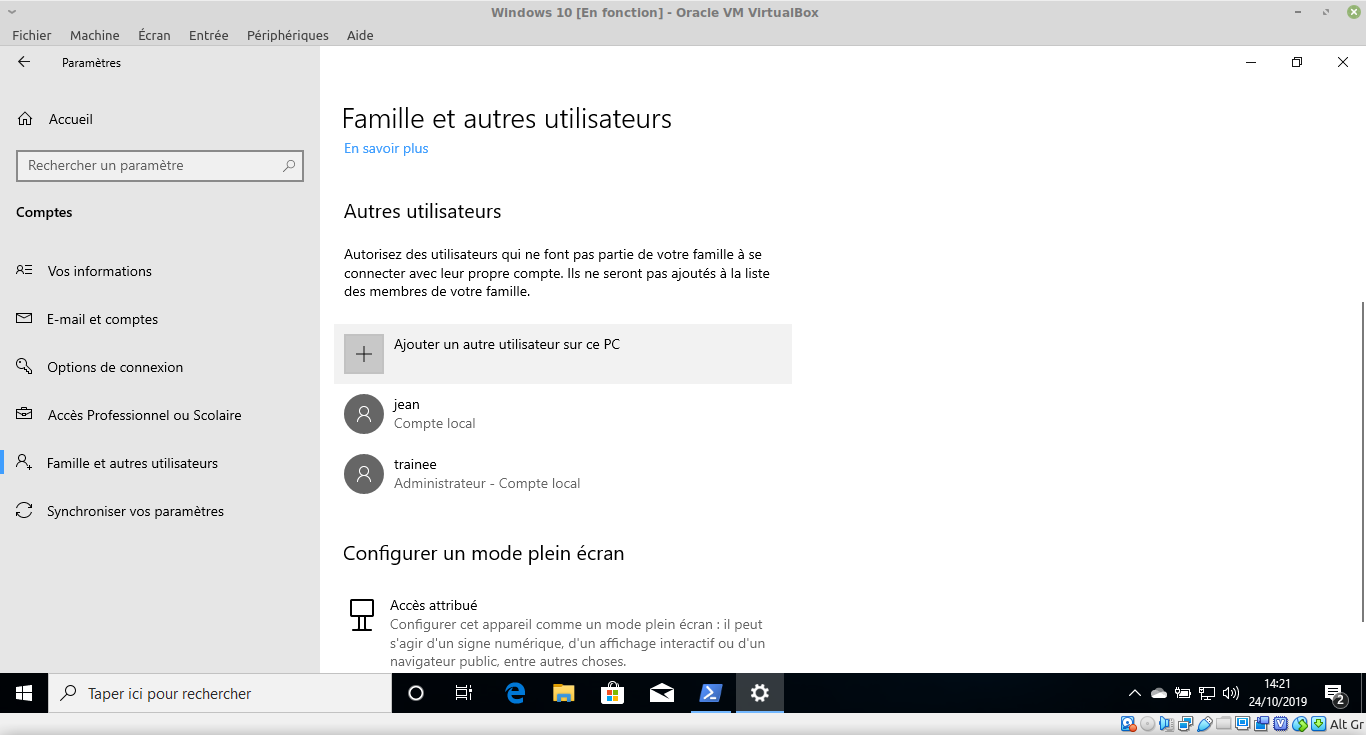
Vérifiez que le compte a été créé :
<html>
Copyright © 2020 Hugh NORRIS
</html>


