Table des matières
Version : 2026.01
Dernière mise-à-jour : 2025/12/12 12:47
LDF409 - Gestion de la Sécurité de Docker
Contenu du Module
- LDF409 - Gestion de la Sécurité de Docker
- Contenu du Module
- Présentation de la Virtualisation par Isolation
- Historique
- Présentation des Namespaces
- Présentation des CGroups
- LAB #1 - cgroups v1
- 1.1 - Préparation
- 1.2 - Présentation
- 1.3 - Limitation de la Mémoire
- 1.4 - La Commande cgcreate
- 1.5 - La Commande cgexec
- 1.6 - La Commande cgdelete
- 1.7 - Le Fichier /etc/cgconfig.conf
- 1.8 - La Commande cgconfigparser
- LAB #2 - cgroups v2
- 2.1 - Préparation
- 2.2 - Présentation
- 2.3 - Limitation de la CPU
- 2.4 - La Commande systemctl set-property
- Présentation de Docker
- Virtualisation et Containérisation
- Le Système de Fichier AUFS
- OverlayFS et Overlay2
- Docker Daemon et Docker Engine
- Docker CE et Docker EE
- Docker CE
- Docker EE
- Docker et Mirantis
- LAB #3 - Travailler avec Docker
- 3.1 - Installer docker sous Linux
- 3.1.1 - Debian 11
- 3.1.2 - CentOS 8
- 3.2 - Démarrer un Conteneur
- 3.3 - Consulter la Liste des Conteneurs et Images
- 3.4 - Rechercher une Image dans un Dépôt
- 3.5 - Supprimer un Conteneur d'une Image
- 3.6 - Créer une Image à partir d'un Conteneur Modifié
- 3.7 - Supprimer une Image
- 3.8 - Créer un Conteneur avec un Nom Spécifique
- 3.9 - Exécuter une Commande dans un Conteneur
- 3.10 - Injecter des Variables d'Environnement dans un Conteneur
- 3.11 - Modifier le Nom d'Hôte d'un Conteneur
- 3.12 - Mapper des Ports d'un Conteneur
- 3.13 - Démarrer un Conteneur en mode Détaché
- 3.14 - Accéder aux Services d'un Conteneur de l'Extérieur
- 3.15 - Arrêter et Démarrer un Conteneur
- 3.16 - Utiliser des Signaux avec un Conteneur
- 3.17 - Forcer la Suppression d'un Conteneur en cours d'Exécution
- 3.18 - Utilisation Simple d'un Volume
- 3.19 - Télécharger une image sans créer un conteneur
- 3.20 - S'attacher à un conteneur en cours d'exécution
- 3.21 - Installer un logiciel dans le conteneur
- 3.22 - Utilisation de la commande docker commit
- 3.23 - Se connecter au serveur du conteneur de l'extérieur
- Sécurisation de Docker
- LAB #4 - Utilisation des Docker Secrets
- LAB #5 - Création d'un Utilisateur de Confiance pour Contrôler le Daemon Docker
- LAB #6 - Le Script docker-bench-security.sh
- LAB #7 - Sécurisation de la Configuration de l'Hôte Docker
- LAB #8 - Sécurisation de la Configuration du daemon Docker
- 8.1 - Le Fichier /etc/docker/daemon.json
- LAB #9 - Sécurisation des Images et les Fichiers de Construction
- LAB #10 - Sécurisation du Container Runtime
- LAB #11 - Sécurisation des Images avec Docker Content Trust
- 11.1 - DOCKER_CONTENT_TRUST
- 11.2 - DCT et la commande docker pull
- L'option disable-content-trust
- 11.3 - DCT et la commande docker push
- 11.4 - DCT et la commande docker build
- Créer un deuxième Repositry
- Supprimer une Signature
- LAB #12 - Sécurisation du Socket du Daemon Docker
- 12.1 - Création du Certificat de l'Autorité de Certification
- 12.2 - Création du Certificat du Serveur Hôte du Daemon Docker
- 12.3 - Création du Certificat du Client
- 12.4 - Démarrage du Daemon Docker avec une Invocation Directe
- 12.5 - Configuration du Client
Présentation de la Virtualisation par Isolation
Un isolateur est un logiciel qui permet d'isoler l'exécution des applications dans des containers, des contextes ou des zones d'exécution.
Historique
- 1979 - chroot - l'isolation par changement de racine,
- 2000 - BSD Jails - l'isolation en espace utilisateur,
- 2004 - Solaris Containers - l'isolation par zones,
- 2005 - OpenVZ - l'isolation par partitionnement du noyau sous Linux,
- 2008 - LXC - LinuX Containers - l'isolation en utilisant des namespaces et des CGroups avec liblxc,
- 2013 - Docker - l'isolation en utilisant des namespaces et des CGroups avec libcontainer,
- 2014 - LXD - LinuX Container Daemon - l'isolation en utilisant des namespaces et des CGroups avec liblxc.
Présentation des Namespaces
Les espaces de noms permettent de regrouper des processus dans un même espace et d'attribuer des droits sur des ressources par espace. Ceci permet l'exécution de plusieurs init, chacun dans un namespace, afin de recréer un environnement pour les processus qui doivent être isolés.
Présentation des CGroups
LAB #1 - cgroups v1
1.1 - Préparation
Debian 11 utilise cgroups v2 par défault. Pour revenir à l'utilisation de cgroups v1, éditez le fichier /etc/boot/grub et ajoutez la directive systemd.unified_cgroup_hierarchy=0 à la ligne GRUB_CMDLINE_LINUX_DEFAULT :
root@debian11:~# vi /etc/default/grub
root@debian11:~# cat /etc/default/grub
# If you change this file, run 'update-grub' afterwards to update
# /boot/grub/grub.cfg.
# For full documentation of the options in this file, see:
#   info -f grub -n 'Simple configuration'

GRUB_DEFAULT=0
GRUB_TIMEOUT=5
GRUB_DISTRIBUTOR=`lsb_release -i -s 2> /dev/null || echo Debian`
GRUB_CMDLINE_LINUX_DEFAULT="quiet systemd.unified_cgroup_hierarchy=0"
GRUB_CMDLINE_LINUX=""

# Uncomment to enable BadRAM filtering, modify to suit your needs
# This works with Linux (no patch required) and with any kernel that obtains
# the memory map information from GRUB (GNU Mach, kernel of FreeBSD ...)
#GRUB_BADRAM="0x01234567,0xfefefefe,0x89abcdef,0xefefefef"

# Uncomment to disable graphical terminal (grub-pc only)
#GRUB_TERMINAL=console

# The resolution used on graphical terminal
# note that you can use only modes which your graphic card supports via VBE
# you can see them in real GRUB with the command `vbeinfo'
#GRUB_GFXMODE=640x480

# Uncomment if you don't want GRUB to pass "root=UUID=xxx" parameter to Linux
#GRUB_DISABLE_LINUX_UUID=true

# Uncomment to disable generation of recovery mode menu entries
#GRUB_DISABLE_RECOVERY="true"

# Uncomment to get a beep at grub start
#GRUB_INIT_TUNE="480 440 1"

root@debian11:~# grub-mkconfig -o /boot/grub/grub.cfg
Generating grub configuration file ...
Found background image: /usr/share/images/desktop-base/desktop-grub.png
Found linux image: /boot/vmlinuz-5.10.0-13-amd64
Found initrd image: /boot/initrd.img-5.10.0-13-amd64
done
Redémarrez ensuite votre VM :
root@debian11:~# reboot
1.2 - Présentation
Les Groupes de Contrôles (Control Groups) aussi appelés CGroups, sont une façon de contrôler et de limiter des ressources. Les groupes de contrôle permettent l'allocation de ressources, même d'une manière dynamique pendant que le système fonctionne, telles le temps processeur, la mémoire système, la bande réseau, ou une combinaison de ces ressources parmi des groupes de tâches (processus) définis par l'utilisateur et exécutés sur un système.
Les groupes de contrôle sont organisés de manière hiérarchique, comme des processus. Par contre, la comparaison entre les deux démontre que tandis que les processus se trouvent dans une arborescence unique descandant tous du processus init et héritant de l'environnement de leurs parents, les contrôles groupes peuvent être multiples donnant lieu à des arborescences ou hiérarchies multiples qui héritent de certains attributs de leurs groupes de contrôle parents.
Ces hiérarchies multiples et séparés sont necéssaires parce que chaque hiérarchie est attaché à un ou plusieurs sous-système(s) aussi appelés des Contrôleurs de Ressources ou simplement des Contrôleurs. Les contrôleurs disponibles sous Debian 11 sont :
- blkio - utilisé pour établir des limites sur l'accès des entrées/sorties à partir et depuis des périphériques blocs,
- cpu - utilisé pour fournir aux tâches des groupes de contrôle accès au CPU grâce au planificateur,
- cpuacct - utilisé pour produire des rapports automatiques sur les ressources CPU utilisées par les tâches dans un groupe de contrôle,
- cpuset - utilisé pour assigner des CPU individuels sur un système multicoeur et des noeuds de mémoire à des tâches dans un groupe de contrôle,
- devices - utilisé pour autoriser ou pour refuser l'accès des tâches aux périphériques dans un groupe de contrôle,
- freezer - utilisé pour suspendre ou pour réactiver les tâches dans un groupe de contrôle,
- memory - utilisé pour établir les limites d'utilisation de la mémoire par les tâches d'un groupe de contrôle et pour génèrer des rapports automatiques sur les ressources rmémoire utilisées par ces tâches,
- net_cls - utilisé pour repèrer les paquets réseau avec un identifiant de classe (classid) afin de permettre au contrôleur de trafic Linux, tc, d'identifier les paquets provenant d'une tâche particulière d'un groupe de contrôle.
- perf_event - utilisé pour permettre le monitoring des CGroups avec l'outil perf,
- hugetlb - utilisé pour limiter des ressources sur des pages de mémoire virtuelle de grande taille.
Il est à noter que :
- chaque processus du système appartient à un cgroup et seulement à un cgroup à la fois,
- tous les threads d'un processus appartiennent au même cgroup,
- à la création d'un processus, celui-ci est mis dans le même cgroup que son processus parent,
- un processus peut être migré d'un cgroup à un autre cgroup. Par contre, la migration d'un processus n'a pas d'impact sur l'appartenance au cgroup de ses processus fils.
Commencez par installer le paquet cgroup-tools :
root@debian11:~# apt -y install cgroup-tools
Pour visualiser les hiérarchies, il convient d'utiliser la commande lssubsys :
root@debian11:~# lssubsys -am
cpuset /sys/fs/cgroup/cpuset
cpu,cpuacct /sys/fs/cgroup/cpu,cpuacct
blkio /sys/fs/cgroup/blkio
memory /sys/fs/cgroup/memory
devices /sys/fs/cgroup/devices
freezer /sys/fs/cgroup/freezer
net_cls,net_prio /sys/fs/cgroup/net_cls,net_prio
perf_event /sys/fs/cgroup/perf_event
hugetlb /sys/fs/cgroup/hugetlb
pids /sys/fs/cgroup/pids
rdma /sys/fs/cgroup/rdma
Sous Debian 11, Systemd organise les processus dans chaque CGroup. Par exemple tous les processus démarrés par le serveur Apache se trouveront dans le même CGroup, y compris les scripts CGI. Ceci implique que la gestion des ressources en utilisant des hiérarchies est couplé avec l'arborescence des unités de Systemd.
En haut de l'arborescence des unités de Systemd se trouve la tranche root - -.slice, dont dépend :
- le system.slice - l'emplacement des services système,
- le user.slice - l'emplacement des sessions des utilisateurs,
- le machine.slice - l'emplacement des machines virtuelles et conteneurs.
En dessous des tranches peuvent se trouver :
- des scopes - des processus crées par fork,
- des services - des processus créés par une Unité.
Les slices peuvent être visualisés avec la commande suivante :
root@debian11:~# systemctl list-units --type=slice
  UNIT                               LOAD   ACTIVE SUB    DESCRIPTION
  -.slice                            loaded active active Root Slice
  system-getty.slice                 loaded active active system-getty.slice
  system-lvm2\x2dpvscan.slice        loaded active active system-lvm2\x2dpvscan.slice
  system-modprobe.slice              loaded active active system-modprobe.slice
  system-systemd\x2dcryptsetup.slice loaded active active Cryptsetup Units Slice
  system.slice                       loaded active active System Slice
  user-1000.slice                    loaded active active User Slice of UID 1000
  user.slice                         loaded active active User and Session Slice

LOAD   = Reflects whether the unit definition was properly loaded.
ACTIVE = The high-level unit activation state, i.e. generalization of SUB.
SUB    = The low-level unit activation state, values depend on unit type.
8 loaded units listed. Pass --all to see loaded but inactive units, too.
To show all installed unit files use 'systemctl list-unit-files'.
L'arborescence des unités de Systemd est la suivante :
root@debian11:~# systemd-cgls
Control group /:
-.slice
├─user.slice
│ └─user-1000.slice
│   ├─user@1000.service …
│   │ ├─app.slice
│   │ │ ├─pulseaudio.service
│   │ │ │ └─974 /usr/bin/pulseaudio --daemonize=no --log-target=journal
│   │ │ ├─pipewire.service
│   │ │ │ ├─973 /usr/bin/pipewire
│   │ │ │ └─984 /usr/bin/pipewire-media-session
│   │ │ └─dbus.service
│   │ │   └─982 /usr/bin/dbus-daemon --session --address=systemd: --nofork --nopidfile --systemd-activation --syslog-only
│   │ └─init.scope
│   │   ├─958 /lib/systemd/systemd --user
│   │   └─959 (sd-pam)
│   ├─session-3.scope
│   │ ├─ 993 sshd: trainee [priv]
│   │ ├─ 999 sshd: trainee@pts/0
│   │ ├─1000 -bash
│   │ ├─1003 su -
│   │ ├─1004 -bash
│   │ ├─1010 systemd-cgls
│   │ └─1011 less
│   └─session-1.scope
│     ├─578 /bin/login -p --
│     ├─975 -bash
│     ├─986 su -
│     └─987 -bash
├─init.scope
│ └─1 /sbin/init
└─system.slice
  ├─apache2.service
  │ ├─595 /usr/sbin/apache2 -k start
  │ ├─597 /usr/sbin/apache2 -k start
  │ └─598 /usr/sbin/apache2 -k start
  ├─systemd-udevd.service
  │ └─317 /lib/systemd/systemd-udevd
  ├─cron.service
  │ └─491 /usr/sbin/cron -f
  ├─polkit.service
  │ └─495 /usr/libexec/polkitd --no-debug
  ├─rtkit-daemon.service
  │ └─979 /usr/libexec/rtkit-daemon
  ├─auditd.service
  │ └─460 /sbin/auditd
  ├─wpa_supplicant.service
  │ └─498 /sbin/wpa_supplicant -u -s -O /run/wpa_supplicant
  ├─ModemManager.service
  │ └─515 /usr/sbin/ModemManager
  ├─inetd.service
  │ └─694 /usr/sbin/inetd
  ├─systemd-journald.service
  │ └─296 /lib/systemd/systemd-journald
  ├─mdmonitor.service
  │ └─432 /sbin/mdadm --monitor --scan
  ├─ssh.service
  │ └─580 sshd: /usr/sbin/sshd -D [listener] 0 of 10-100 startups
lines 1-58
[q]
En utilisant Systemd, plusieurs ressources peuvent être limitées :
- CPUShares - par défault 1024,
- MemoryLimit - limite exprimée en Mo ou en Go. Pas de valeur par défaut,
- BlockIOWeight - valeur entre 10 et 1000. Pas de valeur par défaut,
- StartupCPUShares - comme CPUShares mais uniquement appliqué pendant le démarrage,
- StartupBlockIOWeight - comme BlockIOWeight mais uniquement appliqué pendant le démarrage,
- CPUQuota - utilisé pour limiter le temps CPU, même quand le système ne fait rien.
1.3 - Limitation de la Mémoire
Commencez par créer le script hello-world.sh qui servira à générer un processus pour travailler avec les CGroups :
root@debian11:~# vi hello-world.sh
root@debian11:~# cat hello-world.sh
#!/bin/bash
while [ 1 ]; do
        echo "hello world"
        sleep 360
done
Rendez le script exécutable et testez-le :
root@debian11:~# chmod u+x hello-world.sh
root@debian11:~# ./hello-world.sh
hello world
^C
Créez maintenant un CGroup dans le sous-système memory appelé helloworld :
root@debian11:~# mkdir /sys/fs/cgroup/memory/helloworld
Par défaut, ce CGroup héritera de l'ensemble de la mémoire disponible. Pour éviter cela, créez maintenant une limite de 40000000 octets pour ce CGroup :
root@debian11:~# echo 40000000 > /sys/fs/cgroup/memory/helloworld/memory.limit_in_bytes
root@debian11:~# cat /sys/fs/cgroup/memory/helloworld/memory.limit_in_bytes
39997440
Important - Notez que les 40 000 000 demandés sont devenus 39 997 440 ce qui correspond à un nombre entier de pages mémoire du noyau de 4Ko. ( 39 997 440 / 4096 = 9 765 ).
Lancez maintenant le script helloworld.sh :
root@debian11:~# ./hello-world.sh &
[1] 1073
root@debian11:~# hello world
[Entrée]

root@debian11:~# ps aux | grep hello-world
root        1073  0.0  0.0   6756  3100 pts/0    S    06:33   0:00 /bin/bash ./hello-world.sh
root        1077  0.0  0.0   6180   712 pts/0    R+   06:34   0:00 grep hello-world
Notez qu'il n'y a pas de limite de la mémoire, ce qui implique l'héritage par défaut :
root@debian11:~# ps -ww -o cgroup 1073
CGROUP
8:devices:/user.slice,7:pids:/user.slice/user-1000.slice/session-3.scope,5:memory:/user.slice/user-1000.slice/session-3.scope,1:name=systemd:/user.slice/user-1000.slice/session-3.scope,0::/user.slice/user-1000.slice/session-3.scope
Insérer le PID de notre script dans le CGroup helloworld :
root@debian11:~# echo 1073 > /sys/fs/cgroup/memory/helloworld/cgroup.procs
Notez maintenant l'héritage de la limitation de la mémoire - 5:memory:/helloworld :
root@debian11:~# ps -ww -o cgroup 1073
CGROUP
8:devices:/user.slice,7:pids:/user.slice/user-1000.slice/session-3.scope,5:memory:/helloworld,1:name=systemd:/user.slice/user-1000.slice/session-3.scope,0::/user.slice/user-1000.slice/session-3.scope
Constatez ensuite l'occupation mémoire réelle :
root@debian11:~# cat /sys/fs/cgroup/memory/helloworld/memory.usage_in_bytes
274432
Tuez le script hello-world.sh :
root@debian11:~# kill 1073
root@debian11:~# ps aux | grep hello-world
root        1086  0.0  0.0   6180   716 pts/0    S+   06:37   0:00 grep hello-world
[1]+  Terminated              ./hello-world.sh
Créez un second CGroup beaucoup plus restrictif :
root@debian11:~# mkdir /sys/fs/cgroup/memory/helloworld1
root@debian11:~# echo 6000 > /sys/fs/cgroup/memory/helloworld1/memory.limit_in_bytes
root@debian11:~# cat /sys/fs/cgroup/memory/helloworld1/memory.limit_in_bytes
4096
Relancez le script hello-world.sh et insérez-le dans le nouveau CGroup :
root@debian11:~# ./hello-world.sh &
[1] 1089

root@debian11:~# hello world
[Entrée]

root@debian11:~# echo 1089 > /sys/fs/cgroup/memory/helloworld1/cgroup.procs
Attendez la prochaine sortie de hello world sur le canal standard puis constatez que le script s'arrête :
root@debian11:~# ps aux | grep hello-world
root        1100  0.0  0.0   6180   720 pts/0    S+   06:45   0:00 grep hello-world
[1]+  Killed                  ./hello-world.sh
Notez la trace dans le fichier /var/log/messages :
root@debian11:~# tail /var/log/messages
May  4 06:44:43 debian11 kernel: [  994.012423] workingset_nodereclaim 0
May  4 06:44:43 debian11 kernel: [  994.012423] pgfault 0
May  4 06:44:43 debian11 kernel: [  994.012423] pgmajfault 0
May  4 06:44:43 debian11 kernel: [  994.012423] pgrefill 0
May  4 06:44:43 debian11 kernel: [  994.012423] pgscan 0
May  4 06:44:43 debian11 kernel: [  994.012423] pgsteal 0
May  4 06:44:43 debian11 kernel: [  994.012425] Tasks state (memory values in pages):
May  4 06:44:43 debian11 kernel: [  994.012426] [  pid  ]   uid  tgid total_vm      rss pgtables_bytes swapents oom_score_adj name
May  4 06:44:43 debian11 kernel: [  994.012428] [   1089]     0  1089     1689      780    53248        0             0 hello-world.sh
May  4 06:44:43 debian11 kernel: [  994.012430] oom-kill:constraint=CONSTRAINT_MEMCG,nodemask=(null),cpuset=/,mems_allowed=0,oom_memcg=/helloworld1,task_memcg=/helloworld1,task=hello-world.sh,pid=1089,uid=0
1.4 - La Commande cgcreate
Cette commande permet la création d'un CGroup :
root@debian11:~# cgcreate -g memory:helloworld2

root@debian11:~# ls -l /sys/fs/cgroup/memory/helloworld2/
total 0
-rw-r--r-- 1 root root 0 May  4 06:47 cgroup.clone_children
--w--w--w- 1 root root 0 May  4 06:47 cgroup.event_control
-rw-r--r-- 1 root root 0 May  4 06:47 cgroup.procs
-rw-r--r-- 1 root root 0 May  4 06:47 memory.failcnt
--w------- 1 root root 0 May  4 06:47 memory.force_empty
-rw-r--r-- 1 root root 0 May  4 06:47 memory.kmem.failcnt
-rw-r--r-- 1 root root 0 May  4 06:47 memory.kmem.limit_in_bytes
-rw-r--r-- 1 root root 0 May  4 06:47 memory.kmem.max_usage_in_bytes
-r--r--r-- 1 root root 0 May  4 06:47 memory.kmem.slabinfo
-rw-r--r-- 1 root root 0 May  4 06:47 memory.kmem.tcp.failcnt
-rw-r--r-- 1 root root 0 May  4 06:47 memory.kmem.tcp.limit_in_bytes
-rw-r--r-- 1 root root 0 May  4 06:47 memory.kmem.tcp.max_usage_in_bytes
-r--r--r-- 1 root root 0 May  4 06:47 memory.kmem.tcp.usage_in_bytes
-r--r--r-- 1 root root 0 May  4 06:47 memory.kmem.usage_in_bytes
-rw-r--r-- 1 root root 0 May  4 06:47 memory.limit_in_bytes
-rw-r--r-- 1 root root 0 May  4 06:47 memory.max_usage_in_bytes
-rw-r--r-- 1 root root 0 May  4 06:47 memory.memsw.failcnt
-rw-r--r-- 1 root root 0 May  4 06:47 memory.memsw.limit_in_bytes
-rw-r--r-- 1 root root 0 May  4 06:47 memory.memsw.max_usage_in_bytes
-r--r--r-- 1 root root 0 May  4 06:47 memory.memsw.usage_in_bytes
-rw-r--r-- 1 root root 0 May  4 06:47 memory.move_charge_at_immigrate
-r--r--r-- 1 root root 0 May  4 06:47 memory.numa_stat
-rw-r--r-- 1 root root 0 May  4 06:47 memory.oom_control
---------- 1 root root 0 May  4 06:47 memory.pressure_level
-rw-r--r-- 1 root root 0 May  4 06:47 memory.soft_limit_in_bytes
-r--r--r-- 1 root root 0 May  4 06:47 memory.stat
-rw-r--r-- 1 root root 0 May  4 06:47 memory.swappiness
-r--r--r-- 1 root root 0 May  4 06:47 memory.usage_in_bytes
-rw-r--r-- 1 root root 0 May  4 06:47 memory.use_hierarchy
-rw-r--r-- 1 root root 0 May  4 06:47 notify_on_release
-rw-r--r-- 1 root root 0 May  4 06:47 tasks
Il n'existe cependant pas de commande pour affecter une limitation de la mémoire :
root@debian11:~# echo 40000000 > /sys/fs/cgroup/memory/helloworld2/memory.limit_in_bytes
1.5 - La Commande cgexec
Cette commande permet d'insérer la limitation dans le CGroup et de lancer le script en une seule ligne :
root@debian11:~# cgexec -g memory:helloworld2 ./hello-world.sh &
[1] 1106

root@debian11:~# hello world
[Entrée]

root@debian11:~# cat /sys/fs/cgroup/memory/helloworld2/cgroup.procs
1106
1107
root@debian11:~# ps aux | grep 110
root        1106  0.0  0.0   6756  3060 pts/0    S    06:48   0:00 /bin/bash ./hello-world.sh
root        1107  0.0  0.0   5304   508 pts/0    S    06:48   0:00 sleep 360
root        1108  0.0  0.0      0     0 ?        I    06:49   0:00 [kworker/1:0-events_freezable]
root        1113  0.0  0.0   6180   652 pts/0    S+   06:50   0:00 grep 110
1.6 - La Commande cgdelete
Une fois le script terminé, cette commande permet de supprimer le cgroup :
root@debian11:~# kill 1106
root@debian11:~# ps aux | grep 110
root        1107  0.0  0.0   5304   508 pts/0    S    06:48   0:00 sleep 360
root        1108  0.0  0.0      0     0 ?        I    06:49   0:00 [kworker/1:0-mm_percpu_wq]
root        1115  0.0  0.0   6180   716 pts/0    R+   06:51   0:00 grep 110
[1]+  Terminated              cgexec -g memory:helloworld2 ./hello-world.sh

root@debian11:~# cgdelete memory:helloworld2

root@debian11:~# ls -l /sys/fs/cgroup/memory/helloworld2/
ls: cannot access '/sys/fs/cgroup/memory/helloworld2/': No such file or directory
1.7 - Le Fichier /etc/cgconfig.conf
Afin de les rendre persistants, il convient d'éditer le fichier /etc/cgconfig.conf :
root@debian11:~# vi /etc/cgconfig.conf
root@debian11:~# cat /etc/cgconfig.conf
group helloworld2 {
        cpu {
                cpu.shares = 100;
        }
        memory {
                memory.limit_in_bytes = 40000;
        }
}
Important - Notez la création de deux limitations, une de 40 000 octets de mémoire et l'autre de 100 cpu.shares. Cette dernière est une valeur exprimée sur 1 024, où 1 024 représente 100% du temps CPU. La limite fixée est donc équivalente à 9,77% du temps CPU.
Créez donc les deux CGroups concernés :
root@debian11:~# cgcreate -g memory:helloworld2

root@debian11:~# ls -l /sys/fs/cgroup/memory/helloworld2/
total 0
-rw-r--r-- 1 root root 0 May  4 06:53 cgroup.clone_children
--w--w--w- 1 root root 0 May  4 06:53 cgroup.event_control
-rw-r--r-- 1 root root 0 May  4 06:53 cgroup.procs
-rw-r--r-- 1 root root 0 May  4 06:53 memory.failcnt
--w------- 1 root root 0 May  4 06:53 memory.force_empty
-rw-r--r-- 1 root root 0 May  4 06:53 memory.kmem.failcnt
-rw-r--r-- 1 root root 0 May  4 06:53 memory.kmem.limit_in_bytes
-rw-r--r-- 1 root root 0 May  4 06:53 memory.kmem.max_usage_in_bytes
-r--r--r-- 1 root root 0 May  4 06:53 memory.kmem.slabinfo
-rw-r--r-- 1 root root 0 May  4 06:53 memory.kmem.tcp.failcnt
-rw-r--r-- 1 root root 0 May  4 06:53 memory.kmem.tcp.limit_in_bytes
-rw-r--r-- 1 root root 0 May  4 06:53 memory.kmem.tcp.max_usage_in_bytes
-r--r--r-- 1 root root 0 May  4 06:53 memory.kmem.tcp.usage_in_bytes
-r--r--r-- 1 root root 0 May  4 06:53 memory.kmem.usage_in_bytes
-rw-r--r-- 1 root root 0 May  4 06:53 memory.limit_in_bytes
-rw-r--r-- 1 root root 0 May  4 06:53 memory.max_usage_in_bytes
-rw-r--r-- 1 root root 0 May  4 06:53 memory.memsw.failcnt
-rw-r--r-- 1 root root 0 May  4 06:53 memory.memsw.limit_in_bytes
-rw-r--r-- 1 root root 0 May  4 06:53 memory.memsw.max_usage_in_bytes
-r--r--r-- 1 root root 0 May  4 06:53 memory.memsw.usage_in_bytes
-rw-r--r-- 1 root root 0 May  4 06:53 memory.move_charge_at_immigrate
-r--r--r-- 1 root root 0 May  4 06:53 memory.numa_stat
-rw-r--r-- 1 root root 0 May  4 06:53 memory.oom_control
---------- 1 root root 0 May  4 06:53 memory.pressure_level
-rw-r--r-- 1 root root 0 May  4 06:53 memory.soft_limit_in_bytes
-r--r--r-- 1 root root 0 May  4 06:53 memory.stat
-rw-r--r-- 1 root root 0 May  4 06:53 memory.swappiness
-r--r--r-- 1 root root 0 May  4 06:53 memory.usage_in_bytes
-rw-r--r-- 1 root root 0 May  4 06:53 memory.use_hierarchy
-rw-r--r-- 1 root root 0 May  4 06:53 notify_on_release
-rw-r--r-- 1 root root 0 May  4 06:53 tasks
root@debian11:~# cgcreate -g cpu:helloworld2

root@debian11:~# ls -l /sys/fs/cgroup/cpu/helloworld2/
total 0
-rw-r--r-- 1 root root 0 May  4 06:54 cgroup.clone_children
-rw-r--r-- 1 root root 0 May  4 06:54 cgroup.procs
-r--r--r-- 1 root root 0 May  4 06:54 cpuacct.stat
-rw-r--r-- 1 root root 0 May  4 06:54 cpuacct.usage
-r--r--r-- 1 root root 0 May  4 06:54 cpuacct.usage_all
-r--r--r-- 1 root root 0 May  4 06:54 cpuacct.usage_percpu
-r--r--r-- 1 root root 0 May  4 06:54 cpuacct.usage_percpu_sys
-r--r--r-- 1 root root 0 May  4 06:54 cpuacct.usage_percpu_user
-r--r--r-- 1 root root 0 May  4 06:54 cpuacct.usage_sys
-r--r--r-- 1 root root 0 May  4 06:54 cpuacct.usage_user
-rw-r--r-- 1 root root 0 May  4 06:54 cpu.cfs_period_us
-rw-r--r-- 1 root root 0 May  4 06:54 cpu.cfs_quota_us
-rw-r--r-- 1 root root 0 May  4 06:54 cpu.shares
-r--r--r-- 1 root root 0 May  4 06:54 cpu.stat
-rw-r--r-- 1 root root 0 May  4 06:54 notify_on_release
-rw-r--r-- 1 root root 0 May  4 06:54 tasks
1.8 - La Commande cgconfigparser
Appliquez le contenu du fichier /etc/cgconfig.conf grâce à l'utilisation de la commande cgconfigparser :
root@debian11:~# cgconfigparser -l /etc/cgconfig.conf

root@debian11:~# cat /sys/fs/cgroup/memory/helloworld2/memory.limit_in_bytes
36864

root@debian11:~# cat /sys/fs/cgroup/cpu/helloworld2/cpu.shares
100
LAB #2 - cgroups v2
2.1 - Préparation
Pour revenir à l'utilisation de cgroups v2, éditez le fichier /etc/boot/grub et modifiez la directive systemd.unified_cgroup_hierarchy=0 à systemd.unified_cgroup_hierarchy=1 dans la ligne GRUB_CMDLINE_LINUX_DEFAULT :
root@debian11:~# vi /etc/default/grub
root@debian11:~# cat /etc/default/grub
# If you change this file, run 'update-grub' afterwards to update
# /boot/grub/grub.cfg.
# For full documentation of the options in this file, see:
#   info -f grub -n 'Simple configuration'

GRUB_DEFAULT=0
GRUB_TIMEOUT=5
GRUB_DISTRIBUTOR=`lsb_release -i -s 2> /dev/null || echo Debian`
GRUB_CMDLINE_LINUX_DEFAULT="quiet systemd.unified_cgroup_hierarchy=1"
GRUB_CMDLINE_LINUX=""

# Uncomment to enable BadRAM filtering, modify to suit your needs
# This works with Linux (no patch required) and with any kernel that obtains
# the memory map information from GRUB (GNU Mach, kernel of FreeBSD ...)
#GRUB_BADRAM="0x01234567,0xfefefefe,0x89abcdef,0xefefefef"

# Uncomment to disable graphical terminal (grub-pc only)
#GRUB_TERMINAL=console

# The resolution used on graphical terminal
# note that you can use only modes which your graphic card supports via VBE
# you can see them in real GRUB with the command `vbeinfo'
#GRUB_GFXMODE=640x480

# Uncomment if you don't want GRUB to pass "root=UUID=xxx" parameter to Linux
#GRUB_DISABLE_LINUX_UUID=true

# Uncomment to disable generation of recovery mode menu entries
#GRUB_DISABLE_RECOVERY="true"

# Uncomment to get a beep at grub start
#GRUB_INIT_TUNE="480 440 1"

root@debian11:~# grub-mkconfig -o /boot/grub/grub.cfg
Generating grub configuration file ...
Found background image: /usr/share/images/desktop-base/desktop-grub.png
Found linux image: /boot/vmlinuz-5.10.0-13-amd64
Found initrd image: /boot/initrd.img-5.10.0-13-amd64
done
Redémarrez ensuite votre VM :
root@debian11:~# reboot
2.2 - Présentation
A l'opposé des cgroups v1, cgroup v2 n'a qu'une seule arborescence ou hiérarchie et donc un seul point de montage. Tous les contrôleurs compatibles v2 qui ne sont pas liés à une hiérarchie v1 sont automatiquement liés à la hiérarchie v2. Un contrôleur inactif dans la hiérarchie v2 peut être lié à un autre hiérarchie. La migration d'un contrôleur d'une hiérarchie à une autre hiérarchie n'est possible que dans le cas où le contrôleur est désactivé et n'est plus référencé dans la hiérarchie d'origine.
Pour vérifier l'utilisation de cgroups v2, il convient de visualiser le point de montage :
root@debian11:~# mount -l | grep cgroup
cgroup2 on /sys/fs/cgroup type cgroup2 (rw,nosuid,nodev,noexec,relatime,nsdelegate,memory_recursiveprot)
et de consulter le contenu de ce point de montage :
root@debian11:~# ls -l /sys/fs/cgroup/
total 0
-r--r--r--  1 root root 0 Jul  6 10:58 cgroup.controllers
-rw-r--r--  1 root root 0 Jul  6 11:32 cgroup.max.depth
-rw-r--r--  1 root root 0 Jul  6 11:32 cgroup.max.descendants
-rw-r--r--  1 root root 0 Jul  6 10:58 cgroup.procs
-r--r--r--  1 root root 0 Jul  6 11:32 cgroup.stat
-rw-r--r--  1 root root 0 Jul  6 10:58 cgroup.subtree_control
-rw-r--r--  1 root root 0 Jul  6 11:32 cgroup.threads
-rw-r--r--  1 root root 0 Jul  6 11:32 cpu.pressure
-r--r--r--  1 root root 0 Jul  6 11:32 cpuset.cpus.effective
-r--r--r--  1 root root 0 Jul  6 11:32 cpuset.mems.effective
-r--r--r--  1 root root 0 Jul  6 11:32 cpu.stat
drwxr-xr-x  2 root root 0 Jul  6 10:58 dev-hugepages.mount
drwxr-xr-x  2 root root 0 Jul  6 10:58 dev-mqueue.mount
drwxr-xr-x  2 root root 0 Jul  6 10:58 init.scope
-rw-r--r--  1 root root 0 Jul  6 11:32 io.cost.model
-rw-r--r--  1 root root 0 Jul  6 11:32 io.cost.qos
-rw-r--r--  1 root root 0 Jul  6 11:32 io.pressure
-r--r--r--  1 root root 0 Jul  6 11:32 io.stat
-r--r--r--  1 root root 0 Jul  6 11:32 memory.numa_stat
-rw-r--r--  1 root root 0 Jul  6 11:32 memory.pressure
-r--r--r--  1 root root 0 Jul  6 11:32 memory.stat
drwxr-xr-x  2 root root 0 Jul  6 10:58 sys-fs-fuse-connections.mount
drwxr-xr-x  2 root root 0 Jul  6 10:58 sys-kernel-config.mount
drwxr-xr-x  2 root root 0 Jul  6 10:58 sys-kernel-debug.mount
drwxr-xr-x  2 root root 0 Jul  6 10:58 sys-kernel-tracing.mount
drwxr-xr-x 23 root root 0 Jul  6 11:26 system.slice
drwxr-xr-x  4 root root 0 Jul  6 11:30 user.slice
Dans la version 2 de cgroup, certains noms ont changé par rapport à ceux utilisés dans la version 1 :
| Version 1 | Version 2 |
|---|---|
| CPUShares | CPUWeight |
| StartupCPUShares | StartupCPUWeight |
| MemoryLimit | MemoryMax |
Commencez par créer le cgroup enfant pids dans le cgroup racine :
root@debian11:~# mkdir /sys/fs/cgroup/pids
Placez le PID du terminal courant dans le fichier cgroup.procs du cgroup enfant :
root@debian11:~# echo $$
1230
root@debian11:~# echo $$ > /sys/fs/cgroup/pids/cgroup.procs
Contrôlez maintenant le contenu du fichier cgroup.procs ainsi que le nombre de PIDs dans le cgroup pids :
root@debian11:~# cat /sys/fs/cgroup/pids/cgroup.procs
1230
1281

root@debian11:~# cat /sys/fs/cgroup/pids/pids.current
2
Important - Notez que le fichier cgroup.procs contient deux PIDs. Le premier est celui du Shell tandis que le deuxième est celui de la commande cat.
Injectez maintenant la valeur de 5 dans le fichier pids.max du cgroup pids :
root@debian11:~# echo 5 > /sys/fs/cgroup/pids/pids.max
Lancez la commande suivante pour créer 6 pids dans le cgroup :
root@debian11:~# for a in $(seq 1 5); do sleep 60 & done
[1] 1290
[2] 1291
[3] 1292
[4] 1293
-bash: fork: retry: Resource temporarily unavailable
-bash: fork: retry: Resource temporarily unavailable
-bash: fork: retry: Resource temporarily unavailable
-bash: fork: retry: Resource temporarily unavailable
-bash: fork: Resource temporarily unavailable
Important - Notez qu'à la tentative de création du 6ème processus, une erreur est retournée. Le système tente ensuite 4 fois de plus puis renonce finalement avec le message d'erreur -bash: fork: Resource temporarily unavailable.
Dernièrement, essayez de supprimer le cgroup pids :
root@debian11:~# rmdir /sys/fs/cgroup/pids
rmdir: failed to remove '/sys/fs/cgroup/pids': Device or resource busy
Important - Notez qu'il n'est pas possible de supprimer un cgroup tant que celui-ci contient un processus.
Déplacez le processus du terminal courant dans le cgroup racine :
root@debian11:~# echo $$ > /sys/fs/cgroup/cgroup.procs
Il est maintenant possible de supprimer le cgroup pids :
root@debian11:~# rmdir /sys/fs/cgroup/pids
root@debian11:~#
2.3 - Limitation de la CPU
Il existe deux façons de limiter les ressources de la CPU :
- CPU bandwidth,
- un système de limitation basé sur un pourcentage de CPU pour un ou plusieurs processus,
- CPU weight,
- un système de limitation basé sur la prioritisassion d'un ou de plusieurs processus par rapports aux autres processus.
Dans l'exemple suivant, vous allez mettre en place une limite de type CPU bandwidth.
Commencez par créer un service appelé foo :
root@debian11:~# vi /lib/systemd/system/foo.service
root@debian11:~# cat /lib/systemd/system/foo.service
[Unit]
Description=The foo service that does nothing useful
After=remote-fs.target nss-lookup.target

[Service]
ExecStart=/usr/bin/sha1sum /dev/zero
ExecStop=/bin/kill -WINCH ${MAINPID}

[Install]
WantedBy=multi-user.target
Démarrez et activez le service :
root@debian11:~# systemctl start foo.service
root@debian11:~# systemctl enable foo.service
Created symlink /etc/systemd/system/multi-user.target.wants/foo.service → /lib/systemd/system/foo.service.
root@debian11:~# systemctl status foo.service
● foo.service - The foo service that does nothing useful
     Loaded: loaded (/lib/systemd/system/foo.service; enabled; vendor preset: enabled)
     Active: active (running) since Wed 2022-07-06 11:41:18 CEST; 19s ago
   Main PID: 997 (sha1sum)
      Tasks: 1 (limit: 19155)
     Memory: 296.0K
        CPU: 19.114s
     CGroup: /system.slice/foo.service
             └─997 /usr/bin/sha1sum /dev/zero

Jul 06 11:41:18 debian11 systemd[1]: Started The foo service that does nothing useful.
Utilisez la commande ps pour voir le pourcentage de la CPU utilisé par ce service :
root@debian11:~# ps -p 997 -o pid,comm,cputime,%cpu
    PID COMMAND             TIME %CPU
    997 sha1sum         00:01:33  100
Créez maintenant un autre service dénommé bar :
root@debian11:~# vi /lib/systemd/system/bar.service
root@debian11:~# cat /lib/systemd/system/bar.service
[Unit]
Description=The bar service that does nothing useful
After=remote-fs.target nss-lookup.target

[Service]
ExecStart=/usr/bin/md5sum /dev/zero
ExecStop=/bin/kill -WINCH ${MAINPID}

[Install]
WantedBy=multi-user.target
Démarrez et activez le service :
root@debian11:~# systemctl start bar.service

root@debian11:~# systemctl enable bar.service

Created symlink /etc/systemd/system/multi-user.target.wants/bar.service → /lib/systemd/system/bar.service.

root@debian11:~# systemctl status bar.service
● bar.service - The bar service that does nothing useful
     Loaded: loaded (/lib/systemd/system/bar.service; enabled; vendor preset: enabled)
     Active: active (running) since Wed 2022-07-06 11:45:24 CEST; 15s ago
   Main PID: 1020 (md5sum)
      Tasks: 1 (limit: 19155)
     Memory: 236.0K
        CPU: 15.079s
     CGroup: /system.slice/bar.service
             └─1020 /usr/bin/md5sum /dev/zero

Jul 06 11:45:24 debian11 systemd[1]: Started The bar service that does nothing useful.
Utilisez la commande ps pour voir le pourcentage de la CPU utilisé par ce service :
root@debian11:~# ps -p 1020 -o pid,comm,cputime,%cpu
    PID COMMAND             TIME %CPU
   1020 md5sum          00:01:03 99.4
Vérifiez maintenant la présence des contrôleurs cpuset et cpu dans l'arborescence du cgroup racine qui est monté à /sys/fs/cgroup/ :
root@debian11:~# cat /sys/fs/cgroup/cgroup.controllers
cpuset cpu io memory hugetlb pids rdma
Activez maintenant les deux contrôleurs cpuset et cpu :
root@debian11:~# cat /sys/fs/cgroup/cgroup.subtree_control
memory pids

root@debian11:~# echo "+cpu" >> /sys/fs/cgroup/cgroup.subtree_control

root@debian11:~# echo "+cpuset" >> /sys/fs/cgroup/cgroup.subtree_control

root@debian11:~# cat /sys/fs/cgroup/cgroup.subtree_control
cpuset cpu memory pids
Créez le cgroup enfant appelé FooBar :
root@debian11:~# mkdir /sys/fs/cgroup/FooBar/

root@debian11:~# ls -l /sys/fs/cgroup/FooBar/
total 0
-r--r--r-- 1 root root 0 Jul  6 12:18 cgroup.controllers
-r--r--r-- 1 root root 0 Jul  6 12:18 cgroup.events
-rw-r--r-- 1 root root 0 Jul  6 12:18 cgroup.freeze
-rw-r--r-- 1 root root 0 Jul  6 12:18 cgroup.max.depth
-rw-r--r-- 1 root root 0 Jul  6 12:18 cgroup.max.descendants
-rw-r--r-- 1 root root 0 Jul  6 12:18 cgroup.procs
-r--r--r-- 1 root root 0 Jul  6 12:18 cgroup.stat
-rw-r--r-- 1 root root 0 Jul  6 12:18 cgroup.subtree_control
-rw-r--r-- 1 root root 0 Jul  6 12:18 cgroup.threads
-rw-r--r-- 1 root root 0 Jul  6 12:18 cgroup.type
-rw-r--r-- 1 root root 0 Jul  6 12:18 cpu.max
-rw-r--r-- 1 root root 0 Jul  6 12:18 cpu.pressure
-rw-r--r-- 1 root root 0 Jul  6 12:18 cpuset.cpus
-r--r--r-- 1 root root 0 Jul  6 12:18 cpuset.cpus.effective
-rw-r--r-- 1 root root 0 Jul  6 12:18 cpuset.cpus.partition
-rw-r--r-- 1 root root 0 Jul  6 12:18 cpuset.mems
-r--r--r-- 1 root root 0 Jul  6 12:18 cpuset.mems.effective
-r--r--r-- 1 root root 0 Jul  6 12:18 cpu.stat
-rw-r--r-- 1 root root 0 Jul  6 12:18 cpu.weight
-rw-r--r-- 1 root root 0 Jul  6 12:18 cpu.weight.nice
-rw-r--r-- 1 root root 0 Jul  6 12:18 io.pressure
-r--r--r-- 1 root root 0 Jul  6 12:18 memory.current
-r--r--r-- 1 root root 0 Jul  6 12:18 memory.events
-r--r--r-- 1 root root 0 Jul  6 12:18 memory.events.local
-rw-r--r-- 1 root root 0 Jul  6 12:18 memory.high
-rw-r--r-- 1 root root 0 Jul  6 12:18 memory.low
-rw-r--r-- 1 root root 0 Jul  6 12:18 memory.max
-rw-r--r-- 1 root root 0 Jul  6 12:18 memory.min
-r--r--r-- 1 root root 0 Jul  6 12:18 memory.numa_stat
-rw-r--r-- 1 root root 0 Jul  6 12:18 memory.oom.group
-rw-r--r-- 1 root root 0 Jul  6 12:18 memory.pressure
-r--r--r-- 1 root root 0 Jul  6 12:18 memory.stat
-r--r--r-- 1 root root 0 Jul  6 12:18 memory.swap.current
-r--r--r-- 1 root root 0 Jul  6 12:18 memory.swap.events
-rw-r--r-- 1 root root 0 Jul  6 12:18 memory.swap.high
-rw-r--r-- 1 root root 0 Jul  6 12:18 memory.swap.max
-r--r--r-- 1 root root 0 Jul  6 12:18 pids.current
-r--r--r-- 1 root root 0 Jul  6 12:18 pids.events
-rw-r--r-- 1 root root 0 Jul  6 12:18 pids.max
Activez les contrôleurs cpuset et cpu pour le cgroup FooBar :
root@debian11:~# echo "+cpu" >> /sys/fs/cgroup/FooBar/cgroup.subtree_control

root@debian11:~# echo "+cpuset" >> /sys/fs/cgroup/FooBar/cgroup.subtree_control

root@debian11:~# cat /sys/fs/cgroup/cgroup.subtree_control /sys/fs/cgroup/FooBar/cgroup.subtree_control
cpuset cpu memory pids
cpuset cpu
Important - Notez qu'il n'est pas possible d'activer les contrôleurs pour un cgroup enfant si ces mêmes contrôleurs ne sont pas déjà activés pour le cgroup parent. Notez aussi que dans le cgroup FooBar, les contrôleurs memory et pids ne sont pas activés.
Créez maintenant le répertoire /sys/fs/cgroup/FooBar/tasks :
root@debian11:~# mkdir /sys/fs/cgroup/FooBar/tasks
root@debian11:~# ls -l /sys/fs/cgroup/FooBar/tasks
total 0
-r--r--r-- 1 root root 0 Jul  6 12:20 cgroup.controllers
-r--r--r-- 1 root root 0 Jul  6 12:20 cgroup.events
-rw-r--r-- 1 root root 0 Jul  6 12:20 cgroup.freeze
-rw-r--r-- 1 root root 0 Jul  6 12:20 cgroup.max.depth
-rw-r--r-- 1 root root 0 Jul  6 12:20 cgroup.max.descendants
-rw-r--r-- 1 root root 0 Jul  6 12:20 cgroup.procs
-r--r--r-- 1 root root 0 Jul  6 12:20 cgroup.stat
-rw-r--r-- 1 root root 0 Jul  6 12:20 cgroup.subtree_control
-rw-r--r-- 1 root root 0 Jul  6 12:20 cgroup.threads
-rw-r--r-- 1 root root 0 Jul  6 12:20 cgroup.type
-rw-r--r-- 1 root root 0 Jul  6 12:20 cpu.max
-rw-r--r-- 1 root root 0 Jul  6 12:20 cpu.pressure
-rw-r--r-- 1 root root 0 Jul  6 12:20 cpuset.cpus
-r--r--r-- 1 root root 0 Jul  6 12:20 cpuset.cpus.effective
-rw-r--r-- 1 root root 0 Jul  6 12:20 cpuset.cpus.partition
-rw-r--r-- 1 root root 0 Jul  6 12:20 cpuset.mems
-r--r--r-- 1 root root 0 Jul  6 12:20 cpuset.mems.effective
-r--r--r-- 1 root root 0 Jul  6 12:20 cpu.stat
-rw-r--r-- 1 root root 0 Jul  6 12:20 cpu.weight
-rw-r--r-- 1 root root 0 Jul  6 12:20 cpu.weight.nice
-rw-r--r-- 1 root root 0 Jul  6 12:20 io.pressure
-rw-r--r-- 1 root root 0 Jul  6 12:20 memory.pressure
Important - Le répertoire /sys/fs/cgroup/FooBar/tasks définit un groupe enfant du cgroup FooBar qui ne concerne que les contrôleurs cpuset et cpu.
De façon à ce que les deux processus issus des services foo et bar se font concurrence sur la même CPU, injectez la valeur de 1 dans le fichier /sys/fs/cgroup/FooBar/tasks/cpuset.cpus :
root@debian11:~# echo "1" > /sys/fs/cgroup/FooBar/tasks/cpuset.cpus

root@debian11:~# cat /sys/fs/cgroup/FooBar/tasks/cpuset.cpus
1
Important - Notez que dans les faits, le contrôleur cpu n'est activé que dans le cas où le cgroup contient au moins 2 processus qui se font concurrence sur la même CPU.
Mettez en place une limitation des ressources de la CPU avec la commande suivante :
root@debian11:~# echo "200000 1000000" > /sys/fs/cgroup/FooBar/tasks/cpu.max
Important - Dans la commande ci-dessus, le premier nombre est un quota en microsecondes pendant lequel les processus dans le cgroup peuvent s'exécuter dans une période de temps donnée. Le deuxième nombre, également exprimé en microsecondes, et la période. Autrement dit, les processus dans le cgroup seront limités à une exécution de 200 000 / 1 000 000 = 0.2 secondes pendant chaque seconde.
Ajoutez maintenant les processus des services foo et bar au cgroup FooBar :
echo "997" > /sys/fs/cgroup/FooBar/tasks/cgroup.procs

echo "1020" > /sys/fs/cgroup/FooBar/tasks/cgroup.procs
Vérifiez la prise en compte par le système de la commande précédente :
root@debian11:~# cat /proc/997/cgroup /proc/1020/cgroup
0::/FooBar/tasks
0::/FooBar/tasks
Dernièrement, utilisez la commande top pour constater que la consommation de la CPU et limitée à 20% sur l'ensemble des processus du cgroup FooBar et que ces 20% sont répartis en parts égales sur les deux processus foo et bar :
top - 12:36:33 up  1:37,  2 users,  load average: 0.01, 0.70, 1.39
Tasks: 154 total,   3 running, 151 sleeping,   0 stopped,   0 zombie
%Cpu(s):  2.5 us,  0.0 sy,  0.0 ni, 97.5 id,  0.0 wa,  0.0 hi,  0.0 si,  0.0 st
MiB Mem :  16007.9 total,  15503.7 free,    203.6 used,    300.6 buff/cache
MiB Swap:    975.0 total,    975.0 free,      0.0 used.  15536.4 avail Mem

    PID USER      PR  NI    VIRT    RES    SHR S  %CPU  %MEM     TIME+ COMMAND
    997 root      20   0    5312    572    508 R  10.0   0.0  50:12.26 sha1sum
   1020 root      20   0    5308    508    444 R  10.0   0.0  47:00.56 md5sum
2.4 - La Commande systemctl set-property
Comme déjà vu, systemd organise les processus dans des slices, par exemple les utilisateurs sont regroupés dans /sys/fs/cgroup/user.slice :
root@debian11:~# ls -l /sys/fs/cgroup/user.slice
total 0
-r--r--r-- 1 root root 0 Jul  6 16:13 cgroup.controllers
-r--r--r-- 1 root root 0 Jul  6 10:58 cgroup.events
-rw-r--r-- 1 root root 0 Jul  6 16:13 cgroup.freeze
-rw-r--r-- 1 root root 0 Jul  6 16:13 cgroup.max.depth
-rw-r--r-- 1 root root 0 Jul  6 16:13 cgroup.max.descendants
-rw-r--r-- 1 root root 0 Jul  6 16:13 cgroup.procs
-r--r--r-- 1 root root 0 Jul  6 16:13 cgroup.stat
-rw-r--r-- 1 root root 0 Jul  6 15:05 cgroup.subtree_control
-rw-r--r-- 1 root root 0 Jul  6 16:13 cgroup.threads
-rw-r--r-- 1 root root 0 Jul  6 16:13 cgroup.type
-rw-r--r-- 1 root root 0 Jul  6 16:13 cpu.max
-rw-r--r-- 1 root root 0 Jul  6 16:13 cpu.pressure
-rw-r--r-- 1 root root 0 Jul  6 16:13 cpuset.cpus
-r--r--r-- 1 root root 0 Jul  6 16:13 cpuset.cpus.effective
-rw-r--r-- 1 root root 0 Jul  6 16:13 cpuset.cpus.partition
-rw-r--r-- 1 root root 0 Jul  6 16:13 cpuset.mems
-r--r--r-- 1 root root 0 Jul  6 16:13 cpuset.mems.effective
-r--r--r-- 1 root root 0 Jul  6 10:58 cpu.stat
-rw-r--r-- 1 root root 0 Jul  6 16:13 cpu.weight
-rw-r--r-- 1 root root 0 Jul  6 16:13 cpu.weight.nice
-rw-r--r-- 1 root root 0 Jul  6 16:13 io.pressure
-r--r--r-- 1 root root 0 Jul  6 16:13 memory.current
-r--r--r-- 1 root root 0 Jul  6 16:13 memory.events
-r--r--r-- 1 root root 0 Jul  6 16:13 memory.events.local
-rw-r--r-- 1 root root 0 Jul  6 10:58 memory.high
-rw-r--r-- 1 root root 0 Jul  6 10:58 memory.low
-rw-r--r-- 1 root root 0 Jul  6 10:58 memory.max
-rw-r--r-- 1 root root 0 Jul  6 10:58 memory.min
-r--r--r-- 1 root root 0 Jul  6 16:13 memory.numa_stat
-rw-r--r-- 1 root root 0 Jul  6 10:58 memory.oom.group
-rw-r--r-- 1 root root 0 Jul  6 16:13 memory.pressure
-r--r--r-- 1 root root 0 Jul  6 16:13 memory.stat
-r--r--r-- 1 root root 0 Jul  6 16:13 memory.swap.current
-r--r--r-- 1 root root 0 Jul  6 16:13 memory.swap.events
-rw-r--r-- 1 root root 0 Jul  6 16:13 memory.swap.high
-rw-r--r-- 1 root root 0 Jul  6 10:58 memory.swap.max
-r--r--r-- 1 root root 0 Jul  6 16:13 pids.current
-r--r--r-- 1 root root 0 Jul  6 16:13 pids.events
-rw-r--r-- 1 root root 0 Jul  6 10:58 pids.max
drwxr-xr-x 8 root root 0 Jul  6 15:22 user-1000.slice
drwxr-xr-x 5 root root 0 Jul  6 11:41 user-113.slice
et les processus d'un utilisateur spécifique dans un slice dénommé user-UID.slice :
root@debian11:~# ls -l /sys/fs/cgroup/user.slice/user-1000.slice
total 0
-r--r--r-- 1 root    root    0 Jul  6 16:14 cgroup.controllers
-r--r--r-- 1 root    root    0 Jul  6 11:30 cgroup.events
-rw-r--r-- 1 root    root    0 Jul  6 16:14 cgroup.freeze
-rw-r--r-- 1 root    root    0 Jul  6 16:14 cgroup.max.depth
-rw-r--r-- 1 root    root    0 Jul  6 16:14 cgroup.max.descendants
-rw-r--r-- 1 root    root    0 Jul  6 16:14 cgroup.procs
-r--r--r-- 1 root    root    0 Jul  6 16:14 cgroup.stat
-rw-r--r-- 1 root    root    0 Jul  6 15:05 cgroup.subtree_control
-rw-r--r-- 1 root    root    0 Jul  6 16:14 cgroup.threads
-rw-r--r-- 1 root    root    0 Jul  6 16:14 cgroup.type
-rw-r--r-- 1 root    root    0 Jul  6 16:14 cpu.pressure
-r--r--r-- 1 root    root    0 Jul  6 11:30 cpu.stat
-rw-r--r-- 1 root    root    0 Jul  6 16:14 io.pressure
-r--r--r-- 1 root    root    0 Jul  6 16:14 memory.current
-r--r--r-- 1 root    root    0 Jul  6 16:14 memory.events
-r--r--r-- 1 root    root    0 Jul  6 16:14 memory.events.local
-rw-r--r-- 1 root    root    0 Jul  6 11:30 memory.high
-rw-r--r-- 1 root    root    0 Jul  6 11:30 memory.low
-rw-r--r-- 1 root    root    0 Jul  6 11:30 memory.max
-rw-r--r-- 1 root    root    0 Jul  6 11:30 memory.min
-r--r--r-- 1 root    root    0 Jul  6 16:14 memory.numa_stat
-rw-r--r-- 1 root    root    0 Jul  6 11:30 memory.oom.group
-rw-r--r-- 1 root    root    0 Jul  6 16:14 memory.pressure
-r--r--r-- 1 root    root    0 Jul  6 16:14 memory.stat
-r--r--r-- 1 root    root    0 Jul  6 16:14 memory.swap.current
-r--r--r-- 1 root    root    0 Jul  6 16:14 memory.swap.events
-rw-r--r-- 1 root    root    0 Jul  6 16:14 memory.swap.high
-rw-r--r-- 1 root    root    0 Jul  6 11:30 memory.swap.max
-r--r--r-- 1 root    root    0 Jul  6 16:14 pids.current
-r--r--r-- 1 root    root    0 Jul  6 16:14 pids.events
-rw-r--r-- 1 root    root    0 Jul  6 11:30 pids.max
drwxr-xr-x 2 root    root    0 Jul  6 14:56 session-13.scope
drwxr-xr-x 2 root    root    0 Jul  6 15:22 session-15.scope
drwxr-xr-x 2 root    root    0 Jul  6 11:30 session-4.scope
drwxr-xr-x 2 root    root    0 Jul  6 12:12 session-6.scope
drwxr-xr-x 4 trainee trainee 0 Jul  6 11:30 user@1000.service
drwxr-xr-x 2 root    root    0 Jul  6 11:41 user-runtime-dir@1000.service
De ce fait, il est possible d'utiliser systemd pour la mise en place des limitations des ressources en utilisant la commande systemd set-property :
CPU
root@debian11:~# systemctl set-property user-1000.slice CPUQuota=40%
root@debian11:~# cat /sys/fs/cgroup/user.slice/user-1000.slice/cpu.max
40000 100000
Mémoire
root@debian11:~# systemctl set-property user-1000.slice MemoryMax=1G
root@debian11:~# cat /sys/fs/cgroup/user.slice/user-1000.slice/memory.max
1073741824
Important - Notez que l'utilisation de MemoryMax met en place un hard limit. Il est aussi possible de mettre en place un soft limit en utilisant MemoryHigh.
Présentation de Docker
Virtualisation et Containérisation
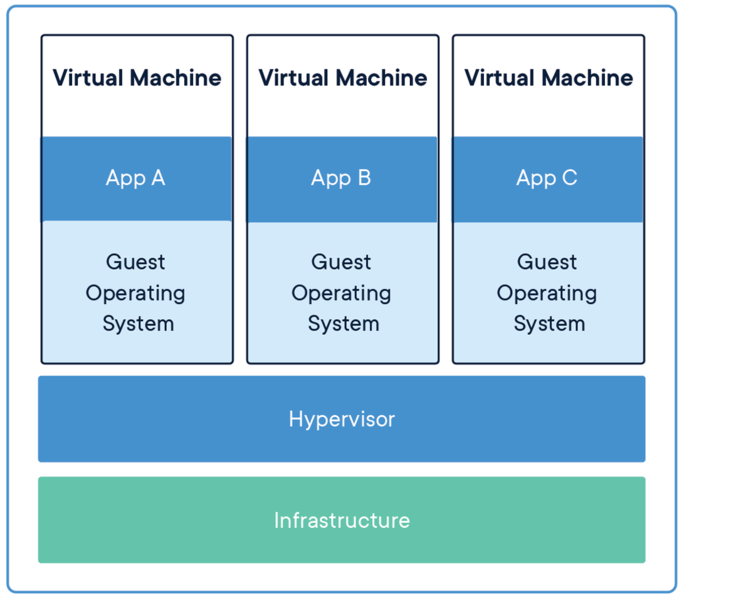
La virtualisation classique nécessite l'utilisation d'un hyperviseur :
Docker est une application de virtualisation légère lancé en 2013 qui utilise des images et des conteneurs.
Docker est composé de trois éléments : un serveur, un client et un ou plusieurs Repositories ou Dépôts :
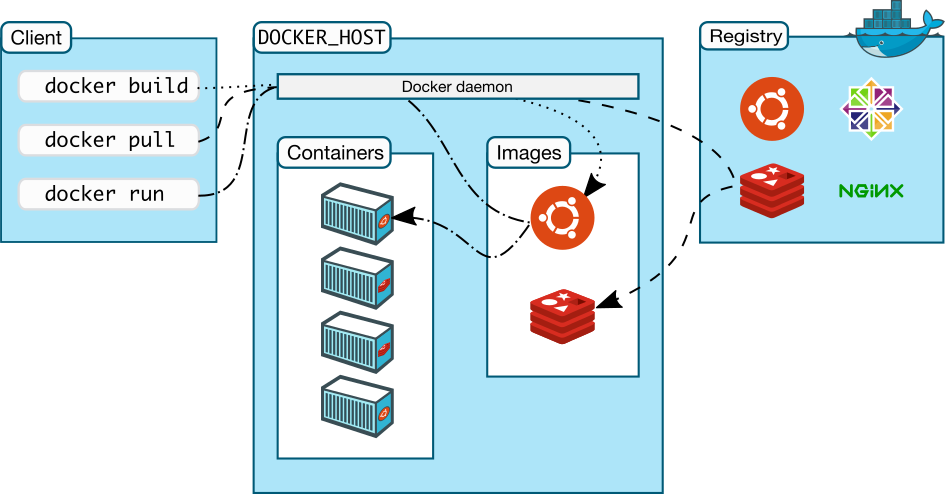
Une image est un paquet exécutable contenant tout ce qu'il est nécessaire afin d'exécuter un logiciel donné, incluant :
- le code
- un runtime
- des bibliothèques,
- des variables d'environnement
- des fichiers de configuration
Un conteneur est une instance de l'image en cours d'exécution en mémoire. Elle est isolée de l'environnement de l'hôte par défaut mais peut accéder à des fichiers et de ports de l'hôte selon la configuration.
Les conteneurs exécutent des applications nativement en utilisant le noyau de la machine hôte. De ce fait les performances d'un conteneur sont supérieures à celles d'une machine virtuelle qui doit passer par un hyperviseur pour accéder aux ressources de la machine hôte.
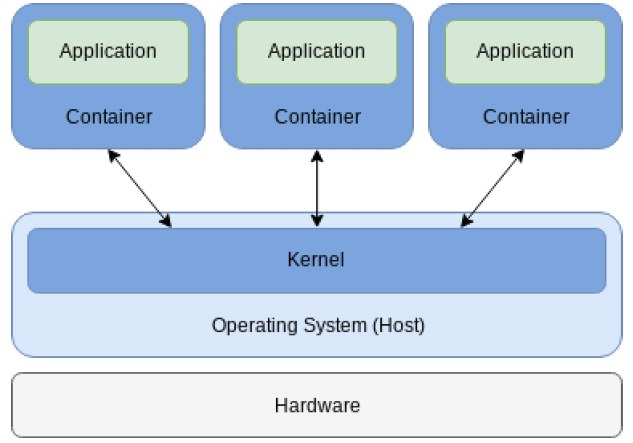
Le Système de Fichier AUFS
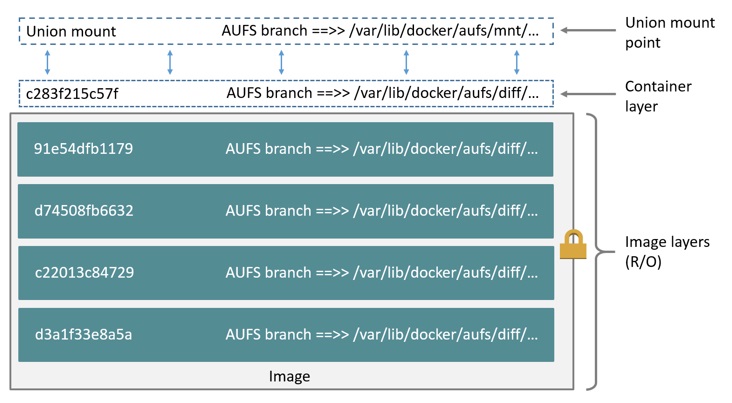
Pour gérer le système de fichiers du conteneur, Docker utilisait au départ le filesystem AUFS. AUFS est un système de fichiers de la famille UnionFS. Un système de fichier de type UnionFS assemble des repertoires multiples les uns sur les autres pour ensuite les présenter sous forme d'un repertoire unique contenant les objets les plus récents grâce à un union mount. Les repertoires sous AUFS sont appelés des branches et se trouvent dans /var/lib/docker/aufs :
OverlayFS et Overlay2
Le système de fichiers AUFS a été ensuite remplacé dans Docker par le système de fichiers OverlayFS. Ce système de fichiers combine deux répertoires appelés Layers. Le layer inférieur porte le nom lowerdir tandis que le niveau au dessus est appelé le upperdir. La vue unifiée porte le nom merged. Dans le cas où les layers de conteneur et de l'image contiennent le même objet, le conteneur “gagne” et cache l'objet dans l'image :
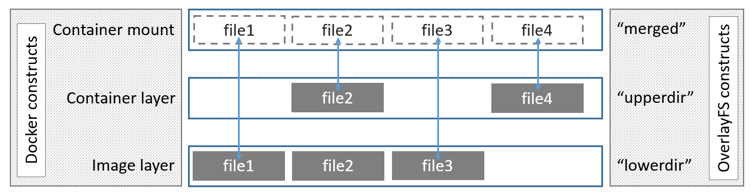
Le système de fichiers OverlayFS ne sait gérer que deux niveaux. Ceci implique une utilisation excessive d'inodes dans la cas d'une image à de niveaux multiples car chaque image doit résider dans son propre repertoire qui se situe dans /var/lib/docker/overlay. Des liens physiques sont ensuite utilisés pour référencer des données dans les niveaux inférieurs.
Cette limitation a donné lieu à l'introduction du système de fichiers Overlay2 actuellement utilisé par Docker. Overlay2 est capable de gérer 128 layers.
Important - Notez que Docker peut aussi utiliser le système de fichiers BTRFS.
Docker Daemon et Docker Engine
Le Docker Daemon, appelé dockerd, accompagné du REST API et du Docker CLI s’appellent collectivement le Docker Engine :
- Le Docker Daemon est le serveur,
- Le Docker CLI est le client,
- Le REST API permet la communication entre le serveur et le client.
Le Docker Engine peut utiliser des plugins. Ces plugins, disponibles pour téléchargement à partir du Docker Registry public, appelé le Docker Hub, ajoutent des fonctionnalités supplémentaires au Docker Engine. Actuellement, des plugins existent pour :
- Volumes (le partage et la réutilisation de volumes entre conteneurs, des sauvegardes et de la migration),
- Network
- Authorization
- Cloud (AWS, GCP et Azure)
- Jenkins
Il est aussi possible de créer son propre plugin.
Docker CE et Docker EE
Docker CE
Docker existe en deux versions Docker CE (Docker Community Edition) et Docker EE (Docker Enterprise Edition).
Docker CE est :
- un logiciel libre,
- gratuit.
Docker CE vient en deux sous-versions :
- Stable - mis à jour tous les trois mois. La stabilité est garantie,
- Edge - mis à jour tous les mois et contient des nouvelles fonctionnalités mais parfois au prix de la stabilité.
Docker EE
Docker EE est :
- plus puissant que la version Docker CE,
- disponible pour des processeurs différents (x86-64, ARM, IBM Z, s390x IBM Z).
Docker EE comprend :
- Docker Engine Enterprise,
- le Docker Engine qui bénéficie de support commercial. Il permet de créer de images et des conteneurs,
- Docker Universal Control Plane (UCP),
- est diviser en deux composants : UCP Worker et UCP Manager,
- permet le déploiement des applications et et conçu pour la haute disponibilité,
- permet de lier plusieurs noeuds de type UCP Manager en tant que cluster,
- Docker Trusted Registry (DTR),
- une solution de stockage sécurisée des images,
- est conçu pour une scalabilité horizontale,
- Docker Desktop Enterprise (DDE),
- une application Windows et Mac permettant la construction locale d'images Docker, le support de multiples IDE et l'intégration native de Docker avec l'OS.
Docker EE est disponible en trois sous-versions, appelées des Tiers :
- Basic - (support Docker officiel (J) et des conteneurs et plugins certifiés),
- $1 500 par noeud par an (2022),
- Standard - (Basic + la gestion avancée des images et des conteneurs, le support de l'authentification des utilisateurs via LDAP/AD, le RBAC),
- $3 000 par noeud par an (2022),
- Advanced - (Standard + l'analyse de sécurité et la surveillance continue des vulnérabilités),
- $3 500 par noeud par an (2022).
Pour consulter les différences entre les deux versions, consultez le lien https://docs.docker.com/engine/installation/.
Docker et Mirantis
Docker EE a été acquis par la société Mirantis en novembre 2019.
De ce fait Miratis a renommé certains composants de Docker EE :
- Docker Enterprise/UCP –> Mirantis Kubernetes Engine (MKE),
- Docker Trusted Registry (DTR) –> Mirantis Secure Registry (MSR),
- Docker Engine Enterprise –> Mirantis container Runtime,
- Docker Enterprise Container Cloud –> Mirantis Container Cloud.
LAB #3 - Travailler avec Docker
Docker est disponible pour Windows™ et Mac en tant que binaire :
| Platform | x86_64 / amd64 |
|---|---|
| Docker Desktop for macOS | pkg |
| Docker Desktop for Windows™ | exe ou msi |
Docker est disponible pour Linux en tant que paquet rpm ou deb :
| Platform | x86_64 / amd64 | ARM | ARM64 / AARCH64 |
|---|---|---|---|
| CentOS | rpm | rpm | |
| Fedora | rpm | rpm | |
| Debian | deb | deb | deb |
| Ubuntu | deb | deb | deb |
| Raspian | deb | deb |
Les paquets sont disponibles soit à partir du dépôt Docker soit dans le gestionnaire des paquets de l'OS. Docker peut aussi être installé en utilisant des scripts automatisés fournis par Docker.
Veuillez noter que depuis le changement de noms des paquets Docker, il convient de désinstaller toute version antérieure de Docker avant de procéder à l'installation de la version courante :
Par exemple sous Debian et Ubuntu :
# apt-get remove docker docker-engine docker.io containerd runc
Sous CentOS et Fedora :
# yum remove docker docker-client docker-client-latest docker-latest docker-common docker-engine docker-logrotate docker-latest-logrotate
Docker est disponible dans trois canaux :
- Stable,
- La dernière version GA ( General Availability ),
- Test,
- La version en pre-release,
- Nightly,
- Une version instable de travaux en cours.
3.1 - Installer docker sous Linux
3.1.1 - Debian 11
Docker n'est pas dans le dépôts de Debian. Afin de l'installer il convient d'ajouter le dépôt de docker. Premièrement, il est nécessaire d'installer les paquets permettant à Debian d'utiliser un dépôt en https :
root@debian11:~# apt-get update
...
root@debian11:~# apt-get install apt-transport-https ca-certificates curl gnupg2 software-properties-common
Reading package lists... Done
Building dependency tree... Done
Reading state information... Done
ca-certificates is already the newest version (20210119).
gnupg2 is already the newest version (2.2.27-2+deb11u2).
The following packages were automatically installed and are no longer required:
  libopengl0 linux-headers-5.10.0-15-amd64 linux-headers-5.10.0-15-common
Use 'apt autoremove' to remove them.
The following additional packages will be installed:
  python3-distro-info python3-software-properties unattended-upgrades
Suggested packages:
  bsd-mailx default-mta | mail-transport-agent needrestart powermgmt-base
The following NEW packages will be installed:
  apt-transport-https curl python3-distro-info python3-software-properties
  software-properties-common unattended-upgrades
0 upgraded, 6 newly installed, 0 to remove and 0 not upgraded.
Need to get 661 kB of archives.
After this operation, 1,567 kB of additional disk space will be used.
Do you want to continue? [Y/n] y
Téléchargez la clef GPG officielle de docker :
root@debian11:~# curl -fsSL https://download.docker.com/linux/debian/gpg | apt-key add -
Warning: apt-key is deprecated. Manage keyring files in trusted.gpg.d instead (see apt-key(8)).
OK
Vérifiez que l'ID de la clef est 9DC8 5822 9FC7 DD38 854A E2D8 8D81 803C 0EBF CD88 :
root@debian11:~# apt-key fingerprint 0EBFCD88
Warning: apt-key is deprecated. Manage keyring files in trusted.gpg.d instead (see apt-key(8)).
pub   rsa4096 2017-02-22 [SCEA]
      9DC8 5822 9FC7 DD38 854A  E2D8 8D81 803C 0EBF CD88
uid           [ unknown] Docker Release (CE deb) <docker@docker.com>
sub   rsa4096 2017-02-22 [S]
Ajoutez le dépôt stable de docker :
root@debian11:~# add-apt-repository "deb [arch=amd64] https://download.docker.com/linux/debian $(lsb_release -cs) stable"
Important - Notez que la commande lsb_release -cs retourne le nom de la distribution Debian, à savoir dans ce cas stretch.
Installez maintenant le paquet docker-ce :
root@debian11docker:~# apt-get update
...
root@debian11:~# apt-get install docker-ce
Reading package lists... Done
Building dependency tree... Done
Reading state information... Done
The following packages were automatically installed and are no longer required:
  libopengl0 linux-headers-5.10.0-15-amd64 linux-headers-5.10.0-15-common
Use 'apt autoremove' to remove them.
The following additional packages will be installed:
  containerd.io docker-buildx-plugin docker-ce-cli docker-ce-rootless-extras
  docker-compose-plugin git git-man liberror-perl libslirp0 pigz slirp4netns
Suggested packages:
  aufs-tools cgroupfs-mount | cgroup-lite git-daemon-run | git-daemon-sysvinit
  git-doc git-el git-email git-gui gitk gitweb git-cvs git-mediawiki git-svn
The following NEW packages will be installed:
  containerd.io docker-buildx-plugin docker-ce docker-ce-cli
  docker-ce-rootless-extras docker-compose-plugin git git-man liberror-perl
  libslirp0 pigz slirp4netns
0 upgraded, 12 newly installed, 0 to remove and 0 not upgraded.
Need to get 121 MB of archives.
After this operation, 452 MB of additional disk space will be used.
Do you want to continue? [Y/n] y
Dernièrement, vérifiez la version de Docker client et serveur :
root@debian11:~# docker version
Client: Docker Engine - Community
 Version:           24.0.5
 API version:       1.43
 Go version:        go1.20.6
 Git commit:        ced0996
 Built:             Fri Jul 21 20:35:45 2023
 OS/Arch:           linux/amd64
 Context:           default

Server: Docker Engine - Community
 Engine:
  Version:          24.0.5
  API version:      1.43 (minimum version 1.12)
  Go version:       go1.20.6
  Git commit:       a61e2b4
  Built:            Fri Jul 21 20:35:45 2023
  OS/Arch:          linux/amd64
  Experimental:     false
 containerd:
  Version:          1.6.22
  GitCommit:        8165feabfdfe38c65b599c4993d227328c231fca
 runc:
  Version:          1.1.8
  GitCommit:        v1.1.8-0-g82f18fe
 docker-init:
  Version:          0.19.0
  GitCommit:        de40ad0
Important - Notez que le paquet docker-ce a besoin des paquets containerd.io et docker-ce-cli. Notez aussi que la procédure ci-dessus installe la version la plus récente de Docker.
Dans le cas où vous souhaitez installer une version différente, il convient d'abord de constater les versions disponibles :
root@debian11:~# apt-cache madison docker-ce
 docker-ce | 5:24.0.5-1~debian.11~bullseye | https://download.docker.com/linux/debian bullseye/stable amd64 Packages
 docker-ce | 5:24.0.4-1~debian.11~bullseye | https://download.docker.com/linux/debian bullseye/stable amd64 Packages
 docker-ce | 5:24.0.3-1~debian.11~bullseye | https://download.docker.com/linux/debian bullseye/stable amd64 Packages
 docker-ce | 5:24.0.2-1~debian.11~bullseye | https://download.docker.com/linux/debian bullseye/stable amd64 Packages
 docker-ce | 5:24.0.1-1~debian.11~bullseye | https://download.docker.com/linux/debian bullseye/stable amd64 Packages
 docker-ce | 5:24.0.0-1~debian.11~bullseye | https://download.docker.com/linux/debian bullseye/stable amd64 Packages
 docker-ce | 5:23.0.6-1~debian.11~bullseye | https://download.docker.com/linux/debian bullseye/stable amd64 Packages
 docker-ce | 5:23.0.5-1~debian.11~bullseye | https://download.docker.com/linux/debian bullseye/stable amd64 Packages
 docker-ce | 5:23.0.4-1~debian.11~bullseye | https://download.docker.com/linux/debian bullseye/stable amd64 Packages
 docker-ce | 5:23.0.3-1~debian.11~bullseye | https://download.docker.com/linux/debian bullseye/stable amd64 Packages
 docker-ce | 5:23.0.2-1~debian.11~bullseye | https://download.docker.com/linux/debian bullseye/stable amd64 Packages
 docker-ce | 5:23.0.1-1~debian.11~bullseye | https://download.docker.com/linux/debian bullseye/stable amd64 Packages
 docker-ce | 5:23.0.0-1~debian.11~bullseye | https://download.docker.com/linux/debian bullseye/stable amd64 Packages
 docker-ce | 5:20.10.24~3-0~debian-bullseye | https://download.docker.com/linux/debian bullseye/stable amd64 Packages
 docker-ce | 5:20.10.23~3-0~debian-bullseye | https://download.docker.com/linux/debian bullseye/stable amd64 Packages
 docker-ce | 5:20.10.22~3-0~debian-bullseye | https://download.docker.com/linux/debian bullseye/stable amd64 Packages
 docker-ce | 5:20.10.21~3-0~debian-bullseye | https://download.docker.com/linux/debian bullseye/stable amd64 Packages
 docker-ce | 5:20.10.20~3-0~debian-bullseye | https://download.docker.com/linux/debian bullseye/stable amd64 Packages
 docker-ce | 5:20.10.19~3-0~debian-bullseye | https://download.docker.com/linux/debian bullseye/stable amd64 Packages
 docker-ce | 5:20.10.18~3-0~debian-bullseye | https://download.docker.com/linux/debian bullseye/stable amd64 Packages
 docker-ce | 5:20.10.17~3-0~debian-bullseye | https://download.docker.com/linux/debian bullseye/stable amd64 Packages
 docker-ce | 5:20.10.16~3-0~debian-bullseye | https://download.docker.com/linux/debian bullseye/stable amd64 Packages
 docker-ce | 5:20.10.15~3-0~debian-bullseye | https://download.docker.com/linux/debian bullseye/stable amd64 Packages
 docker-ce | 5:20.10.14~3-0~debian-bullseye | https://download.docker.com/linux/debian bullseye/stable amd64 Packages
 docker-ce | 5:20.10.13~3-0~debian-bullseye | https://download.docker.com/linux/debian bullseye/stable amd64 Packages
 docker-ce | 5:20.10.12~3-0~debian-bullseye | https://download.docker.com/linux/debian bullseye/stable amd64 Packages
 docker-ce | 5:20.10.11~3-0~debian-bullseye | https://download.docker.com/linux/debian bullseye/stable amd64 Packages
 docker-ce | 5:20.10.10~3-0~debian-bullseye | https://download.docker.com/linux/debian bullseye/stable amd64 Packages
 docker-ce | 5:20.10.9~3-0~debian-bullseye | https://download.docker.com/linux/debian bullseye/stable amd64 Packages
 docker-ce | 5:20.10.8~3-0~debian-bullseye | https://download.docker.com/linux/debian bullseye/stable amd64 Packages
 docker-ce | 5:20.10.7~3-0~debian-bullseye | https://download.docker.com/linux/debian bullseye/stable amd64 Packages
 docker-ce | 5:20.10.6~3-0~debian-bullseye | https://download.docker.com/linux/debian bullseye/stable amd64 Packages
Dans le cas où vous souhaiteriez installer la version 24.0.1 de Docker, la commande d’installation deviendrait :
# apt-get install docker-ce=5:24.0.1-1~debian.11~bullseye docker-ce-cli=5:24.0.1-1~debian.11~bullseye containerd.io
Si vous préférez utiliser le script d'installation de Docker, il convient d'abord de le télécharger :
Important - Notez que ces scripts ne doivent pas être utilisés dans un environnement de production.
root@debian11:~# curl -fsSL https://get.docker.com -o get-docker.sh

root@debian11:~# ls
get-docker.sh
Ensuite, il convient d'exécuter le script :
root@debian11:~# chmod +x get-docker.sh

root@debian11:~# ./get-docker.sh
# Executing docker install script, commit: c2de0811708b6d9015ed1a2c80f02c9b70c8ce7b
Warning: the "docker" command appears to already exist on this system.

If you already have Docker installed, this script can cause trouble, which is
why we're displaying this warning and provide the opportunity to cancel the
installation.

If you installed the current Docker package using this script and are using it
again to update Docker, you can safely ignore this message.

You may press Ctrl+C now to abort this script.
+ sleep 20
^C
Important - Notez l'utilisation de ^C pour ne PAS continuer l'exécution du script.
Démarrez un conteneur de l'image hello-world :
root@debian11:~# docker run hello-world
Unable to find image 'hello-world:latest' locally
latest: Pulling from library/hello-world
719385e32844: Pull complete
Digest: sha256:dcba6daec718f547568c562956fa47e1b03673dd010fe6ee58ca806767031d1c
Status: Downloaded newer image for hello-world:latest

Hello from Docker!
This message shows that your installation appears to be working correctly.

To generate this message, Docker took the following steps:
 1. The Docker client contacted the Docker daemon.
 2. The Docker daemon pulled the "hello-world" image from the Docker Hub.
    (amd64)
 3. The Docker daemon created a new container from that image which runs the
    executable that produces the output you are currently reading.
 4. The Docker daemon streamed that output to the Docker client, which sent it
    to your terminal.

To try something more ambitious, you can run an Ubuntu container with:
 $ docker run -it ubuntu bash

Share images, automate workflows, and more with a free Docker ID:
 https://hub.docker.com/

For more examples and ideas, visit:
 https://docs.docker.com/get-started/
Important - Notez que si l'image servant à générer le conteneur n'est pas présente sur le système hôte, celle-ci est téléchargée automatiquement depuis un dépôt ( par défaut le dépôt docker.io ) en utilisant la commande docker pull.
3.1.2 - CentOS 8
Connectez-vous à votre VM CentOS_10.0.2.45_SSH à partir de votre VM Debian_10.0.2.46_SSH :
root@debian11:~# ssh -l trainee 10.0.2.45
The authenticity of host '10.0.2.45 (10.0.2.45)' can't be established.
ECDSA key fingerprint is SHA256:Q7T/CP0SLiMbMAIgVzTuEHegYS/spPE5zzQchCHD5Vw.
Are you sure you want to continue connecting (yes/no/[fingerprint])? yes
Warning: Permanently added '10.0.2.45' (ECDSA) to the list of known hosts.
trainee@10.0.2.45's password: trainee
Activate the web console with: systemctl enable --now cockpit.socket

Last login: Wed Nov 15 05:24:16 2023 from 10.0.2.1
[trainee@centos8 ~]$
Devenez root :
[trainee@centos8 ~]$ su -
Password: fenestros
[root@centos8 ~]#
Ajouter le dépôt de docker :
[root@centos8 ~]# yum install -y yum-utils
Last metadata expiration check: 0:05:37 ago on Fri 18 Aug 2023 15:53:49 CEST.
Package yum-utils-4.0.21-3.el8.noarch is already installed.
Dependencies resolved.
Nothing to do.
Complete!

[root@centos8 ~]# yum-config-manager --add-repo https://download.docker.com/linux/centos/docker-ce.repo
Adding repo from: https://download.docker.com/linux/centos/docker-ce.repo
Supprimez le paquet podman et installez Docker :
[root@centos8 ~]# yum remove podman
Dependencies resolved.
======================================================================================
 Package           Arch    Version                                  Repository   Size
======================================================================================
Removing:
 podman            x86_64  3.3.1-9.module_el8.5.0+988+b1f0b741      @appstream   48 M
Removing dependent packages:
 cockpit-podman    noarch  33-1.module_el8.5.0+890+6b136101         @appstream  438 k
Removing unused dependencies:
 conmon            x86_64  2:2.0.29-1.module_el8.5.0+890+6b136101   @appstream  164 k
 podman-catatonit  x86_64  3.3.1-9.module_el8.5.0+988+b1f0b741      @appstream  760 k

Transaction Summary
======================================================================================
Remove  4 Packages

Freed space: 49 M
Is this ok [y/N]: y
Running transaction check
Transaction check succeeded.
Running transaction test
Transaction test succeeded.
Running transaction
  Preparing        :                                                              1/1
  Running scriptlet: cockpit-podman-33-1.module_el8.5.0+890+6b136101.noarch       1/1
  Erasing          : cockpit-podman-33-1.module_el8.5.0+890+6b136101.noarch       1/4
  Erasing          : podman-3.3.1-9.module_el8.5.0+988+b1f0b741.x86_64            2/4
  Running scriptlet: podman-3.3.1-9.module_el8.5.0+988+b1f0b741.x86_64            2/4
  Erasing          : podman-catatonit-3.3.1-9.module_el8.5.0+988+b1f0b741.x86_6   3/4
  Erasing          : conmon-2:2.0.29-1.module_el8.5.0+890+6b136101.x86_64         4/4
  Running scriptlet: conmon-2:2.0.29-1.module_el8.5.0+890+6b136101.x86_64         4/4
  Verifying        : cockpit-podman-33-1.module_el8.5.0+890+6b136101.noarch       1/4
  Verifying        : conmon-2:2.0.29-1.module_el8.5.0+890+6b136101.x86_64         2/4
  Verifying        : podman-3.3.1-9.module_el8.5.0+988+b1f0b741.x86_64            3/4
  Verifying        : podman-catatonit-3.3.1-9.module_el8.5.0+988+b1f0b741.x86_6   4/4
Installed products updated.

Removed:
  cockpit-podman-33-1.module_el8.5.0+890+6b136101.noarch
  conmon-2:2.0.29-1.module_el8.5.0+890+6b136101.x86_64
  podman-3.3.1-9.module_el8.5.0+988+b1f0b741.x86_64
  podman-catatonit-3.3.1-9.module_el8.5.0+988+b1f0b741.x86_64

Complete!

[root@centos8 ~]# yum install docker-ce docker-ce-cli containerd.io --allowerasing
Last metadata expiration check: 0:05:43 ago on Fri 18 Aug 2023 16:04:20 CEST.
Dependencies resolved.
======================================================================================
 Package                   Arch   Version                      Repository        Size
======================================================================================
Installing:
 containerd.io             x86_64 1.6.22-3.1.el8               docker-ce-stable  34 M
     replacing  runc.x86_64 1.0.2-1.module_el8.5.0+911+f19012f9
 docker-ce                 x86_64 3:24.0.5-1.el8               docker-ce-stable  24 M
 docker-ce-cli             x86_64 1:24.0.5-1.el8               docker-ce-stable 7.2 M
Installing dependencies:
 docker-ce-rootless-extras x86_64 24.0.5-1.el8                 docker-ce-stable 4.9 M
 libcgroup                 x86_64 0.41-19.el8                  baseos            70 k
Installing weak dependencies:
 docker-buildx-plugin      x86_64 0.11.2-1.el8                 docker-ce-stable  13 M
 docker-compose-plugin     x86_64 2.20.2-1.el8                 docker-ce-stable  13 M
Removing dependent packages:
 buildah                   x86_64 1.22.3-2.module_el8.5.0+911+f19012f9
                                                               @appstream        28 M
 containers-common         noarch 2:1-2.module_el8.5.0+890+6b136101
                                                               @appstream       236 k

Transaction Summary
======================================================================================
Install  7 Packages
Remove   2 Packages

Total download size: 96 M
Is this ok [y/N]: y

Transaction Summary
======================================================================================
Install  7 Packages
Remove   2 Packages

Total download size: 96 M
Is this ok [y/N]: y
Downloading Packages:
(1/7): libcgroup-0.41-19.el8.x86_64.rpm               279 kB/s |  70 kB     00:00
(2/7): docker-buildx-plugin-0.11.2-1.el8.x86_64.rpm   3.2 MB/s |  13 MB     00:04
(3/7): docker-ce-cli-24.0.5-1.el8.x86_64.rpm          3.1 MB/s | 7.2 MB     00:02
(4/7): docker-ce-24.0.5-1.el8.x86_64.rpm              2.0 MB/s |  24 MB     00:11
(5/7): containerd.io-1.6.22-3.1.el8.x86_64.rpm        1.6 MB/s |  34 MB     00:20
(6/7): docker-ce-rootless-extras-24.0.5-1.el8.x86_64. 322 kB/s | 4.9 MB     00:15
(7/7): docker-compose-plugin-2.20.2-1.el8.x86_64.rpm  961 kB/s |  13 MB     00:13
--------------------------------------------------------------------------------------
Total                                                 3.7 MB/s |  96 MB     00:25
Docker CE Stable - x86_64                              67 kB/s | 1.6 kB     00:00
Importing GPG key 0x621E9F35:
 Userid     : "Docker Release (CE rpm) <docker@docker.com>"
 Fingerprint: 060A 61C5 1B55 8A7F 742B 77AA C52F EB6B 621E 9F35
 From       : https://download.docker.com/linux/centos/gpg
Is this ok [y/N]: y
Key imported successfully
Running transaction check
Transaction check succeeded.
Running transaction test
Transaction test succeeded.
Running transaction
  Preparing        :                                                              1/1
  Installing       : docker-compose-plugin-2.20.2-1.el8.x86_64                   1/10
  Running scriptlet: docker-compose-plugin-2.20.2-1.el8.x86_64                   1/10
  Installing       : docker-buildx-plugin-0.11.2-1.el8.x86_64                    2/10
  Running scriptlet: docker-buildx-plugin-0.11.2-1.el8.x86_64                    2/10
  Installing       : docker-ce-cli-1:24.0.5-1.el8.x86_64                         3/10
  Running scriptlet: docker-ce-cli-1:24.0.5-1.el8.x86_64                         3/10
  Installing       : containerd.io-1.6.22-3.1.el8.x86_64                         4/10
  Running scriptlet: containerd.io-1.6.22-3.1.el8.x86_64                         4/10
  Running scriptlet: libcgroup-0.41-19.el8.x86_64                                5/10
  Installing       : libcgroup-0.41-19.el8.x86_64                                5/10
  Running scriptlet: libcgroup-0.41-19.el8.x86_64                                5/10
  Installing       : docker-ce-rootless-extras-24.0.5-1.el8.x86_64               6/10
  Running scriptlet: docker-ce-rootless-extras-24.0.5-1.el8.x86_64               6/10
  Installing       : docker-ce-3:24.0.5-1.el8.x86_64                             7/10
  Running scriptlet: docker-ce-3:24.0.5-1.el8.x86_64                             7/10
  Erasing          : buildah-1.22.3-2.module_el8.5.0+911+f19012f9.x86_64         8/10
  Erasing          : containers-common-2:1-2.module_el8.5.0+890+6b136101.noar    9/10
  Obsoleting       : runc-1.0.2-1.module_el8.5.0+911+f19012f9.x86_64            10/10
  Running scriptlet: runc-1.0.2-1.module_el8.5.0+911+f19012f9.x86_64            10/10
  Verifying        : libcgroup-0.41-19.el8.x86_64                                1/10
  Verifying        : containerd.io-1.6.22-3.1.el8.x86_64                         2/10
  Verifying        : runc-1.0.2-1.module_el8.5.0+911+f19012f9.x86_64             3/10
  Verifying        : docker-buildx-plugin-0.11.2-1.el8.x86_64                    4/10
  Verifying        : docker-ce-3:24.0.5-1.el8.x86_64                             5/10
  Verifying        : docker-ce-cli-1:24.0.5-1.el8.x86_64                         6/10
  Verifying        : docker-ce-rootless-extras-24.0.5-1.el8.x86_64               7/10
  Verifying        : docker-compose-plugin-2.20.2-1.el8.x86_64                   8/10
  Verifying        : buildah-1.22.3-2.module_el8.5.0+911+f19012f9.x86_64         9/10
  Verifying        : containers-common-2:1-2.module_el8.5.0+890+6b136101.noar   10/10
Installed products updated.

Installed:
  containerd.io-1.6.22-3.1.el8.x86_64
  docker-buildx-plugin-0.11.2-1.el8.x86_64
  docker-ce-3:24.0.5-1.el8.x86_64
  docker-ce-cli-1:24.0.5-1.el8.x86_64
  docker-ce-rootless-extras-24.0.5-1.el8.x86_64
  docker-compose-plugin-2.20.2-1.el8.x86_64
  libcgroup-0.41-19.el8.x86_64
Removed:
  buildah-1.22.3-2.module_el8.5.0+911+f19012f9.x86_64
  containers-common-2:1-2.module_el8.5.0+890+6b136101.noarch

Complete!
Démarrez ensuite le service docker :
[root@centos8 ~]# systemctl status docker
● docker.service - Docker Application Container Engine
   Loaded: loaded (/usr/lib/systemd/system/docker.service; disabled; vendor preset: d>
   Active: inactive (dead)
     Docs: https://docs.docker.com
[q] <<<<<<<<<<<<<<<<<<<<<<<<<<<<<<<<<<<<<<<<<<<<<<<<<<<<<<<<<<<<<<<<<<<<<<<<<<<<<<Appuyez sur la touche q

[root@centos8 ~]# systemctl start docker

[root@centos8 ~]# systemctl status docker
● docker.service - Docker Application Container Engine
   Loaded: loaded (/usr/lib/systemd/system/docker.service; disabled; vendor preset: d>
   Active: active (running) since Fri 2023-08-18 16:19:35 CEST; 3s ago
     Docs: https://docs.docker.com
 Main PID: 49974 (dockerd)
    Tasks: 13
   Memory: 32.1M
   CGroup: /system.slice/docker.service
           └─49974 /usr/bin/dockerd -H fd:// --containerd=/run/containerd/containerd.>

Aug 18 16:19:33 centos8.ittraining.loc systemd[1]: Starting Docker Application Contai>
Aug 18 16:19:33 centos8.ittraining.loc dockerd[49974]: time="2023-08-18T16:19:33.5501>
Aug 18 16:19:33 centos8.ittraining.loc dockerd[49974]: time="2023-08-18T16:19:33.8396>
Aug 18 16:19:34 centos8.ittraining.loc dockerd[49974]: time="2023-08-18T16:19:34.9656>
Aug 18 16:19:35 centos8.ittraining.loc dockerd[49974]: time="2023-08-18T16:19:35.1732>
Aug 18 16:19:35 centos8.ittraining.loc dockerd[49974]: time="2023-08-18T16:19:35.2581>
Aug 18 16:19:35 centos8.ittraining.loc dockerd[49974]: time="2023-08-18T16:19:35.2583>
Aug 18 16:19:35 centos8.ittraining.loc dockerd[49974]: time="2023-08-18T16:19:35.6677>
Aug 18 16:19:35 centos8.ittraining.loc systemd[1]: Started Docker Application Contain>
[q] <<<<<<<<<<<<<<<<<<<<<<<<<<<<<<<<<<<<<<<<<<<<<<<<<<<<<<<<<<<<<<<<<<<<<<<<<<<<<<Appuyez sur la touche q
[root@centos8 ~]#
Dans le cas où vous souhaitez installer une version différente, il convient d'abord de constater les versions disponibles :
[root@centos8 ~]# yum list docker-ce --showduplicates | sort -r
Last metadata expiration check: 0:03:42 ago on Fri 18 Aug 2023 16:11:47 CEST.
Installed Packages
docker-ce.x86_64 3:24.0.5-1.el8 docker-ce-stable
docker-ce.x86_64 3:24.0.5-1.el8 @docker-ce-stable
docker-ce.x86_64 3:24.0.4-1.el8 docker-ce-stable
docker-ce.x86_64 3:24.0.3-1.el8 docker-ce-stable
docker-ce.x86_64 3:24.0.2-1.el8 docker-ce-stable
docker-ce.x86_64 3:24.0.1-1.el8 docker-ce-stable
docker-ce.x86_64 3:24.0.0-1.el8 docker-ce-stable
docker-ce.x86_64 3:23.0.6-1.el8 docker-ce-stable
docker-ce.x86_64 3:23.0.5-1.el8 docker-ce-stable
docker-ce.x86_64 3:23.0.4-1.el8 docker-ce-stable
docker-ce.x86_64 3:23.0.3-1.el8 docker-ce-stable
docker-ce.x86_64 3:23.0.2-1.el8 docker-ce-stable
docker-ce.x86_64 3:23.0.1-1.el8 docker-ce-stable
docker-ce.x86_64 3:23.0.0-1.el8 docker-ce-stable
docker-ce.x86_64 3:20.10.9-3.el8 docker-ce-stable
docker-ce.x86_64 3:20.10.8-3.el8 docker-ce-stable
docker-ce.x86_64 3:20.10.7-3.el8 docker-ce-stable
docker-ce.x86_64 3:20.10.6-3.el8 docker-ce-stable
docker-ce.x86_64 3:20.10.5-3.el8 docker-ce-stable
docker-ce.x86_64 3:20.10.4-3.el8 docker-ce-stable
docker-ce.x86_64 3:20.10.3-3.el8 docker-ce-stable
docker-ce.x86_64 3:20.10.24-3.el8 docker-ce-stable
docker-ce.x86_64 3:20.10.2-3.el8 docker-ce-stable
docker-ce.x86_64 3:20.10.23-3.el8 docker-ce-stable
docker-ce.x86_64 3:20.10.22-3.el8 docker-ce-stable
docker-ce.x86_64 3:20.10.21-3.el8 docker-ce-stable
docker-ce.x86_64 3:20.10.20-3.el8 docker-ce-stable
docker-ce.x86_64 3:20.10.19-3.el8 docker-ce-stable
docker-ce.x86_64 3:20.10.18-3.el8 docker-ce-stable
docker-ce.x86_64 3:20.10.17-3.el8 docker-ce-stable
docker-ce.x86_64 3:20.10.16-3.el8 docker-ce-stable
docker-ce.x86_64 3:20.10.15-3.el8 docker-ce-stable
docker-ce.x86_64 3:20.10.14-3.el8 docker-ce-stable
docker-ce.x86_64 3:20.10.1-3.el8 docker-ce-stable
docker-ce.x86_64 3:20.10.13-3.el8 docker-ce-stable
docker-ce.x86_64 3:20.10.12-3.el8 docker-ce-stable
docker-ce.x86_64 3:20.10.11-3.el8 docker-ce-stable
docker-ce.x86_64 3:20.10.10-3.el8 docker-ce-stable
docker-ce.x86_64 3:20.10.0-3.el8 docker-ce-stable
docker-ce.x86_64 3:19.03.15-3.el8 docker-ce-stable
docker-ce.x86_64 3:19.03.14-3.el8 docker-ce-stable
docker-ce.x86_64 3:19.03.13-3.el8 docker-ce-stable
Available Packages

[root@centos8 ~]# yum list docker-ce-cli --showduplicates | sort -r
Last metadata expiration check: 0:08:33 ago on Thu 14 Dec 2023 09:52:33 EST.
docker-ce-cli.x86_64              1:24.0.7-1.el8                docker-ce-stable
docker-ce-cli.x86_64              1:24.0.6-1.el8                docker-ce-stable
docker-ce-cli.x86_64              1:24.0.5-1.el8                docker-ce-stable
docker-ce-cli.x86_64              1:24.0.4-1.el8                docker-ce-stable
docker-ce-cli.x86_64              1:24.0.3-1.el8                docker-ce-stable
docker-ce-cli.x86_64              1:24.0.2-1.el8                docker-ce-stable
docker-ce-cli.x86_64              1:24.0.1-1.el8                docker-ce-stable
docker-ce-cli.x86_64              1:24.0.0-1.el8                docker-ce-stable
docker-ce-cli.x86_64              1:23.0.6-1.el8                docker-ce-stable
docker-ce-cli.x86_64              1:23.0.5-1.el8                docker-ce-stable
docker-ce-cli.x86_64              1:23.0.4-1.el8                docker-ce-stable
docker-ce-cli.x86_64              1:23.0.3-1.el8                docker-ce-stable
docker-ce-cli.x86_64              1:23.0.2-1.el8                docker-ce-stable
docker-ce-cli.x86_64              1:23.0.1-1.el8                docker-ce-stable
docker-ce-cli.x86_64              1:23.0.0-1.el8                docker-ce-stable
docker-ce-cli.x86_64              1:20.10.9-3.el8               docker-ce-stable
docker-ce-cli.x86_64              1:20.10.8-3.el8               docker-ce-stable
docker-ce-cli.x86_64              1:20.10.7-3.el8               docker-ce-stable
docker-ce-cli.x86_64              1:20.10.6-3.el8               docker-ce-stable
docker-ce-cli.x86_64              1:20.10.5-3.el8               docker-ce-stable
docker-ce-cli.x86_64              1:20.10.4-3.el8               docker-ce-stable
docker-ce-cli.x86_64              1:20.10.3-3.el8               docker-ce-stable
docker-ce-cli.x86_64              1:20.10.24-3.el8              docker-ce-stable
docker-ce-cli.x86_64              1:20.10.2-3.el8               docker-ce-stable
docker-ce-cli.x86_64              1:20.10.23-3.el8              docker-ce-stable
docker-ce-cli.x86_64              1:20.10.22-3.el8              docker-ce-stable
docker-ce-cli.x86_64              1:20.10.21-3.el8              docker-ce-stable
docker-ce-cli.x86_64              1:20.10.20-3.el8              docker-ce-stable
docker-ce-cli.x86_64              1:20.10.19-3.el8              docker-ce-stable
docker-ce-cli.x86_64              1:20.10.18-3.el8              docker-ce-stable
docker-ce-cli.x86_64              1:20.10.17-3.el8              docker-ce-stable
docker-ce-cli.x86_64              1:20.10.16-3.el8              docker-ce-stable
docker-ce-cli.x86_64              1:20.10.15-3.el8              docker-ce-stable
docker-ce-cli.x86_64              1:20.10.14-3.el8              docker-ce-stable
docker-ce-cli.x86_64              1:20.10.1-3.el8               docker-ce-stable
docker-ce-cli.x86_64              1:20.10.13-3.el8              docker-ce-stable
docker-ce-cli.x86_64              1:20.10.12-3.el8              docker-ce-stable
docker-ce-cli.x86_64              1:20.10.11-3.el8              docker-ce-stable
docker-ce-cli.x86_64              1:20.10.10-3.el8              docker-ce-stable
docker-ce-cli.x86_64              1:20.10.0-3.el8               docker-ce-stable
docker-ce-cli.x86_64              1:19.03.15-3.el8              docker-ce-stable
docker-ce-cli.x86_64              1:19.03.14-3.el8              docker-ce-stable
docker-ce-cli.x86_64              1:19.03.13-3.el8              docker-ce-stable
Available Packages
Dans le cas où vous souhaiteriez installer la version 24.0.4 de Docker, la commande d’installation deviendrait :
# yum install docker-ce-3:24.0.4-1.el8 docker-ce-cli-1:24.0.4-1.el8 containerd.io
Si vous préférez utiliser le script d'installation de Docker, il convient d'abord de le télécharger :
Important - Notez que ces scripts ne doivent pas être utilisés dans un environnement de production.
[root@centos8 ~]# curl -fsSL https://get.docker.com -o get-docker.sh

[root@centos8 ~]# ls
anaconda-ks.cfg                  Downloads             Music      Videos
CentOS-8.1.1911-x86_64-boot.iso  get-docker.sh         Pictures
Desktop                          home                  Public
Documents                        initial-setup-ks.cfg  Templates
Ensuite, il convient d'exécuter le script :
[root@centos8 ~]# chmod +x get-docker.sh

[root@centos8 ~]# ./get-docker.sh
# Executing docker install script, commit: c2de0811708b6d9015ed1a2c80f02c9b70c8ce7b
Warning: the "docker" command appears to already exist on this system.

If you already have Docker installed, this script can cause trouble, which is
why we're displaying this warning and provide the opportunity to cancel the
installation.

If you installed the current Docker package using this script and are using it
again to update Docker, you can safely ignore this message.

You may press Ctrl+C now to abort this script.
+ sleep 20
^C
Important - Notez l'utilisation de ^C pour ne PAS continuer l'exécution du script.
Démarrez un conteneur de l'image hello-world :
[root@centos8 ~]# docker run hello-world
Unable to find image 'hello-world:latest' locally
latest: Pulling from library/hello-world
719385e32844: Pull complete
Digest: sha256:dcba6daec718f547568c562956fa47e1b03673dd010fe6ee58ca806767031d1c
Status: Downloaded newer image for hello-world:latest

Hello from Docker!
This message shows that your installation appears to be working correctly.

To generate this message, Docker took the following steps:
 1. The Docker client contacted the Docker daemon.
 2. The Docker daemon pulled the "hello-world" image from the Docker Hub.
    (amd64)
 3. The Docker daemon created a new container from that image which runs the
    executable that produces the output you are currently reading.
 4. The Docker daemon streamed that output to the Docker client, which sent it
    to your terminal.

To try something more ambitious, you can run an Ubuntu container with:
 $ docker run -it ubuntu bash

Share images, automate workflows, and more with a free Docker ID:
 https://hub.docker.com/

For more examples and ideas, visit:
 https://docs.docker.com/get-started/
Important - Notez que si l'image servant à générer le conteneur n'est pas présente sur le système hôte, celle-ci est téléchargée automatiquement depuis un dépôt ( par défaut le dépôt docker.io ) en utilisant la commande docker pull.
3.2 - Démarrer un Conteneur
Démarrez un conteneur de l'image ubuntu:latest en mode interactif grâce à l'utilisation des options -i et -t en lui passant en argument bash pour que celui-ci soient lancé au démarrage du conteneur :
root@debian11:~# docker run -it ubuntu bash
Unable to find image 'ubuntu:latest' locally
latest: Pulling from library/ubuntu
b237fe92c417: Pull complete
Digest: sha256:ec050c32e4a6085b423d36ecd025c0d3ff00c38ab93a3d71a460ff1c44fa6d77
Status: Downloaded newer image for ubuntu:latest

root@83b0d8979a33:/# ls
bin  boot  dev  etc  home  lib  lib32  lib64  libx32  media  mnt  opt  proc  root  run  sbin  srv  sys  tmp  usr  var

root@83b0d8979a33:/# cat /etc/lsb-release
DISTRIB_ID=Ubuntu
DISTRIB_RELEASE=22.04
DISTRIB_CODENAME=jammy
DISTRIB_DESCRIPTION="Ubuntu 22.04.3 LTS"
Important - Notez que dans ce cas le conteneur est lancé avec comme argument bash qui lancera /bin/bash dans le conteneur.
Consulter la liste des paquets installés dans le conteneur ubuntu :
root@83b0d8979a33:/# dpkg -l
Desired=Unknown/Install/Remove/Purge/Hold
| Status=Not/Inst/Conf-files/Unpacked/halF-conf/Half-inst/trig-aWait/Trig-pend
|/ Err?=(none)/Reinst-required (Status,Err: uppercase=bad)
||/ Name                    Version                                 Architecture Description
+++-=======================-=======================================-============-========================================================================
ii  adduser                 3.118ubuntu5                            all          add and remove users and groups
ii  apt                     2.4.9                                   amd64        commandline package manager
ii  base-files              12ubuntu4.4                             amd64        Debian base system miscellaneous files
ii  base-passwd             3.5.52build1                            amd64        Debian base system master password and group files
ii  bash                    5.1-6ubuntu1                            amd64        GNU Bourne Again SHell
ii  bsdutils                1:2.37.2-4ubuntu3                       amd64        basic utilities from 4.4BSD-Lite
ii  coreutils               8.32-4.1ubuntu1                         amd64        GNU core utilities
ii  dash                    0.5.11+git20210903+057cd650a4ed-3build1 amd64        POSIX-compliant shell
ii  debconf                 1.5.79ubuntu1                           all          Debian configuration management system
ii  debianutils             5.5-1ubuntu2                            amd64        Miscellaneous utilities specific to Debian
ii  diffutils               1:3.8-0ubuntu2                          amd64        File comparison utilities
ii  dpkg                    1.21.1ubuntu2.2                         amd64        Debian package management system
ii  e2fsprogs               1.46.5-2ubuntu1.1                       amd64        ext2/ext3/ext4 file system utilities
ii  findutils               4.8.0-1ubuntu3                          amd64        utilities for finding files--find, xargs
ii  gcc-12-base:amd64       12.3.0-1ubuntu1~22.04                   amd64        GCC, the GNU Compiler Collection (base package)
ii  gpgv                    2.2.27-3ubuntu2.1                       amd64        GNU privacy guard - signature verification tool
ii  grep                    3.7-1build1                             amd64        GNU grep, egrep and fgrep
ii  gzip                    1.10-4ubuntu4.1                         amd64        GNU compression utilities
ii  hostname                3.23ubuntu2                             amd64        utility to set/show the host name or domain name
ii  init-system-helpers     1.62                                    all          helper tools for all init systems
ii  libacl1:amd64           2.3.1-1                                 amd64        access control list - shared library
ii  libapt-pkg6.0:amd64     2.4.9                                   amd64        package management runtime library
ii  libattr1:amd64          1:2.5.1-1build1                         amd64        extended attribute handling - shared library
ii  libaudit-common         1:3.0.7-1build1                         all          Dynamic library for security auditing - common files
ii  libaudit1:amd64         1:3.0.7-1build1                         amd64        Dynamic library for security auditing
ii  libblkid1:amd64         2.37.2-4ubuntu3                         amd64        block device ID library
ii  libbz2-1.0:amd64        1.0.8-5build1                           amd64        high-quality block-sorting file compressor library - runtime
ii  libc-bin                2.35-0ubuntu3.1                         amd64        GNU C Library: Binaries
ii  libc6:amd64             2.35-0ubuntu3.1                         amd64        GNU C Library: Shared libraries
ii  libcap-ng0:amd64        0.7.9-2.2build3                         amd64        An alternate POSIX capabilities library
ii  libcap2:amd64           1:2.44-1ubuntu0.22.04.1                 amd64        POSIX 1003.1e capabilities (library)
ii  libcom-err2:amd64       1.46.5-2ubuntu1.1                       amd64        common error description library
ii  libcrypt1:amd64         1:4.4.27-1                              amd64        libcrypt shared library
ii  libdb5.3:amd64          5.3.28+dfsg1-0.8ubuntu3                 amd64        Berkeley v5.3 Database Libraries [runtime]
ii  libdebconfclient0:amd64 0.261ubuntu1                            amd64        Debian Configuration Management System (C-implementation library)
ii  libext2fs2:amd64        1.46.5-2ubuntu1.1                       amd64        ext2/ext3/ext4 file system libraries
ii  libffi8:amd64           3.4.2-4                                 amd64        Foreign Function Interface library runtime
ii  libgcc-s1:amd64         12.3.0-1ubuntu1~22.04                   amd64        GCC support library
ii  libgcrypt20:amd64       1.9.4-3ubuntu3                          amd64        LGPL Crypto library - runtime library
ii  libgmp10:amd64          2:6.2.1+dfsg-3ubuntu1                   amd64        Multiprecision arithmetic library
ii  libgnutls30:amd64       3.7.3-4ubuntu1.2                        amd64        GNU TLS library - main runtime library
ii  libgpg-error0:amd64     1.43-3                                  amd64        GnuPG development runtime library
ii  libgssapi-krb5-2:amd64  1.19.2-2ubuntu0.2                       amd64        MIT Kerberos runtime libraries - krb5 GSS-API Mechanism
ii  libhogweed6:amd64       3.7.3-1build2                           amd64        low level cryptographic library (public-key cryptos)
ii  libidn2-0:amd64         2.3.2-2build1                           amd64        Internationalized domain names (IDNA2008/TR46) library
ii  libk5crypto3:amd64      1.19.2-2ubuntu0.2                       amd64        MIT Kerberos runtime libraries - Crypto Library
ii  libkeyutils1:amd64      1.6.1-2ubuntu3                          amd64        Linux Key Management Utilities (library)
ii  libkrb5-3:amd64         1.19.2-2ubuntu0.2                       amd64        MIT Kerberos runtime libraries
ii  libkrb5support0:amd64   1.19.2-2ubuntu0.2                       amd64        MIT Kerberos runtime libraries - Support library
ii  liblz4-1:amd64          1.9.3-2build2                           amd64        Fast LZ compression algorithm library - runtime
ii  liblzma5:amd64          5.2.5-2ubuntu1                          amd64        XZ-format compression library
ii  libmount1:amd64         2.37.2-4ubuntu3                         amd64        device mounting library
ii  libncurses6:amd64       6.3-2ubuntu0.1                          amd64        shared libraries for terminal handling
ii  libncursesw6:amd64      6.3-2ubuntu0.1                          amd64        shared libraries for terminal handling (wide character support)
ii  libnettle8:amd64        3.7.3-1build2                           amd64        low level cryptographic library (symmetric and one-way cryptos)
ii  libnsl2:amd64           1.3.0-2build2                           amd64        Public client interface for NIS(YP) and NIS+
ii  libp11-kit0:amd64       0.24.0-6build1                          amd64        library for loading and coordinating access to PKCS#11 modules - runtime
ii  libpam-modules:amd64    1.4.0-11ubuntu2.3                       amd64        Pluggable Authentication Modules for PAM
ii  libpam-modules-bin      1.4.0-11ubuntu2.3                       amd64        Pluggable Authentication Modules for PAM - helper binaries
ii  libpam-runtime          1.4.0-11ubuntu2.3                       all          Runtime support for the PAM library
ii  libpam0g:amd64          1.4.0-11ubuntu2.3                       amd64        Pluggable Authentication Modules library
ii  libpcre2-8-0:amd64      10.39-3ubuntu0.1                        amd64        New Perl Compatible Regular Expression Library- 8 bit runtime files
ii  libpcre3:amd64          2:8.39-13ubuntu0.22.04.1                amd64        Old Perl 5 Compatible Regular Expression Library - runtime files
ii  libprocps8:amd64        2:3.3.17-6ubuntu2                       amd64        library for accessing process information from /proc
ii  libseccomp2:amd64       2.5.3-2ubuntu2                          amd64        high level interface to Linux seccomp filter
ii  libselinux1:amd64       3.3-1build2                             amd64        SELinux runtime shared libraries
ii  libsemanage-common      3.3-1build2                             all          Common files for SELinux policy management libraries
ii  libsemanage2:amd64      3.3-1build2                             amd64        SELinux policy management library
ii  libsepol2:amd64         3.3-1build1                             amd64        SELinux library for manipulating binary security policies
ii  libsmartcols1:amd64     2.37.2-4ubuntu3                         amd64        smart column output alignment library
ii  libss2:amd64            1.46.5-2ubuntu1.1                       amd64        command-line interface parsing library
ii  libssl3:amd64           3.0.2-0ubuntu1.10                       amd64        Secure Sockets Layer toolkit - shared libraries
ii  libstdc++6:amd64        12.3.0-1ubuntu1~22.04                   amd64        GNU Standard C++ Library v3
ii  libsystemd0:amd64       249.11-0ubuntu3.9                       amd64        systemd utility library
ii  libtasn1-6:amd64        4.18.0-4build1                          amd64        Manage ASN.1 structures (runtime)
ii  libtinfo6:amd64         6.3-2ubuntu0.1                          amd64        shared low-level terminfo library for terminal handling
ii  libtirpc-common         1.3.2-2ubuntu0.1                        all          transport-independent RPC library - common files
ii  libtirpc3:amd64         1.3.2-2ubuntu0.1                        amd64        transport-independent RPC library
ii  libudev1:amd64          249.11-0ubuntu3.9                       amd64        libudev shared library
ii  libunistring2:amd64     1.0-1                                   amd64        Unicode string library for C
ii  libuuid1:amd64          2.37.2-4ubuntu3                         amd64        Universally Unique ID library
ii  libxxhash0:amd64        0.8.1-1                                 amd64        shared library for xxhash
ii  libzstd1:amd64          1.4.8+dfsg-3build1                      amd64        fast lossless compression algorithm
ii  login                   1:4.8.1-2ubuntu2.1                      amd64        system login tools
ii  logsave                 1.46.5-2ubuntu1.1                       amd64        save the output of a command in a log file
ii  lsb-base                11.1.0ubuntu4                           all          Linux Standard Base init script functionality
ii  mawk                    1.3.4.20200120-3                        amd64        Pattern scanning and text processing language
ii  mount                   2.37.2-4ubuntu3                         amd64        tools for mounting and manipulating filesystems
ii  ncurses-base            6.3-2ubuntu0.1                          all          basic terminal type definitions
ii  ncurses-bin             6.3-2ubuntu0.1                          amd64        terminal-related programs and man pages
ii  passwd                  1:4.8.1-2ubuntu2.1                      amd64        change and administer password and group data
ii  perl-base               5.34.0-3ubuntu1.2                       amd64        minimal Perl system
ii  procps                  2:3.3.17-6ubuntu2                       amd64        /proc file system utilities
ii  sed                     4.8-1ubuntu2                            amd64        GNU stream editor for filtering/transforming text
ii  sensible-utils          0.0.17                                  all          Utilities for sensible alternative selection
ii  sysvinit-utils          3.01-1ubuntu1                           amd64        System-V-like utilities
ii  tar                     1.34+dfsg-1ubuntu0.1.22.04.1            amd64        GNU version of the tar archiving utility
ii  ubuntu-keyring          2021.03.26                              all          GnuPG keys of the Ubuntu archive
ii  usrmerge                25ubuntu2                               all          Convert the system to the merged /usr directories scheme
ii  util-linux              2.37.2-4ubuntu3                         amd64        miscellaneous system utilities
ii  zlib1g:amd64            1:1.2.11.dfsg-2ubuntu9.2                amd64        compression library - runtime
root@83b0d8979a33:/# exit
exit
root@debian11:~#
Les options de la commande docker run peuvent être visualisées avec la commande :
root@debian11:~# docker run --help

Usage:  docker run [OPTIONS] IMAGE [COMMAND] [ARG...]

Create and run a new container from an image

Aliases:
  docker container run, docker run

Options:
      --add-host list                  Add a custom host-to-IP mapping (host:ip)
      --annotation map                 Add an annotation to the container (passed through to the OCI runtime) (default map[])
  -a, --attach list                    Attach to STDIN, STDOUT or STDERR
      --blkio-weight uint16            Block IO (relative weight), between 10 and 1000, or 0 to disable (default 0)
      --blkio-weight-device list       Block IO weight (relative device weight) (default [])
      --cap-add list                   Add Linux capabilities
      --cap-drop list                  Drop Linux capabilities
      --cgroup-parent string           Optional parent cgroup for the container
      --cgroupns string                Cgroup namespace to use (host|private)
                                       'host':    Run the container in the Docker host's cgroup namespace
                                       'private': Run the container in its own private cgroup namespace
                                       '':        Use the cgroup namespace as configured by the
                                                  default-cgroupns-mode option on the daemon (default)
      --cidfile string                 Write the container ID to the file
      --cpu-period int                 Limit CPU CFS (Completely Fair Scheduler) period
      --cpu-quota int                  Limit CPU CFS (Completely Fair Scheduler) quota
      --cpu-rt-period int              Limit CPU real-time period in microseconds
      --cpu-rt-runtime int             Limit CPU real-time runtime in microseconds
  -c, --cpu-shares int                 CPU shares (relative weight)
      --cpus decimal                   Number of CPUs
      --cpuset-cpus string             CPUs in which to allow execution (0-3, 0,1)
      --cpuset-mems string             MEMs in which to allow execution (0-3, 0,1)
  -d, --detach                         Run container in background and print container ID
      --detach-keys string             Override the key sequence for detaching a container
      --device list                    Add a host device to the container
      --device-cgroup-rule list        Add a rule to the cgroup allowed devices list
      --device-read-bps list           Limit read rate (bytes per second) from a device (default [])
      --device-read-iops list          Limit read rate (IO per second) from a device (default [])
      --device-write-bps list          Limit write rate (bytes per second) to a device (default [])
      --device-write-iops list         Limit write rate (IO per second) to a device (default [])
      --disable-content-trust          Skip image verification (default true)
      --dns list                       Set custom DNS servers
      --dns-option list                Set DNS options
      --dns-search list                Set custom DNS search domains
      --domainname string              Container NIS domain name
      --entrypoint string              Overwrite the default ENTRYPOINT of the image
  -e, --env list                       Set environment variables
      --env-file list                  Read in a file of environment variables
      --expose list                    Expose a port or a range of ports
      --gpus gpu-request               GPU devices to add to the container ('all' to pass all GPUs)
      --group-add list                 Add additional groups to join
      --health-cmd string              Command to run to check health
      --health-interval duration       Time between running the check (ms|s|m|h) (default 0s)
      --health-retries int             Consecutive failures needed to report unhealthy
      --health-start-period duration   Start period for the container to initialize before starting health-retries countdown (ms|s|m|h) (default 0s)
      --health-timeout duration        Maximum time to allow one check to run (ms|s|m|h) (default 0s)
      --help                           Print usage
  -h, --hostname string                Container host name
      --init                           Run an init inside the container that forwards signals and reaps processes
  -i, --interactive                    Keep STDIN open even if not attached
      --ip string                      IPv4 address (e.g., 172.30.100.104)
      --ip6 string                     IPv6 address (e.g., 2001:db8::33)
      --ipc string                     IPC mode to use
      --isolation string               Container isolation technology
      --kernel-memory bytes            Kernel memory limit
  -l, --label list                     Set meta data on a container
      --label-file list                Read in a line delimited file of labels
      --link list                      Add link to another container
      --link-local-ip list             Container IPv4/IPv6 link-local addresses
      --log-driver string              Logging driver for the container
      --log-opt list                   Log driver options
      --mac-address string             Container MAC address (e.g., 92:d0:c6:0a:29:33)
  -m, --memory bytes                   Memory limit
      --memory-reservation bytes       Memory soft limit
      --memory-swap bytes              Swap limit equal to memory plus swap: '-1' to enable unlimited swap
      --memory-swappiness int          Tune container memory swappiness (0 to 100) (default -1)
      --mount mount                    Attach a filesystem mount to the container
      --name string                    Assign a name to the container
      --network network                Connect a container to a network
      --network-alias list             Add network-scoped alias for the container
      --no-healthcheck                 Disable any container-specified HEALTHCHECK
      --oom-kill-disable               Disable OOM Killer
      --oom-score-adj int              Tune host's OOM preferences (-1000 to 1000)
      --pid string                     PID namespace to use
      --pids-limit int                 Tune container pids limit (set -1 for unlimited)
      --platform string                Set platform if server is multi-platform capable
      --privileged                     Give extended privileges to this container
  -p, --publish list                   Publish a container's port(s) to the host
  -P, --publish-all                    Publish all exposed ports to random ports
      --pull string                    Pull image before running ("always", "missing", "never") (default "missing")
  -q, --quiet                          Suppress the pull output
      --read-only                      Mount the container's root filesystem as read only
      --restart string                 Restart policy to apply when a container exits (default "no")
      --rm                             Automatically remove the container when it exits
      --runtime string                 Runtime to use for this container
      --security-opt list              Security Options
      --shm-size bytes                 Size of /dev/shm
      --sig-proxy                      Proxy received signals to the process (default true)
      --stop-signal string             Signal to stop the container
      --stop-timeout int               Timeout (in seconds) to stop a container
      --storage-opt list               Storage driver options for the container
      --sysctl map                     Sysctl options (default map[])
      --tmpfs list                     Mount a tmpfs directory
  -t, --tty                            Allocate a pseudo-TTY
      --ulimit ulimit                  Ulimit options (default [])
  -u, --user string                    Username or UID (format: <name|uid>[:<group|gid>])
      --userns string                  User namespace to use
      --uts string                     UTS namespace to use
  -v, --volume list                    Bind mount a volume
      --volume-driver string           Optional volume driver for the container
      --volumes-from list              Mount volumes from the specified container(s)
  -w, --workdir string                 Working directory inside the container
3.3 - Consulter la Liste des Conteneurs et Images
Pour consulter tous les conteneurs, utilisez la commande docker ps avec l'option -a :
root@debian11:~# docker ps -a
CONTAINER ID   IMAGE         COMMAND    CREATED         STATUS                     PORTS     NAMES
83b0d8979a33   ubuntu        "bash"     4 minutes ago   Exited (0) 2 minutes ago             upbeat_diffie
5d17db3bbb20   hello-world   "/hello"   16 hours ago    Exited (0) 16 hours ago              charming_hoover
Important - Notez que chaque conteneur peut être référencé par son CONTAINER ID ou par son NAME.
Pour consulter la liste des images, utilisez la commande docker images :
root@debian11:~# docker images
REPOSITORY    TAG       IMAGE ID       CREATED        SIZE
ubuntu        latest    01f29b872827   2 weeks ago    77.8MB
hello-world   latest    9c7a54a9a43c   3 months ago   13.3kB
Important - Notez que chaque image est référencée par son IMAGE ID.
3.4 - Rechercher une Image dans un Dépôt
Pour rechercher une image docker dans le dépôt par défaut, utilisez la commande docker search :
root@debian11:~# docker search --filter=stars=5 centos
NAME                        DESCRIPTION                                     STARS     OFFICIAL   AUTOMATED
centos                      DEPRECATED; The official build of CentOS.       7627      [OK]
kasmweb/centos-7-desktop    CentOS 7 desktop for Kasm Workspaces            40
couchbase/centos7-systemd   centos7-systemd images with additional debug…   8                    [OK]
dokken/centos-7             CentOS 7 image for kitchen-dokken               5
eclipse/centos_jdk8         CentOS, JDK8, Maven 3, git, curl, nmap, mc, …   5                    [OK]
dokken/centos-stream-9                                                      6
Important - Notez que chaque image est référencée par la colonne NAME. Le NAME est sous le format repository/mainteneur/nom sauf dans le cas où il s'agit de l'image “officielle” de l'éditeur au quel cas le format est simplement repository/nom. La notion de STARS ( étoiles ) vient de Docker Hub et est une indication de la satisfaction de la communauté.
3.5 - Supprimer un Conteneur d'une Image
Pour supprimer un conteneur d'une image, il convient d'utiliser la commande docker rm en référencant le conteneur soit par son NAME soit par son CONTAINER ID :
root@debian11:~# docker ps -a
CONTAINER ID   IMAGE         COMMAND    CREATED         STATUS                     PORTS     NAMES
83b0d8979a33   ubuntu        "bash"     5 minutes ago   Exited (0) 4 minutes ago             upbeat_diffie
5d17db3bbb20   hello-world   "/hello"   16 hours ago    Exited (0) 16 hours ago              charming_hoover

root@debian11:~# docker rm upbeat_diffie
upbeat_diffie

root@debian11:~# docker ps -a
CONTAINER ID   IMAGE         COMMAND    CREATED        STATUS                    PORTS     NAMES
5d17db3bbb20   hello-world   "/hello"   16 hours ago   Exited (0) 16 hours ago             charming_hoover

root@debian11:~# docker images
REPOSITORY    TAG       IMAGE ID       CREATED        SIZE
ubuntu        latest    01f29b872827   2 weeks ago    77.8MB
hello-world   latest    9c7a54a9a43c   3 months ago   13.3kB
Important - Notez que dans le cas de l'utilisation du CONTAINER ID, il n'est pas necéssaire d'utiliser la totalité de l'ID. Par exemple, dans le cas ci-dessus, le CONTAINER ID du conteneur upbeat_diffie était 83b0d8979a33. La commande de suppression aurait pu utilisé 83b0d8979a33, 83b0d8 ou même 83b.
3.6 -Créer une Image à partir d'un Conteneur Modifié
Modifier un conteneur d'une image :
root@debian11:~# docker run -it ubuntu

root@4377355f88c2:/# ls
bin  boot  dev  etc  home  lib  lib32  lib64  libx32  media  mnt  opt  proc  root  run  sbin  srv  sys  tmp  usr  var

root@4377355f88c2:/# rm -rf /home

root@4377355f88c2:/# ls
bin  boot  dev  etc  lib  lib32  lib64  libx32  media  mnt  opt  proc  root  run  sbin  srv  sys  tmp  usr  var

root@4377355f88c2:/# exit
exit
root@debian11:~#
Important - Notez ici la suppression du répertoire home dans le conteneur 4377355f88c2.
Consultez la différence entre le conteneur et l'image de base :
root@debian11:~# docker ps -a
CONTAINER ID   IMAGE         COMMAND       CREATED              STATUS                          PORTS     NAMES
4377355f88c2   ubuntu        "/bin/bash"   About a minute ago   Exited (0) About a minute ago             romantic_northcutt
5d17db3bbb20   hello-world   "/hello"      16 hours ago         Exited (0) 16 hours ago                   charming_hoover

root@debian11:~# docker diff romantic_northcutt
C /root
A /root/.bash_history
D /home
Important - La sortie de la commande docker diff comporte des lettres dont les significations sont les suivantes : C = Create, D = Delete, A = Add.
Créez un autre conteneur à partir de l'image de base :
root@debian11:~# docker run -it ubuntu

root@e4caf92a5ceb:/# ls
bin  boot  dev  etc  home  lib  lib32  lib64  libx32  media  mnt  opt  proc  root  run  sbin  srv  sys  tmp  usr  var

root@e4caf92a5ceb:/# exit
exit

root@debian11:~#
Important - Dans ce nouveau conteneur, le répertoire /home est présent compte tenu du fait qu'il a été généré à partir de l'image d'origine, inchangée depuis sa compilation.
Créez maintenant l'image ubuntu_1 à partir du premier conteneur ubuntu (dans le cas ci-dessous - romantic_northcutt) en utilisant la commande docker commit :
root@debian11:~# docker ps -a
CONTAINER ID   IMAGE         COMMAND       CREATED          STATUS                      PORTS     NAMES
e4caf92a5ceb   ubuntu        "/bin/bash"   44 seconds ago   Exited (0) 32 seconds ago             affectionate_ishizaka
4377355f88c2   ubuntu        "/bin/bash"   6 hours ago      Exited (0) 6 hours ago                romantic_northcutt
5d17db3bbb20   hello-world   "/hello"      22 hours ago     Exited (0) 22 hours ago               charming_hoover

root@debian11:~# docker commit romantic_northcutt ubuntu_1
sha256:50d66f88b992b65d0a38c4b662fbdcc906477916240a90d214b35a42b939ea5f

root@debian11:~# docker images
REPOSITORY    TAG       IMAGE ID       CREATED          SIZE
ubuntu_1      latest    50d66f88b992   13 seconds ago   77.8MB
ubuntu        latest    01f29b872827   2 weeks ago      77.8MB
hello-world   latest    9c7a54a9a43c   3 months ago     13.3kB

root@debian11:~#
3.7 - Supprimer une Image
Créez maintenant un conteneur à partir de la nouvelle image ubuntu_1 :
root@debian11:~# docker run -it ubuntu_1

root@86e777ebaf2b:/# ls
bin  boot  dev  etc  lib  lib32  lib64  libx32  media  mnt  opt  proc  root  run  sbin  srv  sys  tmp  usr  var

root@86e777ebaf2b:/# exit
exit

root@debian11:~#
Important - Notez l'absence du répertoire home dans le conteneur 904215fb79b4.
Essayez de supprimer l'image ubuntu_1 :
root@debian11:~# docker rmi ubuntu_1
Error response from daemon: conflict: unable to remove repository reference "ubuntu_1" (must force) - container 86e777ebaf2b is using its referenced image 50d66f88b992

root@debian11:~# docker ps -a
CONTAINER ID   IMAGE         COMMAND       CREATED              STATUS                          PORTS     NAMES
86e777ebaf2b   ubuntu_1      "/bin/bash"   About a minute ago   Exited (0) About a minute ago             focused_colden
e4caf92a5ceb   ubuntu        "/bin/bash"   7 minutes ago        Exited (0) 7 minutes ago                  affectionate_ishizaka
4377355f88c2   ubuntu        "/bin/bash"   6 hours ago          Exited (0) 6 hours ago                    romantic_northcutt
5d17db3bbb20   hello-world   "/hello"      22 hours ago         Exited (0) 22 hours ago                   charming_hoover
Important - Notez qu'il n'est pas possible de supprimer l'image ubuntu_1 tant que le conteneur 86e777ebaf2b soit actif.
Supprimez donc le conteneur identifié par le message d'erreur (dans le cas ci-dessus - focused_colden) ainsi que l'image ubuntu_1 :
root@debian11:~# docker rm focused_colden
focused_colden

root@debian11:~# docker ps -a
CONTAINER ID   IMAGE         COMMAND       CREATED          STATUS                     PORTS     NAMES
e4caf92a5ceb   ubuntu        "/bin/bash"   10 minutes ago   Exited (0) 9 minutes ago             affectionate_ishizaka
4377355f88c2   ubuntu        "/bin/bash"   6 hours ago      Exited (0) 6 hours ago               romantic_northcutt
5d17db3bbb20   hello-world   "/hello"      22 hours ago     Exited (0) 22 hours ago              charming_hoover

root@debian11:~# docker rmi ubuntu_1
Untagged: ubuntu_1:latest
Deleted: sha256:50d66f88b992b65d0a38c4b662fbdcc906477916240a90d214b35a42b939ea5f
Deleted: sha256:c5fdbe1dd17356fd868456c44949e0ca50c78a610a8917d7ad6ab372aeebce20

root@debian11:~# docker images
REPOSITORY    TAG       IMAGE ID       CREATED        SIZE
ubuntu        latest    01f29b872827   2 weeks ago    77.8MB
hello-world   latest    9c7a54a9a43c   3 months ago   13.3kB
Pour pouvoir supprimer tous les conteneurs, listez-les par leur Container ID :
root@debian11:~# docker ps -aq
e4caf92a5ceb
4377355f88c2
5d17db3bbb20
Supprimer toutes les conteneurs :
root@debian11:~# docker rm `docker ps -aq`
e4caf92a5ceb
4377355f88c2
5d17db3bbb20

root@debian11:~# docker ps -aq

root@debian11:~#
Pour supprimer un conteneur dès la fin de son exécution, utilisez l'option –rm :
root@debian11:~# docker run -it --rm ubuntu

root@3b3d4d7be82b:/# ls
bin  boot  dev  etc  home  lib  lib32  lib64  libx32  media  mnt  opt  proc  root  run  sbin  srv  sys  tmp  usr  var

root@3b3d4d7be82b:/# exit
exit

root@debian11:~# docker ps -aq

root@debian11:~#
3.8 - Créer un Conteneur avec un Nom Spécifique
Créez maintenant un conteneur avec un nom spécifique :
root@debian11:~# docker run -it --name=ittraining ubuntu

root@d838ea83033e:/# ls
bin  boot  dev  etc  home  lib  lib32  lib64  libx32  media  mnt  opt  proc  root  run  sbin  srv  sys  tmp  usr  var

root@d838ea83033e:/# exit
exit

root@debian11:~# docker ps -a
CONTAINER ID   IMAGE     COMMAND       CREATED          STATUS                     PORTS     NAMES
d838ea83033e   ubuntu    "/bin/bash"   12 seconds ago   Exited (0) 4 seconds ago             ittraining
Pour obtenir de l'information concernant un conteneur, utilisez la commande docker inspect :
root@debian11:~# docker inspect ittraining
[
    {
        "Id": "d838ea83033e6a5b324676ed6734e7ff9c69084dd453c52eedd367f31bcb83f3",
        "Created": "2023-08-19T11:47:56.464134219Z",
        "Path": "/bin/bash",
        "Args": [],
        "State": {
            "Status": "exited",
            "Running": false,
            "Paused": false,
            "Restarting": false,
            "OOMKilled": false,
            "Dead": false,
            "Pid": 0,
            "ExitCode": 0,
            "Error": "",
            "StartedAt": "2023-08-19T11:47:57.979606971Z",
            "FinishedAt": "2023-08-19T11:48:04.066624168Z"
        },
        "Image": "sha256:01f29b872827fa6f9aed0ea0b2ede53aea4ad9d66c7920e81a8db6d1fd9ab7f9",
        "ResolvConfPath": "/var/lib/docker/containers/d838ea83033e6a5b324676ed6734e7ff9c69084dd453c52eedd367f31bcb83f3/resolv.conf",
        "HostnamePath": "/var/lib/docker/containers/d838ea83033e6a5b324676ed6734e7ff9c69084dd453c52eedd367f31bcb83f3/hostname",
        "HostsPath": "/var/lib/docker/containers/d838ea83033e6a5b324676ed6734e7ff9c69084dd453c52eedd367f31bcb83f3/hosts",
        "LogPath": "/var/lib/docker/containers/d838ea83033e6a5b324676ed6734e7ff9c69084dd453c52eedd367f31bcb83f3/d838ea83033e6a5b324676ed6734e7ff9c69084dd453c52eedd367f31bcb83f3-json.log",
        "Name": "/ittraining",
        "RestartCount": 0,
        "Driver": "overlay2",
        "Platform": "linux",
        "MountLabel": "",
        "ProcessLabel": "",
        "AppArmorProfile": "docker-default",
        "ExecIDs": null,
        "HostConfig": {
            "Binds": null,
            "ContainerIDFile": "",
            "LogConfig": {
                "Type": "json-file",
                "Config": {}
            },
            "NetworkMode": "default",
            "PortBindings": {},
            "RestartPolicy": {
                "Name": "no",
                "MaximumRetryCount": 0
            },
            "AutoRemove": false,
            "VolumeDriver": "",
            "VolumesFrom": null,
            "ConsoleSize": [
                59,
                210
            ],
            "CapAdd": null,
            "CapDrop": null,
            "CgroupnsMode": "private",
            "Dns": [],
            "DnsOptions": [],
            "DnsSearch": [],
            "ExtraHosts": null,
            "GroupAdd": null,
            "IpcMode": "private",
            "Cgroup": "",
            "Links": null,
            "OomScoreAdj": 0,
            "PidMode": "",
            "Privileged": false,
            "PublishAllPorts": false,
            "ReadonlyRootfs": false,
            "SecurityOpt": null,
            "UTSMode": "",
            "UsernsMode": "",
            "ShmSize": 67108864,
            "Runtime": "runc",
            "Isolation": "",
            "CpuShares": 0,
            "Memory": 0,
            "NanoCpus": 0,
            "CgroupParent": "",
            "BlkioWeight": 0,
            "BlkioWeightDevice": [],
            "BlkioDeviceReadBps": [],
            "BlkioDeviceWriteBps": [],
            "BlkioDeviceReadIOps": [],
            "BlkioDeviceWriteIOps": [],
            "CpuPeriod": 0,
            "CpuQuota": 0,
            "CpuRealtimePeriod": 0,
            "CpuRealtimeRuntime": 0,
            "CpusetCpus": "",
            "CpusetMems": "",
            "Devices": [],
            "DeviceCgroupRules": null,
            "DeviceRequests": null,
            "MemoryReservation": 0,
            "MemorySwap": 0,
            "MemorySwappiness": null,
            "OomKillDisable": null,
            "PidsLimit": null,
            "Ulimits": null,
            "CpuCount": 0,
            "CpuPercent": 0,
            "IOMaximumIOps": 0,
            "IOMaximumBandwidth": 0,
            "MaskedPaths": [
                "/proc/asound",
                "/proc/acpi",
                "/proc/kcore",
                "/proc/keys",
                "/proc/latency_stats",
                "/proc/timer_list",
                "/proc/timer_stats",
                "/proc/sched_debug",
                "/proc/scsi",
                "/sys/firmware"
            ],
            "ReadonlyPaths": [
                "/proc/bus",
                "/proc/fs",
                "/proc/irq",
                "/proc/sys",
                "/proc/sysrq-trigger"
            ]
        },
        "GraphDriver": {
            "Data": {
                "LowerDir": "/var/lib/docker/overlay2/b8f594ac72f3c9a57be0645a8d5686259ff8799d341626458808d999e35fbf8f-init/diff:/var/lib/docker/overlay2/f932b6b3764a556a570060fd607da5e9082eb6d816e3568574a6104ebc80df5e/diff",
                "MergedDir": "/var/lib/docker/overlay2/b8f594ac72f3c9a57be0645a8d5686259ff8799d341626458808d999e35fbf8f/merged",
                "UpperDir": "/var/lib/docker/overlay2/b8f594ac72f3c9a57be0645a8d5686259ff8799d341626458808d999e35fbf8f/diff",
                "WorkDir": "/var/lib/docker/overlay2/b8f594ac72f3c9a57be0645a8d5686259ff8799d341626458808d999e35fbf8f/work"
            },
            "Name": "overlay2"
        },
        "Mounts": [],
        "Config": {
            "Hostname": "d838ea83033e",
            "Domainname": "",
            "User": "",
            "AttachStdin": true,
            "AttachStdout": true,
            "AttachStderr": true,
            "Tty": true,
            "OpenStdin": true,
            "StdinOnce": true,
            "Env": [
                "PATH=/usr/local/sbin:/usr/local/bin:/usr/sbin:/usr/bin:/sbin:/bin"
            ],
            "Cmd": [
                "/bin/bash"
            ],
            "Image": "ubuntu",
            "Volumes": null,
            "WorkingDir": "",
            "Entrypoint": null,
            "OnBuild": null,
            "Labels": {
                "org.opencontainers.image.ref.name": "ubuntu",
                "org.opencontainers.image.version": "22.04"
            }
        },
        "NetworkSettings": {
            "Bridge": "",
            "SandboxID": "8896374679af4eed6bc5825722ef4f1d802910fba2d12cd87c777fad1338ebac",
            "HairpinMode": false,
            "LinkLocalIPv6Address": "",
            "LinkLocalIPv6PrefixLen": 0,
            "Ports": {},
            "SandboxKey": "/var/run/docker/netns/8896374679af",
            "SecondaryIPAddresses": null,
            "SecondaryIPv6Addresses": null,
            "EndpointID": "",
            "Gateway": "",
            "GlobalIPv6Address": "",
            "GlobalIPv6PrefixLen": 0,
            "IPAddress": "",
            "IPPrefixLen": 0,
            "IPv6Gateway": "",
            "MacAddress": "",
            "Networks": {
                "bridge": {
                    "IPAMConfig": null,
                    "Links": null,
                    "Aliases": null,
                    "NetworkID": "33b1d61a638b6114462bd420314077791ed32b132a4536ad7725420a58e11d3f",
                    "EndpointID": "",
                    "Gateway": "",
                    "IPAddress": "",
                    "IPPrefixLen": 0,
                    "IPv6Gateway": "",
                    "GlobalIPv6Address": "",
                    "GlobalIPv6PrefixLen": 0,
                    "MacAddress": "",
                    "DriverOpts": null
                }
            }
        }
    }
]
3.9 - Exécuter une Commande dans un Conteneur
Pour exécuter une commande spécifique dans un conteneur, passez la commande en argument :
root@debian11:~# docker run --rm ubuntu env
PATH=/usr/local/sbin:/usr/local/bin:/usr/sbin:/usr/bin:/sbin:/bin
HOSTNAME=9b7b7547c023
HOME=/root

root@debian11:~#
3.10 - Injecter des Variables d'Environnement dans un Conteneur
Pour injecter une ou des variables d'environnement dans un conteneur, utilisez un fichier pré-établi :
root@debian11:~# vi env.list

root@debian11:~# cat env.list
EDITOR=vim
HOSTNAME=ubuntudocker
root@debian11:~# docker run --rm --env-file=env.list ubuntu env
PATH=/usr/local/sbin:/usr/local/bin:/usr/sbin:/usr/bin:/sbin:/bin
HOSTNAME=ubuntudocker
EDITOR=vim
HOME=/root

root@debian11:~#
3.11 - Modifier le Nom d'Hôte d'un Conteneur
Pour modifier le nom d'hôte d'un conteneur, utilisez l'option -h :
root@debian11:~# docker run -it --rm -h ubuntudocker ubuntu

root@ubuntudocker:/# hostname
ubuntudocker

root@ubuntudocker:/# exit
exit
3.12 - Mapper des Ports d'un Conteneur
Démarrer un conteneur de nginx sur le port localhost 81 :
root@debian11:~# docker run -it -p 81:80 nginx
Unable to find image 'nginx:latest' locally
latest: Pulling from library/nginx
52d2b7f179e3: Pull complete
fd9f026c6310: Pull complete
055fa98b4363: Pull complete
96576293dd29: Pull complete
a7c4092be904: Pull complete
e3b6889c8954: Pull complete
da761d9a302b: Pull complete
Digest: sha256:104c7c5c54f2685f0f46f3be607ce60da7085da3eaa5ad22d3d9f01594295e9c
Status: Downloaded newer image for nginx:latest

^C

root@debian11:~#
Notez que c'est bloquant. Le fait d'avoir utiliser ^C a interrompu le processus du conteneur :
root@debian11:~# docker ps -a
CONTAINER ID   IMAGE     COMMAND                  CREATED          STATUS                     PORTS     NAMES
37cb0af1e97f   nginx     "/docker-entrypoint.…"   46 seconds ago   Created                              intelligent_fermi
d838ea83033e   ubuntu    "/bin/bash"              5 minutes ago    Exited (0) 5 minutes ago             ittraining
3.13 - Démarrer un Conteneur en mode Détaché
Démarrez maintenant le conteneur de nginx en mode détaché grâce à l'utilisation de l'option -d :
root@debian11:~# docker run -d -p 81:80 nginx
5c2fe852965f700fff2d11baff034557c4956a7cd5eb54c51967d362415a76b4

root@debian11:~# docker ps -a
CONTAINER ID   IMAGE     COMMAND                  CREATED              STATUS                     PORTS                               NAMES
5c2fe852965f   nginx     "/docker-entrypoint.…"   8 seconds ago        Up 6 seconds               0.0.0.0:81->80/tcp, :::81->80/tcp   priceless_yonath
37cb0af1e97f   nginx     "/docker-entrypoint.…"   About a minute ago   Created                                                        intelligent_fermi
d838ea83033e   ubuntu    "/bin/bash"              5 minutes ago        Exited (0) 5 minutes ago                                       ittraining
3.14 - Accèder aux Services d'un Conteneur de l'Extérieur
Installez le navigateur texte lynx :
root@debian11:~# apt-get install lynx
Reading package lists... Done
Building dependency tree... Done
Reading state information... Done
The following packages were automatically installed and are no longer required:
  libopengl0 linux-headers-5.10.0-15-amd64 linux-headers-5.10.0-15-common
Use 'apt autoremove' to remove them.
The following additional packages will be installed:
  lynx-common
The following NEW packages will be installed:
  lynx lynx-common
0 upgraded, 2 newly installed, 0 to remove and 0 not upgraded.
Need to get 1,844 kB of archives.
After this operation, 5,768 kB of additional disk space will be used.
Do you want to continue? [Y/n] y
Vérifiez que nginx répond aux requetes :
root@debian11:~# lynx --dump http://localhost:81
                               Welcome to nginx!

   If you see this page, the nginx web server is successfully installed
   and working. Further configuration is required.

   For online documentation and support please refer to [1]nginx.org.
   Commercial support is available at [2]nginx.com.

   Thank you for using nginx.

References

   1. http://nginx.org/
   2. http://nginx.com/

root@debian11:~#
3.15 - Arrêter et Démarrer un Conteneur
Arrêtez le conteneur nginx :
root@debian11:~# docker ps -a
CONTAINER ID   IMAGE     COMMAND                  CREATED         STATUS                     PORTS                               NAMES
5c2fe852965f   nginx     "/docker-entrypoint.…"   2 minutes ago   Up 2 minutes               0.0.0.0:81->80/tcp, :::81->80/tcp   priceless_yonath
37cb0af1e97f   nginx     "/docker-entrypoint.…"   3 minutes ago   Created                                                        intelligent_fermi
d838ea83033e   ubuntu    "/bin/bash"              8 minutes ago   Exited (0) 8 minutes ago
                                      ittraining
root@debian11:~# docker stop 5c2f
5c2f

root@debian11:~# docker ps -a
CONTAINER ID   IMAGE     COMMAND                  CREATED         STATUS                     PORTS     NAMES
5c2fe852965f   nginx     "/docker-entrypoint.…"   3 minutes ago   Exited (0) 5 seconds ago             priceless_yonath
37cb0af1e97f   nginx     "/docker-entrypoint.…"   4 minutes ago   Created                              intelligent_fermi
d838ea83033e   ubuntu    "/bin/bash"              8 minutes ago   Exited (0) 8 minutes ago             ittraining
Démarrez de nouveau le conteneur de nginx :
root@debian11:~# docker start 5c2f
5c2f

root@debian11:~# docker ps -a
CONTAINER ID   IMAGE     COMMAND                  CREATED         STATUS                     PORTS                               NAMES
5c2fe852965f   nginx     "/docker-entrypoint.…"   3 minutes ago   Up 2 seconds               0.0.0.0:81->80/tcp, :::81->80/tcp   priceless_yonath
37cb0af1e97f   nginx     "/docker-entrypoint.…"   4 minutes ago   Created                                                        intelligent_fermi
d838ea83033e   ubuntu    "/bin/bash"              9 minutes ago   Exited (0) 9 minutes ago                                       ittraining
3.16 - Utiliser des Signaux avec un Conteneur
Utilisez un signal pour tuer le processus du conteneur de nginx :
root@debian11:~# docker kill -s 9 5c2f
5c2f

root@debian11:~# docker ps -a
CONTAINER ID   IMAGE     COMMAND                  CREATED          STATUS                       PORTS     NAMES
5c2fe852965f   nginx     "/docker-entrypoint.…"   5 minutes ago    Exited (137) 5 seconds ago             priceless_yonath
37cb0af1e97f   nginx     "/docker-entrypoint.…"   6 minutes ago    Created                                intelligent_fermi
d838ea83033e   ubuntu    "/bin/bash"              11 minutes ago   Exited (0) 11 minutes ago              ittraining
Redémarrez le conteneur :
root@debian11:~# docker start 5c2f
5c2f

root@debian11:~# docker ps -a
CONTAINER ID   IMAGE     COMMAND                  CREATED          STATUS                      PORTS                               NAMES
5c2fe852965f   nginx     "/docker-entrypoint.…"   6 minutes ago    Up 2 seconds                0.0.0.0:81->80/tcp, :::81->80/tcp   priceless_yonath
37cb0af1e97f   nginx     "/docker-entrypoint.…"   7 minutes ago    Created                                                         intelligent_fermi
d838ea83033e   ubuntu    "/bin/bash"              11 minutes ago   Exited (0) 11 minutes ago                                       ittraining

root@debian11:~# docker restart 5c2f
5c2f

root@debian11:~# docker ps -a
CONTAINER ID   IMAGE     COMMAND                  CREATED          STATUS                      PORTS                               NAMES
5c2fe852965f   nginx     "/docker-entrypoint.…"   6 minutes ago    Up 2 seconds                0.0.0.0:81->80/tcp, :::81->80/tcp   priceless_yonath
37cb0af1e97f   nginx     "/docker-entrypoint.…"   7 minutes ago    Created                                                         intelligent_fermi
d838ea83033e   ubuntu    "/bin/bash"              12 minutes ago   Exited (0) 12 minutes ago                                       ittraining
3.17 - Forcer la Suppression d'un Conteneur en cours d'Exécution
Supprimez un conteneur en cours d'exécution :
root@debian11:~# docker rm 5c2f
Error response from daemon: You cannot remove a running container 5c2fe852965f700fff2d11baff034557c4956a7cd5eb54c51967d362415a76b4. Stop the container before attempting removal or force remove

root@debian11:~# docker ps -a
CONTAINER ID   IMAGE     COMMAND                  CREATED          STATUS                      PORTS                               NAMES
5c2fe852965f   nginx     "/docker-entrypoint.…"   7 minutes ago    Up 58 seconds               0.0.0.0:81->80/tcp, :::81->80/tcp   priceless_yonath
37cb0af1e97f   nginx     "/docker-entrypoint.…"   8 minutes ago    Created                                                         intelligent_fermi
d838ea83033e   ubuntu    "/bin/bash"              13 minutes ago   Exited (0) 12 minutes ago                                       ittraining

root@debian11:~# docker rm -f 5c2f
5c2f

root@debian11:~# docker ps -a
CONTAINER ID   IMAGE     COMMAND                  CREATED          STATUS                      PORTS     NAMES
37cb0af1e97f   nginx     "/docker-entrypoint.…"   8 minutes ago    Created                               intelligent_fermi
d838ea83033e   ubuntu    "/bin/bash"              13 minutes ago   Exited (0) 13 minutes ago             ittraining
3.18 - Utilisation Simple d'un Volume
Créez le fichier index.html et placez-le dans le répertoire /root/www :
root@debian11:~# vi index.html

root@debian11:~# cat index.html
<html>
<body>
<center>Accueil du site nginx</center>
</body>
</html>

root@debian11:~# mv index.html www/

root@debian11:~#
Indiquez au conteneur que son répertoire /usr/share/nginx/html/ est remplacé par le répertoire /root/www/ de la machine hôte :
root@debian11:~# docker run -d -p 81:80 -v /root/www:/usr/share/nginx/html:ro nginx
5bec576b4b69b3dbd4cb58305a80d5ac94d42312b486e99dac94f82ba6541e3c

root@debian11:~# lynx --dump http://localhost:81
                            Accueil du site nginx

root@debian11:~#
Important - Notez ici l'utilisation de ro - lecture seule.
3.19 - Télécharger une image sans créer un conteneur
Téléchargez l'image de centos sans créer un conteneur :
root@debian11:~# docker pull centos
Using default tag: latest
latest: Pulling from library/centos
a1d0c7532777: Pull complete
Digest: sha256:a27fd8080b517143cbbbab9dfb7c8571c40d67d534bbdee55bd6c473f432b177
Status: Downloaded newer image for centos:latest
docker.io/library/centos:latest
Vérifiez le contenu de l'image en créant un conteneur :
root@debian11:~# docker run -it centos bash

[root@b45b7b136f06 /]# cat /etc/redhat-release
CentOS Linux release 8.4.2105

[root@b45b7b136f06 /]# rpm -qa | more
crypto-policies-20210209-1.gitbfb6bed.el8_3.noarch
python3-pip-wheel-9.0.3-19.el8.noarch
ncurses-base-6.1-7.20180224.el8.noarch
dnf-data-4.4.2-11.el8.noarch
dhcp-common-4.3.6-44.0.1.el8.noarch
centos-gpg-keys-8-2.el8.noarch
centos-linux-repos-8-2.el8.noarch
filesystem-3.8-3.el8.x86_64
pcre2-10.32-2.el8.x86_64
ncurses-libs-6.1-7.20180224.el8.x86_64
glibc-common-2.28-151.el8.x86_64
bash-4.4.19-14.el8.x86_64
zlib-1.2.11-17.el8.x86_64
bzip2-libs-1.0.6-26.el8.x86_64
libgpg-error-1.31-1.el8.x86_64
elfutils-libelf-0.182-3.el8.x86_64
libcom_err-1.45.6-1.el8.x86_64
libxml2-2.9.7-9.el8.x86_64
expat-2.2.5-4.el8.x86_64
libuuid-2.32.1-27.el8.x86_64
chkconfig-1.13-2.el8.x86_64
gmp-6.1.2-10.el8.x86_64
libattr-2.4.48-3.el8.x86_64
coreutils-single-8.30-8.el8.x86_64
sed-4.5-2.el8.x86_64
libcap-ng-0.7.9-5.el8.x86_64
libsmartcols-2.32.1-27.el8.x86_64
lz4-libs-1.8.3-2.el8.x86_64
file-libs-5.33-16.el8_3.1.x86_64
p11-kit-0.23.22-1.el8.x86_64
cracklib-2.9.6-15.el8.x86_64
libunistring-0.9.9-3.el8.x86_64
libassuan-2.5.1-3.el8.x86_64
keyutils-libs-1.5.10-6.el8.x86_64
libnl3-3.5.0-1.el8.x86_64
p11-kit-trust-0.23.22-1.el8.x86_64
pcre-8.42-4.el8.x86_64
systemd-libs-239-45.el8.x86_64
dbus-tools-1.12.8-12.el8.x86_64
libusbx-1.0.23-4.el8.x86_64
ca-certificates-2020.2.41-80.0.el8_2.noarch
libdb-5.3.28-40.el8.x86_64
iproute-5.9.0-4.el8.x86_64
libdb-utils-5.3.28-40.el8.x86_64
tpm2-tss-2.3.2-3.el8.x86_64
xz-5.2.4-3.el8.x86_64
ethtool-5.8-5.el8.x86_64
libsemanage-2.9-6.el8.x86_64
dbus-daemon-1.12.8-12.el8.x86_64
libfdisk-2.32.1-27.el8.x86_64
mpfr-3.1.6-1.el8.x86_64
gnutls-3.6.14-7.el8_3.x86_64
snappy-1.1.8-3.el8.x86_64
libmetalink-0.1.3-7.el8.x86_64
libksba-1.3.5-7.el8.x86_64
ipcalc-0.2.4-4.el8.x86_64
libseccomp-2.5.1-1.el8.x86_64
gawk-4.2.1-2.el8.x86_64
--More--
[q]
[root@b45b7b136f06 /]#
3.20 - S'attacher à un conteneur en cours d'exécution
Arretez le conteneur. Démarrez le conteneur puis rattachez-vous au conteneur :
[root@b45b7b136f06 /]# exit
exit

root@debian11:~# docker ps -a
CONTAINER ID   IMAGE     COMMAND                  CREATED          STATUS                      PORTS                               NAMES
b45b7b136f06   centos    "bash"                   3 minutes ago    Exited (0) 8 seconds ago                                        quizzical_cray
5bec576b4b69   nginx     "/docker-entrypoint.…"   4 minutes ago    Up 4 minutes                0.0.0.0:81->80/tcp, :::81->80/tcp   elegant_shockley
37cb0af1e97f   nginx     "/docker-entrypoint.…"   27 minutes ago   Created                                                         intelligent_fermi
d838ea83033e   ubuntu    "/bin/bash"              32 minutes ago   Exited (0) 31 minutes ago                                       ittraining

root@debian11:~# docker start b45b
b45b

root@debian11:~# docker attach b45b

[root@b45b7b136f06 /]# ls
bin  dev  etc  home  lib  lib64  lost+found  media  mnt  opt  proc  root  run  sbin  srv  sys  tmp  usr  var

[root@b45b7b136f06 /]#
3.21 - Installer un logiciel dans le conteneur
Réparez les dépôts de CentOS 8 :
[root@b45b7b136f06 /]# sed -i 's/mirrorlist/#mirrorlist/g' /etc/yum.repos.d/CentOS-Linux-*

[root@b45b7b136f06 /]# sed -i 's|#baseurl=http://mirror.centos.org|baseurl=http://vault.centos.org|g' /etc/yum.repos.d/CentOS-Linux-*

[root@b45b7b136f06 /]# yum upgrade -y
...
Créez le fichier /etc/yum.repos.d/mongodb-org-4.2.repo :
[root@b45b7b136f06 /]# vi /etc/yum.repos.d/mongodb-org-4.2.repo

[root@b45b7b136f06 /]# cat /etc/yum.repos.d/mongodb-org-4.2.repo
[mongodb-org-4.2]
name=MongoDB Repository
baseurl=https://repo.mongodb.org/yum/redhat/$releasever/mongodb-org/4.2/x86_64/
gpgcheck=1
enabled=1
gpgkey=https://www.mongodb.org/static/pgp/server-4.2.as[mongodb-org-4.2]
name=MongoDB Repository
baseurl=https://repo.mongodb.org/yum/redhat/$releasever/mongodb-org/4.2/x86_64/
gpgcheck=1
enabled=1
gpgkey=https://www.mongodb.org/static/pgp/server-4.2.asc
Installez mongo :
[root@b45b7b136f06 /]# yum install -y mongodb-org
...
Démarrez mongod :
[root@b45b7b136f06 /]# mongod --config /etc/mongod.conf &
[1] 440

[root@b45b7b136f06 /]# about to fork child process, waiting until server is ready for connections.
forked process: 442
[Enter] <<<<<<<<<<<<<<<<<<<<<<<<<<<<<<<<<<<<<<<<<<<<<<<<<<<<<<<<<<<<<<<<  Appuyer sur la touche Entrée
[root@b45b7b136f06 /]# child process started successfully, parent exiting
[Enter] <<<<<<<<<<<<<<<<<<<<<<<<<<<<<<<<<<<<<<<<<<<<<<<<<<<<<<<<<<<<<<<<  Appuyer sur la touche Entrée
[1]+  Done                    mongod --config /etc/mongod.conf
Vérifiez que mongod est démarré :
[root@b45b7b136f06 /]# ps aux
USER         PID %CPU %MEM    VSZ   RSS TTY      STAT START   TIME COMMAND
root           1  0.0  0.0  12156  3324 pts/0    Ss   12:20   0:00 bash
root         442  0.5  0.6 1525168 111704 ?      Sl   13:53   0:00 mongod --config /etc/mongod.conf
root         475  0.0  0.0  47604  3668 pts/0    R+   13:55   0:00 ps aux
Utilisez le client mongo pour se connecter au serveur :
[root@b45b7b136f06 /]# mongo
MongoDB shell version v4.2.24
connecting to: mongodb://127.0.0.1:27017/?compressors=disabled&gssapiServiceName=mongodb
Implicit session: session { "id" : UUID("b864990d-ab42-45cc-b9e3-0935f566a41a") }
MongoDB server version: 4.2.24
Welcome to the MongoDB shell.
For interactive help, type "help".
For more comprehensive documentation, see
        https://docs.mongodb.com/
Questions? Try the MongoDB Developer Community Forums
        https://community.mongodb.com
Server has startup warnings:
2023-08-19T13:53:35.327+0000 I  CONTROL  [initandlisten]
2023-08-19T13:53:35.327+0000 I  CONTROL  [initandlisten] ** WARNING: Access control is not enabled for the database.
2023-08-19T13:53:35.327+0000 I  CONTROL  [initandlisten] **          Read and write access to data and configuration is unrestricted.
2023-08-19T13:53:35.327+0000 I  CONTROL  [initandlisten] ** WARNING: You are running this process as the root user, which is not recommended.
2023-08-19T13:53:35.327+0000 I  CONTROL  [initandlisten]
2023-08-19T13:53:35.327+0000 I  CONTROL  [initandlisten]
2023-08-19T13:53:35.327+0000 I  CONTROL  [initandlisten] ** WARNING: /sys/kernel/mm/transparent_hugepage/enabled is 'always'.
2023-08-19T13:53:35.327+0000 I  CONTROL  [initandlisten] **        We suggest setting it to 'never'
2023-08-19T13:53:35.327+0000 I  CONTROL  [initandlisten]
---
Enable MongoDB's free cloud-based monitoring service, which will then receive and display
metrics about your deployment (disk utilization, CPU, operation statistics, etc).

The monitoring data will be available on a MongoDB website with a unique URL accessible to you
and anyone you share the URL with. MongoDB may use this information to make product
improvements and to suggest MongoDB products and deployment options to you.

To enable free monitoring, run the following command: db.enableFreeMonitoring()
To permanently disable this reminder, run the following command: db.disableFreeMonitoring()
---

>
Sortez de mongo et du conteneur :
> exit
bye
[root@b45b7b136f06 /]# exit
exit
root@debian11:~#
3.22 - Utilisation de la commande docker commit
Créez maintenant une nouvelle image à partir de votre conteneur :
root@debian11:~# docker ps -a
CONTAINER ID   IMAGE     COMMAND                  CREATED       STATUS                      PORTS                               NAMES
b45b7b136f06   centos    "bash"                   2 hours ago   Exited (0) 31 seconds ago                                       quizzical_cray
5bec576b4b69   nginx     "/docker-entrypoint.…"   2 hours ago   Up 2 hours                  0.0.0.0:81->80/tcp, :::81->80/tcp   elegant_shockley
37cb0af1e97f   nginx     "/docker-entrypoint.…"   2 hours ago   Created                                                         intelligent_fermi
d838ea83033e   ubuntu    "/bin/bash"              2 hours ago   Exited (0) 2 hours ago                                          ittraining

root@debian11:~# docker commit b45b ittraining/mongodb
sha256:0ebd6759e69e3c345087dea3c9743a9d0fad81ca750842f1ff0004cbffabd8ae

root@debian11:~#
Supprimez le conteneur utilisé pour créer l'image :
root@debian11:~# docker rm b45b
b45b

root@debian11:~# docker ps -a
CONTAINER ID   IMAGE     COMMAND                  CREATED       STATUS                   PORTS                               NAMES
5bec576b4b69   nginx     "/docker-entrypoint.…"   2 hours ago   Up 2 hours               0.0.0.0:81->80/tcp, :::81->80/tcp   elegant_shockley
37cb0af1e97f   nginx     "/docker-entrypoint.…"   2 hours ago   Created                                                      intelligent_fermi
d838ea83033e   ubuntu    "/bin/bash"              2 hours ago   Exited (0) 2 hours ago                                       ittraining
Utilisez la nouvelle image pour lancer un conteneur nommé mongo :
root@debian11:~# docker run -it --name mongo ittraining/mongodb

[root@0c597fe7b628 /]# ls  /usr/bin/mongo*
/usr/bin/mongo  /usr/bin/mongod  /usr/bin/mongodump  /usr/bin/mongoexport  /usr/bin/mongofiles  /usr/bin/mongoimport  /usr/bin/mongorestore  /usr/bin/mongos  /usr/bin/mongostat  /usr/bin/mongotop

[root@0c597fe7b628 /]# ps aux
USER         PID %CPU %MEM    VSZ   RSS TTY      STAT START   TIME COMMAND
root           1  0.0  0.0  15100  3704 pts/0    Ss   14:01   0:00 bash
root          18  0.0  0.0  47604  3696 pts/0    R+   14:01   0:00 ps aux
Editez le fichier /etc/bashrc :
[root@0c597fe7b628 /]# echo "/usr/bin/mongod --config /etc/mongod.conf &" >> /etc/bashrc

[root@0c597fe7b628 /]# tail /etc/bashrc
        fi
    done

    unset i
    unset -f pathmunge
  fi

fi
# vim:ts=4:sw=4
/usr/bin/mongod --config /etc/mongod.conf &

[root@0c597fe7b628 /]#
Consultez la liste des conteneurs et relevez le CONTAINER ID du conteneur mongo :
[root@0c597fe7b628 /]# exit
exit

root@debian11:~# docker ps -a
CONTAINER ID   IMAGE                COMMAND                  CREATED              STATUS                     PORTS                               NAMES
0c597fe7b628   ittraining/mongodb   "bash"                   About a minute ago   Exited (0) 7 seconds ago                                       mongo
5bec576b4b69   nginx                "/docker-entrypoint.…"   2 hours ago          Up 2 hours                 0.0.0.0:81->80/tcp, :::81->80/tcp   elegant_shockley
37cb0af1e97f   nginx                "/docker-entrypoint.…"   2 hours ago          Created                                                        intelligent_fermi
d838ea83033e   ubuntu               "/bin/bash"              2 hours ago          Exited (0) 2 hours ago                                         ittraining

root@debian11:~#
Utilisez la commande commit pour “sauvegarder” la modification dans l'image :
root@debian11:~# docker commit 0c59 ittraining/mongodb
sha256:3daa95515db6c3f1bd7e30a29c52d3bd5ea14207c05d9401bc2da91d54adbb3f
Démarrez de nouveau le conteneur pour vérifier que mongod fonctionne :
root@debian11:~# docker rm 0c59
0c59

root@debian11:~# docker ps -a
CONTAINER ID   IMAGE     COMMAND                  CREATED       STATUS                   PORTS                               NAMES
5bec576b4b69   nginx     "/docker-entrypoint.…"   2 hours ago   Up 2 hours               0.0.0.0:81->80/tcp, :::81->80/tcp   elegant_shockley
37cb0af1e97f   nginx     "/docker-entrypoint.…"   2 hours ago   Created                                                      intelligent_fermi
d838ea83033e   ubuntu    "/bin/bash"              2 hours ago   Exited (0) 2 hours ago                                       ittraining

root@debian11:~# docker run -it --name mongo ittraining/mongodb
about to fork child process, waiting until server is ready for connections.
forked process: 19
[root@4e8fc8b07afe /]# child process started successfully, parent exiting
[Enter] <<<<<<<<<<<<<<<<<<<<<<<<<<<<<<<<<<<<<<<<<<<<<<<<<<<<<<<<<<<<<<<<  Appuyer sur la touche Entrée
[1]+  Done                    /usr/bin/mongod --config /etc/mongod.conf

[root@4e8fc8b07afe /]# ps aux
USER         PID %CPU %MEM    VSZ   RSS TTY      STAT START   TIME COMMAND
root           1  0.0  0.0  14980  3592 pts/0    Ss   14:05   0:00 bash
root          19  3.5  0.6 1534072 105260 ?      Sl   14:05   0:00 /usr/bin/mongod --config /etc/mongod.conf
root          56  0.0  0.0  47604  3672 pts/0    R+   14:05   0:00 ps aux

[root@4e8fc8b07afe /]#
3.23 - Se connecter au serveur du conteneur de l'extérieur
Pour pouvoir se connecter à mongodb depuis la machine hôte, il convient d'éditer le fichier /etc/mongod.conf :
[root@4e8fc8b07afe /]# vi /etc/mongod.conf

[root@4e8fc8b07afe /]# cat /etc/mongod.conf | grep bindIp
  bindIp: 0.0.0.0  # Enter 0.0.0.0,:: to bind to all IPv4 and IPv6 addresses or, alternatively, use the net.bindIpAll setting.
Sortez du conteneur, re-créez une image, supprimez le conteneur utilisé et relancez de nouveau le conteneur :
[root@4e8fc8b07afe /]# exit
exit

root@debian11:~# docker commit mongo ittraining/mongodb
sha256:eaf8432e4d74fbc4c1f805279fc7d62cb927c5c60010f1ef33f099cc483a9471

root@debian11:~# docker rm mongo
mongo

root@debian11:~# docker run -it --name mongo ittraining/mongodb
about to fork child process, waiting until server is ready for connections.
forked process: 19
[root@e2ace1b2a6a2 /]# child process started successfully, parent exiting
[Enter] <<<<<<<<<<<<<<<<<<<<<<<<<<<<<<<<<<<<<<<<<<<<<<<<<<<<<<<<<<<<<<<<  Appuyer sur la touche Entrée
[1]+  Done                    /usr/bin/mongod --config /etc/mongod.conf

[root@e2ace1b2a6a2 /]#
Dans votre machine hôte, configurez le dépôt de mongodb :
[root@e2ace1b2a6a2 /]# exit
exit
root@debian11:~#

root@debian11:~# apt-key adv --keyserver hkp://keyserver.ubuntu.com:80 --recv 9DA31620334BD75D9DCB49F368818C72E52529D4
Warning: apt-key is deprecated. Manage keyring files in trusted.gpg.d instead (see apt-key(8)).
Executing: /tmp/apt-key-gpghome.f5dbDP3oUn/gpg.1.sh --keyserver hkp://keyserver.ubuntu.com:80 --recv 9DA31620334BD75D9DCB49F368818C72E52529D4
gpg: key 68818C72E52529D4: public key "MongoDB 4.0 Release Signing Key <packaging@mongodb.com>" imported
gpg: Total number processed: 1
gpg:               imported: 1

root@debian11:~# echo "deb [trusted=yes] http://repo.mongodb.org/apt/debian stretch/mongodb-org/4.0 main" | tee /etc/apt/sources.list.d/mongodb-org-4.0.list
deb [trusted=yes] http://repo.mongodb.org/apt/debian stretch/mongodb-org/4.0 main

root@debian11:~# apt-get update
...
Cette fois, installez uniquement le client de mongodb :
root@debian11:~# apt-get install mongodb-org-shell
Reading package lists... Done
Building dependency tree... Done
Reading state information... Done
The following packages were automatically installed and are no longer required:
  libopengl0 linux-headers-5.10.0-15-amd64 linux-headers-5.10.0-15-common
Use 'apt autoremove' to remove them.
The following NEW packages will be installed:
  mongodb-org-shell
0 upgraded, 1 newly installed, 0 to remove and 5 not upgraded.
Need to get 9,970 kB of archives.
After this operation, 40.3 MB of additional disk space will be used.
Get:1 http://repo.mongodb.org/apt/debian stretch/mongodb-org/4.0/main amd64 mongodb-org-shell amd64 4.0.28 [9,970 kB]
Fetched 9,970 kB in 1s (10.8 MB/s)
Selecting previously unselected package mongodb-org-shell.
(Reading database ... 166761 files and directories currently installed.)
Preparing to unpack .../mongodb-org-shell_4.0.28_amd64.deb ...
Unpacking mongodb-org-shell (4.0.28) ...
Setting up mongodb-org-shell (4.0.28) ...
Processing triggers for man-db (2.9.4-2) ...
Notez qu'à ce stade le conteneur ne possède pas d'adresse IP car il n'est pas démarré :
root@debian11:~# docker inspect mongo | grep IP
            "LinkLocalIPv6Address": "",
            "LinkLocalIPv6PrefixLen": 0,
            "SecondaryIPAddresses": null,
            "SecondaryIPv6Addresses": null,
            "GlobalIPv6Address": "",
            "GlobalIPv6PrefixLen": 0,
            "IPAddress": "",
            "IPPrefixLen": 0,
            "IPv6Gateway": "",
                    "IPAMConfig": null,
                    "IPAddress": "",
                    "IPPrefixLen": 0,
                    "IPv6Gateway": "",
                    "GlobalIPv6Address": "",
                    "GlobalIPv6PrefixLen": 0,
Démarrez donc le conteneur et cherchez l'adresse IP de celui-ci :
root@debian11:~# docker start mongo
mongo

root@debian11:~# docker inspect mongo | grep IP
            "LinkLocalIPv6Address": "",
            "LinkLocalIPv6PrefixLen": 0,
            "SecondaryIPAddresses": null,
            "SecondaryIPv6Addresses": null,
            "GlobalIPv6Address": "",
            "GlobalIPv6PrefixLen": 0,
            "IPAddress": "172.17.0.3",
            "IPPrefixLen": 16,
            "IPv6Gateway": "",
                    "IPAMConfig": null,
                    "IPAddress": "172.17.0.3",
                    "IPPrefixLen": 16,
                    "IPv6Gateway": "",
                    "GlobalIPv6Address": "",
                    "GlobalIPv6PrefixLen": 0,

root@debian11:~#
Connectez-vous maintenant à votre mongodb à partir de la machine hôte :
root@debian11:~# mongo --host 172.17.0.3
MongoDB shell version v4.0.28
connecting to: mongodb://172.17.0.3:27017/?gssapiServiceName=mongodb
Implicit session: session { "id" : UUID("c1fadd17-a76c-4ca2-aa0e-b06498c55ba5") }
MongoDB server version: 4.2.24
WARNING: shell and server versions do not match
Welcome to the MongoDB shell.
For interactive help, type "help".
For more comprehensive documentation, see
        http://docs.mongodb.org/
Questions? Try the support group
        http://groups.google.com/group/mongodb-user
Server has startup warnings:
2023-08-19T14:43:49.070+0000 I  CONTROL  [initandlisten]
2023-08-19T14:43:49.070+0000 I  CONTROL  [initandlisten] ** WARNING: Access control is not enabled for the database.
2023-08-19T14:43:49.070+0000 I  CONTROL  [initandlisten] **          Read and write access to data and configuration is unrestricted.
2023-08-19T14:43:49.070+0000 I  CONTROL  [initandlisten] ** WARNING: You are running this process as the root user, which is not recommended.
2023-08-19T14:43:49.070+0000 I  CONTROL  [initandlisten]
2023-08-19T14:43:49.070+0000 I  CONTROL  [initandlisten]
2023-08-19T14:43:49.070+0000 I  CONTROL  [initandlisten] ** WARNING: /sys/kernel/mm/transparent_hugepage/enabled is 'always'.
2023-08-19T14:43:49.070+0000 I  CONTROL  [initandlisten] **        We suggest setting it to 'never'
2023-08-19T14:43:49.070+0000 I  CONTROL  [initandlisten]
---
Enable MongoDB's free cloud-based monitoring service, which will then receive and display
metrics about your deployment (disk utilization, CPU, operation statistics, etc).

The monitoring data will be available on a MongoDB website with a unique URL accessible to you
and anyone you share the URL with. MongoDB may use this information to make product
improvements and to suggest MongoDB products and deployment options to you.

To enable free monitoring, run the following command: db.enableFreeMonitoring()
To permanently disable this reminder, run the following command: db.disableFreeMonitoring()
---

> exit
bye
root@debian11:~#
LAB #4 - Utilisation des Docker Secrets
Les secrets Docker sont une façon sécurisée de stocker des informations sensibles telles les noms d'utiisateurs, les mots de passe voire les fichiers. Ils ne sont compatibles qu'avec Docker en mode Swarm.
Considérez l'exemple suivant d'un fichier Docker stack servant à créer un conteneur PostgreSQL :
version: '3.1'

services:

  db:
    image: postgres
    environment:
      POSTGRES_USER: postgres
      POSTGRES_PASSWORD: postgres
      POSTGRES_DB: database

  adminer:
    image: adminer
    ports:
     - 8080:8080
On peut constater dans ce fichier la présence des informations sensibles en non-sécurisées :
- POSTGRES_USER
- POSTGRES_PASSWORD
- POSTGRES_DB
Afin de sécuriser ces informations, commencez par créer le contexte postgres :
root@manager:~# mkdir postgres
Créez ensuite un Docker Secret appelé pg_user :
root@manager:~# cd postgres
root@manager:~/postgres# echo "postgres" | docker secret create pg_user -
lpk8eq80qvfiqw7z1686fmj5t
Important : Notez l'utilisation du caractère - à la fin de la ligne. Celui-ci indique à la commande docker secret de lire le contenu du secret pg_user à partir de l'entrée standard.
Pour visualiser la liste des secrets, utilisez la commande docker secrets ls :
root@manager:~/postgres# docker secret ls
ID                          NAME                DRIVER              CREATED              UPDATED
lpk8eq80qvfiqw7z1686fmj5t   pg_user                                 About a minute ago   About a minute ago
Important : Notez que la colonne DRIVER est vide. Ceci indique que le gestion des secrets est accomplie par Docker lui-même au lieu d'être déléguée à un plugin tiers.
Créez maintenant les secrets pg_password et pg_database :
root@manager:~/postgres# echo "postgres" | docker secret create pg_password -
h9tsfbfwz6o0sd35roklwpopi
root@manager:~/postgres# echo "database" | docker secret create pg_database -
5lx4zydpfocwgpdto0yy1jod9
Important : Notez qu'un secret Docker est immuable.
Vérifiez la prise en compte de vos commandes :
root@manager:~/postgres# docker secret ls
ID                          NAME                DRIVER              CREATED             UPDATED
5lx4zydpfocwgpdto0yy1jod9   pg_database                             2 minutes ago       2 minutes ago
h9tsfbfwz6o0sd35roklwpopi   pg_password                             3 minutes ago       3 minutes ago
lpk8eq80qvfiqw7z1686fmj5t   pg_user                                 5 minutes ago       5 minutes ago
Pour obtenir de l'information concernant un secret, il convient d'utiliser la commande docker secret inspect :
root@manager:~/postgres# docker secret inspect pg_database
[
    {
        "ID": "5lx4zydpfocwgpdto0yy1jod9",
        "Version": {
            "Index": 23
        },
        "CreatedAt": "2021-04-15T03:49:36.344367554Z",
        "UpdatedAt": "2021-04-15T03:49:36.344367554Z",
        "Spec": {
            "Name": "pg_database",
            "Labels": {}
        }
    }
]
Important : On peut constater dans la sortie de cette commande la valeur CreatedAt qui correspond à la date de création du secret ainsi que UpdatedAt qui correspond à la date de modification du secret.
L'option –pretty de la commande fait apparaître ces informations plus clairement :
root@manager:~/postgres# docker secret inspect --pretty pg_database
ID:              5lx4zydpfocwgpdto0yy1jod9
Name:              pg_database
Driver:
Created at:        2021-04-15 03:49:36.344367554 +0000 utc
Updated at:        2021-04-15 03:49:36.344367554 +0000 utc
Créez maintenant le fichier compose postgres-secrets.yaml :
root@manager:~/postgres# vi postgres-secrets.yaml
root@manager:~/postgres# cat postgres-secrets.yaml
version: '3.1'

services:

    db:
        image: postgres
        restart: always
        environment:
            POSTGRES_USER_FILE: /run/secrets/pg_user
            POSTGRES_PASSWORD_FILE: /run/secrets/pg_password
            POSTGRES_DB_FILE: /run/secrets/pg_database
        secrets:
           - pg_password
           - pg_user
           - pg_database

    adminer:
        image: adminer
        ports:
         - 8080:8080

secrets:
  pg_user:
    external: true
  pg_password:
    external: true
  pg_database:
    external: true
Notez que dans ce fichier les trois variables POSTGRES_USER, POSTGRES_PASSWORD et POSTGRES_DB ont un suffixe _FILE car elles référencent des fichiers contenant des informations plutôt que des informations elles-mêmes. Ces fichiers se trouvent dans le répertoire /run/secrets du conteneur.
Deuxièmement la section suivantes spécifie les noms des secrets à utiliser avec le service :
        secrets:
           - pg_password
           - pg_user
           - pg_database
La dernière section spécifie que les secrets sont externes :
secrets:
  pg_user:
    external: true
  pg_password:
    external: true
  pg_database:
    external: true
Important : Le terme externe indique que les secrets ne seront pas stockés dans l'image construite mais uniquement dans le conteneur créé.
Déployez maintenant le service en utilisant la commande docker stack :
root@manager:~/postgres# docker stack deploy -c postgres-secrets.yaml postgres
Ignoring unsupported options: restart

Creating network postgres_default
Creating service postgres_db
Creating service postgres_adminer
Important : Notez a présence de l'erreur Ignoring unsupported options: restart. Celle-ci est due au fait que la directive restart est compatible avec la commande docker-compose mais pas avec la commande docker stack. La directive qui aurait du être utilisée dans le fichier est restart_policy:.
Connectez-vous maintenant à Apache Guacamole et ouvrez un navigateur web dans la machine virtuelle. Naviguez ensuite à l'adresse du Manager sur le port 8080 et renseignez les valeurs des secrets :
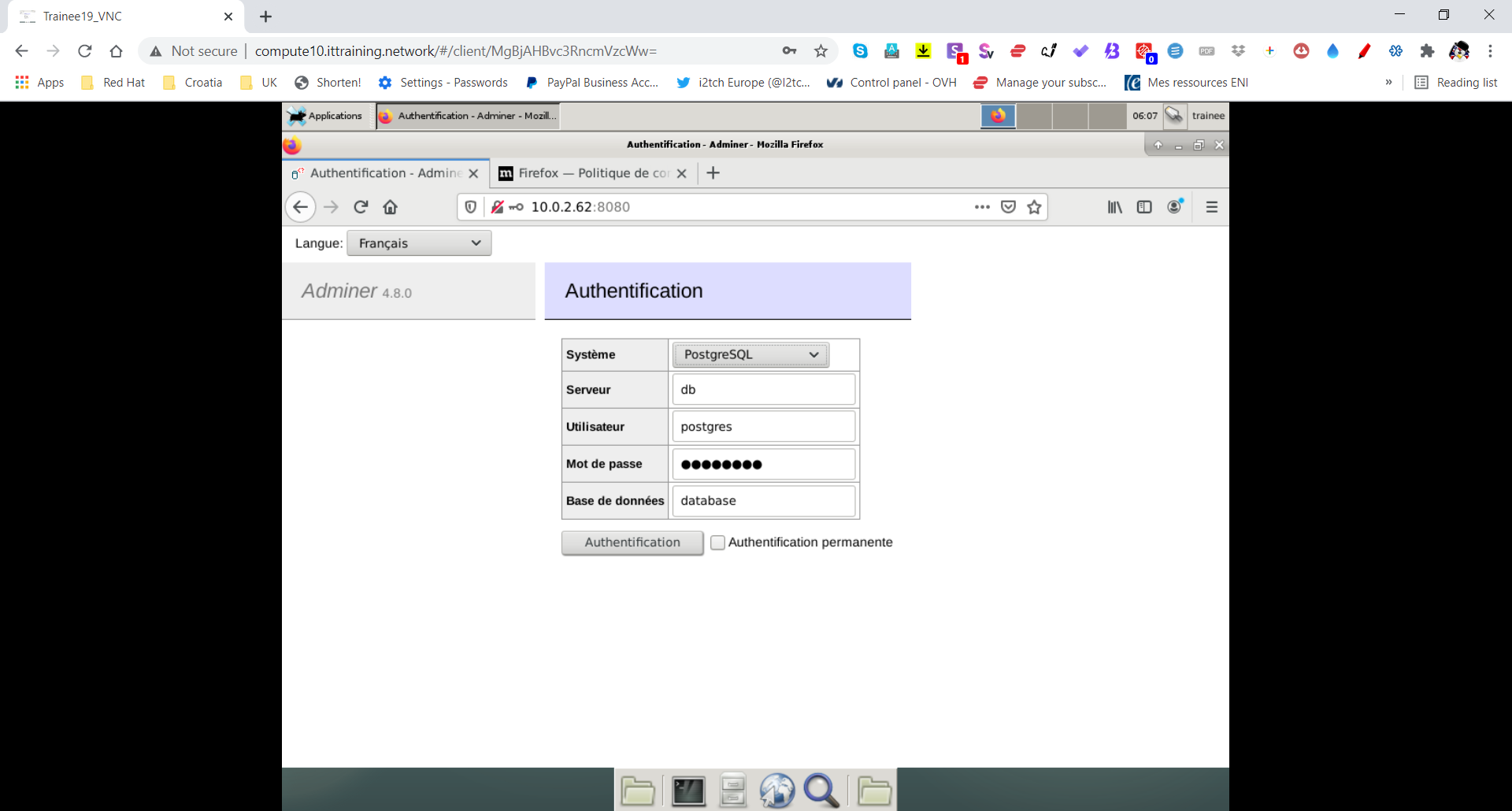
Validez le formulaire et vérifiez que les secrets ont été pris en compte :
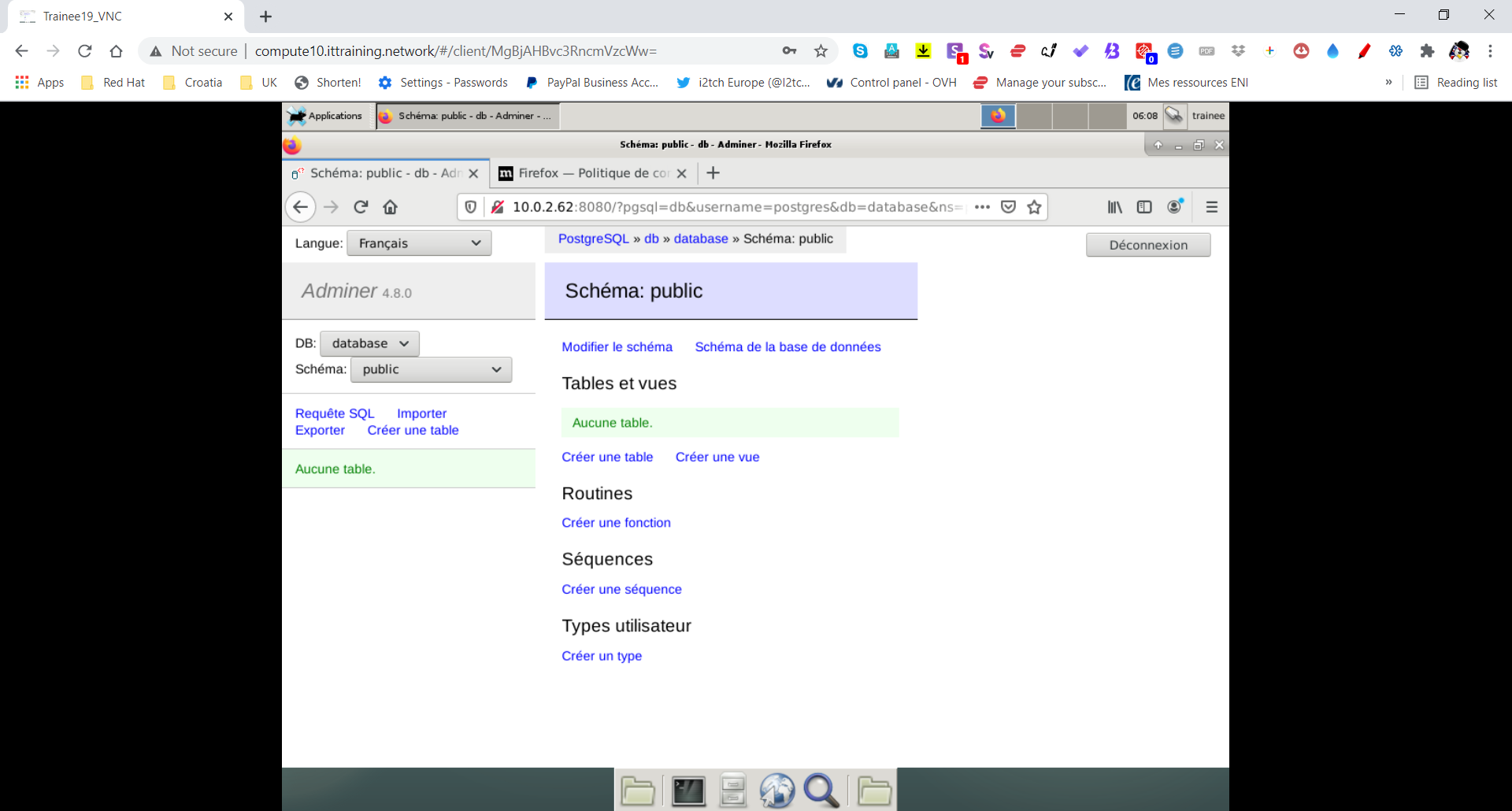
Dernièrement, supprimez le service :
root@manager:~/postgres# docker stack ls
NAME                SERVICES            ORCHESTRATOR
postgres            2                   Swarm
root@manager:~/postgres# docker stack rm postgres
Removing service postgres_adminer
Removing service postgres_db
Removing network postgres_default
LAB #5 - Création d'un Utilisateur de Confiance pour Contrôler le Daemon Docker
Au contraire des solutions classiques de gestion de machines virtuelles où l'accès est souvent conditionné à l'attribution de rôles, Docker ne possède pas ce type de mécanisme. De ce fait toute personne ayant accès à l'hôte soit par sudo soit en étant membre du groupe docker peut accéder à tous les conteneurs voire les arrêter, supprimer et en créer d'autres.
root@manager:~# cat /etc/group | grep docker
docker:x:999:
root@manager:~# usermod -aG docker trainee
root@manager:~# exit
déconnexion
trainee@manager:~$ docker ps
Got permission denied while trying to connect to the Docker daemon socket at unix:///var/run/docker.sock: Get http://%2Fvar%2Frun%2Fdocker.sock/v1.40/containers/json: dial unix /var/run/docker.sock: connect: permission denied
trainee@manager:~$ newgrp docker
trainee@manager:~$ docker ps -a
CONTAINER ID        IMAGE               COMMAND                  CREATED             STATUS                        PORTS                 NAMES
d02c6115724c        alpine              "/bin/sh"                6 days ago          Exited (0) 6 days ago                               alpine1
trainee@manager:~$ docker rm alpine1
alpine1
trainee@manager:~$ docker run -d --name alpine1 alpine sleep 99999
a214e2df0499c97e8da25a6c9ea751ac75344c9bcd7d238f8cb8d5c777510ab9
trainee@manager:~$ docker ps -a
CONTAINER ID        IMAGE               COMMAND             CREATED             STATUS              PORTS               NAMES
a214e2df0499        alpine              "/bin/sh"           6 seconds ago       Up 5 seconds                            alpine1
LAB #6 - Le Script docker-bench-security.sh
Le Center for Internet Security (CIS) est une organisation indépendante à but non-lucratif qui publie des best practices dans de nombreux domaines de l'informatique. Le guide pour Docker peut être téléchargé à partir de l'adresse https://www.cisecurity.org/benchmark/docker/.
Le guide est divisé en plusieurs sections :
- La configuration de l'hôte Docker,
- La configuration du daemon Docker,
- Les fichiers de configuration du daemon Docker,
- Les images ainsi que les fichiers servant à la construction des images,
- Le container runtime,
- Les opérations sécuritaires relatives à Docker,
- La configuration de Docker Swarm.
Ce guide est à utiliser avec le script Docker Benchmark Security.
Clonez le script docker-bench-security.sh en utilisant git :
trainee@manager:~$ su -
Password: fenestros

root@manager:~# git clone https://github.com/docker/docker-bench-security.git
Cloning in 'docker-bench-security'...
remote: Enumerating objects: 18, done.
remote: Counting objects: 100% (18/18), done.
remote: Compressing objects: 100% (16/16), done.
remote: Total 1921 (delta 5), reused 6 (delta 2), pack-reused 1903
Receiving objects: 100% (1921/1921), 2.90 MiB | 908.00 KiB/s, done.
Delta resolution: 100% (1339/1339), done.
Exécutez maintenant le script Docker Benchmark Security :
root@manager:~# cd docker-bench-security/

root@manager:~/docker-bench-security# ./docker-bench-security.sh
# --------------------------------------------------------------------------------------------
# Docker Bench for Security v1.6.0
#
# Docker, Inc. (c) 2015-2023
#
# Checks for dozens of common best-practices around deploying Docker containers in production.
# Based on the CIS Docker Benchmark 1.6.0.
# --------------------------------------------------------------------------------------------

Initializing 2023-12-17T14:22:08+01:00


Section A - Check results

[INFO] 1 - Host Configuration
[INFO] 1.1 - Linux Hosts Specific Configuration
[WARN] 1.1.1 - Ensure a separate partition for containers has been created (Automated)
[INFO] 1.1.2 - Ensure only trusted users are allowed to control Docker daemon (Automated)
[INFO]       * Users: trainee
[WARN] 1.1.3 - Ensure auditing is configured for the Docker daemon (Automated)
[WARN] 1.1.4 - Ensure auditing is configured for Docker files and directories -/run/containerd (Automated)
[WARN] 1.1.5 - Ensure auditing is configured for Docker files and directories - /var/lib/docker (Automated)
[WARN] 1.1.6 - Ensure auditing is configured for Docker files and directories - /etc/docker (Automated)
[WARN] 1.1.7 - Ensure auditing is configured for Docker files and directories - docker.service (Automated)
[INFO] 1.1.8 - Ensure auditing is configured for Docker files and directories - containerd.sock (Automated)
[INFO]        * File not found
[WARN] 1.1.9 - Ensure auditing is configured for Docker files and directories - docker.socket (Automated)
[WARN] 1.1.10 - Ensure auditing is configured for Docker files and directories - /etc/default/docker (Automated)
[INFO] 1.1.11 - Ensure auditing is configured for Dockerfiles and directories - /etc/docker/daemon.json (Automated)
[INFO]        * File not found
[WARN] 1.1.12 - 1.1.12 Ensure auditing is configured for Dockerfiles and directories - /etc/containerd/config.toml (Automated)
[INFO] 1.1.13 - Ensure auditing is configured for Docker files and directories - /etc/sysconfig/docker (Automated)
[INFO]        * File not found
[WARN] 1.1.14 - Ensure auditing is configured for Docker files and directories - /usr/bin/containerd (Automated)
[WARN] 1.1.15 - Ensure auditing is configured for Docker files and directories - /usr/bin/containerd-shim (Automated)
[INFO] 1.1.16 - Ensure auditing is configured for Docker files and directories - /usr/bin/containerd-shim-runc-v1 (Automated)
[INFO]         * File not found
[INFO] 1.1.17 - Ensure auditing is configured for Docker files and directories - /usr/bin/containerd-shim-runc-v2 (Automated)
[INFO]         * File not found
[WARN] 1.1.18 - Ensure auditing is configured for Docker files and directories - /usr/bin/runc (Automated)
[INFO] 1.2 - General Configuration
[NOTE] 1.2.1 - Ensure the container host has been Hardened (Manual)
[PASS] 1.2.2 - Ensure that the version of Docker is up to date (Manual)
[INFO]        * Using 19.03.4, verify is it up to date as deemed necessary

[INFO] 2 - Docker daemon configuration
[NOTE] 2.1 - Run the Docker daemon as a non-root user, if possible (Manual)
[WARN] 2.2 - Ensure network traffic is restricted between containers on the default bridge (Scored)
[PASS] 2.3 - Ensure the logging level is set to 'info' (Scored)
[PASS] 2.4 - Ensure Docker is allowed to make changes to iptables (Scored)
[PASS] 2.5 - Ensure insecure registries are not used (Scored)
[PASS] 2.6 - Ensure aufs storage driver is not used (Scored)
[INFO] 2.7 - Ensure TLS authentication for Docker daemon is configured (Scored)
[INFO]      * Docker daemon not listening on TCP
[INFO] 2.8 - Ensure the default ulimit is configured appropriately (Manual)
[INFO]      * Default ulimit doesn't appear to be set
[WARN] 2.9 - Enable user namespace support (Scored)
[PASS] 2.10 - Ensure the default cgroup usage has been confirmed (Scored)
[PASS] 2.11 - Ensure base device size is not changed until needed (Scored)
[WARN] 2.12 - Ensure that authorization for Docker client commands is enabled (Scored)
[WARN] 2.13 - Ensure centralized and remote logging is configured (Scored)
[WARN] 2.14 - Ensure containers are restricted from acquiring new privileges (Scored)
[WARN] 2.15 - Ensure live restore is enabled (Scored)
[WARN] 2.16 - Ensure Userland Proxy is Disabled (Scored)
[PASS] 2.17 - Ensure that a daemon-wide custom seccomp profile is applied if appropriate (Manual)
[PASS] 2.18 - Ensure that experimental features are not implemented in production (Scored)

[INFO] 3 - Docker daemon configuration files
[PASS] 3.1 - Ensure that the docker.service file ownership is set to root:root (Automated)
[PASS] 3.2 - Ensure that docker.service file permissions are appropriately set (Automated)
[PASS] 3.3 - Ensure that docker.socket file ownership is set to root:root (Automated)
[PASS] 3.4 - Ensure that docker.socket file permissions are set to 644 or more restrictive (Automated)
[PASS] 3.5 - Ensure that the /etc/docker directory ownership is set to root:root (Automated)
[PASS] 3.6 - Ensure that /etc/docker directory permissions are set to 755 or more restrictively (Automated)
[INFO] 3.7 - Ensure that registry certificate file ownership is set to root:root (Automated)
[INFO]      * Directory not found
[INFO] 3.8 - Ensure that registry certificate file permissions are set to 444 or more restrictively (Automated)
[INFO]      * Directory not found
[INFO] 3.9 - Ensure that TLS CA certificate file ownership is set to root:root (Automated)
[INFO]      * No TLS CA certificate found
[INFO] 3.10 - Ensure that TLS CA certificate file permissions are set to 444 or more restrictively (Automated)
[INFO]       * No TLS CA certificate found
[INFO] 3.11 - Ensure that Docker server certificate file ownership is set to root:root (Automated)
[INFO]       * No TLS Server certificate found
[INFO] 3.12 - Ensure that the Docker server certificate file permissions are set to 444 or more restrictively (Automated)
[INFO]       * No TLS Server certificate found
[INFO] 3.13 - Ensure that the Docker server certificate key file ownership is set to root:root (Automated)
[INFO]       * No TLS Key found
[INFO] 3.14 - Ensure that the Docker server certificate key file permissions are set to 400 (Automated)
[INFO]       * No TLS Key found
[PASS] 3.15 - Ensure that the Docker socket file ownership is set to root:docker (Automated)
[PASS] 3.16 - Ensure that the Docker socket file permissions are set to 660 or more restrictively (Automated)
[INFO] 3.17 - Ensure that the daemon.json file ownership is set to root:root (Automated)
[INFO]       * File not found
[INFO] 3.18 - Ensure that daemon.json file permissions are set to 644 or more restrictive (Automated)
[INFO]       * File not found
[PASS] 3.19 - Ensure that the /etc/default/docker file ownership is set to root:root (Automated)
[PASS] 3.20 - Ensure that the /etc/default/docker file permissions are set to 644 or more restrictively (Automated)
[INFO] 3.21 - Ensure that the /etc/sysconfig/docker file permissions are set to 644 or more restrictively (Automated)
[INFO]       * File not found
[INFO] 3.22 - Ensure that the /etc/sysconfig/docker file ownership is set to root:root (Automated)
[INFO]       * File not found
[PASS] 3.23 - Ensure that the Containerd socket file ownership is set to root:root (Automated)
[PASS] 3.24 - Ensure that the Containerd socket file permissions are set to 660 or more restrictively (Automated)

[INFO] 4 - Container Images and Build File
[INFO] 4.1 - Ensure that a user for the container has been created (Automated)
[INFO]      * No containers running
[NOTE] 4.2 - Ensure that containers use only trusted base images (Manual)
[NOTE] 4.3 - Ensure that unnecessary packages are not installed in the container (Manual)
[NOTE] 4.4 - Ensure images are scanned and rebuilt to include security patches (Manual)
[WARN] 4.5 - Ensure Content trust for Docker is Enabled (Automated)
[WARN] 4.6 - Ensure that HEALTHCHECK instructions have been added to container images (Automated)
[WARN]      * No Healthcheck found: [nginx:latest]
[WARN]      * No Healthcheck found: [alpine:latest]
[WARN]      * No Healthcheck found: [ubuntu:latest]
[WARN]      * No Healthcheck found: [centos:latest]
[PASS] 4.7 - Ensure update instructions are not used alone in the Dockerfile (Manual)
[NOTE] 4.8 - Ensure setuid and setgid permissions are removed (Manual)
[PASS] 4.9 - Ensure that COPY is used instead of ADD in Dockerfiles (Manual)
[NOTE] 4.10 - Ensure secrets are not stored in Dockerfiles (Manual)
[NOTE] 4.11 - Ensure only verified packages are installed (Manual)
[NOTE] 4.12 - Ensure all signed artifacts are validated (Manual)

[INFO] 5 - Container Runtime
[INFO]   * No containers running, skipping Section 5

[INFO] 6 - Docker Security Operations
[INFO] 6.1 - Ensure that image sprawl is avoided (Manual)
[INFO]      * There are currently: 4 images
[INFO]      * Only 0 out of 4 are in use
[INFO] 6.2 - Ensure that container sprawl is avoided (Manual)
[INFO]      * There are currently a total of 0 containers, with 0 of them currently running

[INFO] 7 - Docker Swarm Configuration
[WARN] 7.1 - Ensure swarm mode is not Enabled, if not needed (Automated)
[PASS] 7.2 - Ensure that the minimum number of manager nodes have been created in a swarm (Automated) (Swarm mode not enabled)
[PASS] 7.3 - Ensure that swarm services are bound to a specific host interface (Automated) (Swarm mode not enabled)
[PASS] 7.4 - Ensure that all Docker swarm overlay networks are encrypted (Automated)
[PASS] 7.5 - Ensure that Docker's secret management commands are used for managing secrets in a swarm cluster (Manual) (Swarm mode not enabled)
[PASS] 7.6 - Ensure that swarm manager is run in auto-lock mode (Automated) (Swarm mode not enabled)
[PASS] 7.7 - Ensure that the swarm manager auto-lock key is rotated periodically (Manual) (Swarm mode not enabled)
[PASS] 7.8 - Ensure that node certificates are rotated as appropriate (Manual) (Swarm mode not enabled)
[PASS] 7.9 - Ensure that CA certificates are rotated as appropriate (Manual) (Swarm mode not enabled)
[PASS] 7.10 - Ensure that management plane traffic is separated from data plane traffic (Manual) (Swarm mode not enabled)


Section C - Score

[INFO] Checks: 86
[INFO] Score: 1
Ce script sert à automatiser le contrôle des points précédemment cités et produit un rapport contenant des annotations :
- [PASS] : Concerne les points qui n'ont pas besoin d'être modifiés,
- [WARN] : Concerne les points qui doivent être modifiés,
- [INFO] : Concerne les points qui doivent être passés en revue selon les besoins de votre configuration,
- [NOTE] : Vous informe d'un best practice.
LAB #7 - Sécurisation de la Configuration de l'Hôte Docker
Lors de l'exécution du script, vous devez obtenir un résultat similaire à ceci en ce qui concerne la Sécurité de la Configuration de l'hôte Docker :
...
[INFO] 1 - Host Configuration
[INFO] 1.1 - Linux Hosts Specific Configuration
[WARN] 1.1.1 - Ensure a separate partition for containers has been created (Automated)
[INFO] 1.1.2 - Ensure only trusted users are allowed to control Docker daemon (Automated)
[INFO]       * Users: trainee
[WARN] 1.1.3 - Ensure auditing is configured for the Docker daemon (Automated)
[WARN] 1.1.4 - Ensure auditing is configured for Docker files and directories -/run/containerd (Automated)
[WARN] 1.1.5 - Ensure auditing is configured for Docker files and directories - /var/lib/docker (Automated)
[WARN] 1.1.6 - Ensure auditing is configured for Docker files and directories - /etc/docker (Automated)
[WARN] 1.1.7 - Ensure auditing is configured for Docker files and directories - docker.service (Automated)
[INFO] 1.1.8 - Ensure auditing is configured for Docker files and directories - containerd.sock (Automated)
[INFO]        * File not found
[WARN] 1.1.9 - Ensure auditing is configured for Docker files and directories - docker.socket (Automated)
[WARN] 1.1.10 - Ensure auditing is configured for Docker files and directories - /etc/default/docker (Automated)
[INFO] 1.1.11 - Ensure auditing is configured for Dockerfiles and directories - /etc/docker/daemon.json (Automated)
[INFO]        * File not found
[WARN] 1.1.12 - 1.1.12 Ensure auditing is configured for Dockerfiles and directories - /etc/containerd/config.toml (Automated)
[INFO] 1.1.13 - Ensure auditing is configured for Docker files and directories - /etc/sysconfig/docker (Automated)
[INFO]        * File not found
[WARN] 1.1.14 - Ensure auditing is configured for Docker files and directories - /usr/bin/containerd (Automated)
[WARN] 1.1.15 - Ensure auditing is configured for Docker files and directories - /usr/bin/containerd-shim (Automated)
[INFO] 1.1.16 - Ensure auditing is configured for Docker files and directories - /usr/bin/containerd-shim-runc-v1 (Automated)
[INFO]         * File not found
[INFO] 1.1.17 - Ensure auditing is configured for Docker files and directories - /usr/bin/containerd-shim-runc-v2 (Automated)
[INFO]         * File not found
[WARN] 1.1.18 - Ensure auditing is configured for Docker files and directories - /usr/bin/runc (Automated)
[INFO] 1.2 - General Configuration
[NOTE] 1.2.1 - Ensure the container host has been Hardened (Manual)
[PASS] 1.2.2 - Ensure that the version of Docker is up to date (Manual)
[INFO]        * Using 19.03.4, verify is it up to date as deemed necessary
...
Les problèmes de sécurité qu'il convient à résoudre sont indiqués par les annotations [WARN].
[WARN] 1.1.1 - Ensure a separate partition for containers has been created (Automated)
Par défaut, tous les fichiers de Docker sont stockés dans le répertoire /var/lib/docker, y compris toutes les images, tous les conteneurs et tous les volumes. Sur un système hôte n'ayant qu'une seule partition il y a un risque, tous comme le risque lié au répertoire /var/log/, que le disque devient saturé.
[WARN] 1.1.3 - Ensure auditing is configured for the Docker daemon (Automated)
[WARN] 1.1.4 - Ensure auditing is configured for Docker files and directories -/run/containerd (Automated)
[WARN] 1.1.5 - Ensure auditing is configured for Docker files and directories - /var/lib/docker (Automated)
[WARN] 1.1.6 - Ensure auditing is configured for Docker files and directories - /etc/docker (Automated)
[WARN] 1.1.7 - Ensure auditing is configured for Docker files and directories - docker.service (Automated)
[WARN] 1.1.9 - Ensure auditing is configured for Docker files and directories - docker.socket (Automated)
[WARN] 1.1.10 - Ensure auditing is configured for Docker files and directories - /etc/default/docker (Automated)
[WARN] 1.1.12 - Ensure auditing is configured for Dockerfiles and directories - /etc/containerd/config.toml (Automated)
[WARN] 1.1.14 - Ensure auditing is configured for Docker files and directories - /usr/bin/containerd (Automated)
[WARN] 1.1.15 - Ensure auditing is configured for Docker files and directories - /usr/bin/containerd-shim (Automated)
[WARN] 1.1.18 - Ensure auditing is configured for Docker files and directories - /usr/bin/runc (Automated)
Ces avertissements sont présents parce que auditd n'est pas installé et parce qu'il n'y a pas de règles spécifiques au daemon Docker et ses répertoires et fichiers associés.
Editez le fichier /etc/apt/sources.list selon l'exemple suivant :
root@manager:~/docker-bench-security# vi /etc/apt/sources.list

root@manager:~/docker-bench-security# cat /etc/apt/sources.list
deb http://archive.debian.org/debian/ stretch main
deb-src http://archive.debian.org/debian/ stretch main
deb http://archive.debian.org/debian-security stretch/updates main
deb-src http://archive.debian.org/debian-security stretch/updates main
deb [arch=amd64] https://download.docker.com/linux/debian stretch stable
Exécutez la commande apt-update :
root@manager:~/docker-bench-security# apt update
Ign:1 http://archive.debian.org/debian stretch InRelease
Atteint:2 http://archive.debian.org/debian-security stretch/updates InRelease
Atteint:3 http://archive.debian.org/debian stretch Release
Réception de:4 https://download.docker.com/linux/debian stretch InRelease [44,8 kB]
44,8 ko réceptionnés en 0s (107 ko/s)
Lecture des listes de paquets... Fait
Construction de l'arbre des dépendances
Lecture des informations d'état... Fait
254 packages can be upgraded. Run 'apt list --upgradable' to see them.
Pour installer auditd, utilisez apt-get :
root@manager:~/docker-bench-security# apt-get install auditd -y
Modifiez ensuite le fichier /etc/audit/rules.d/audit.rules :
root@manager:~/docker-bench-security# vi /etc/audit/rules.d/audit.rules

root@manager:~/docker-bench-security# cat /etc/audit/rules.d/audit.rules
## First rule - delete all
-D

## Increase the buffers to survive stress events.
## Make this bigger for busy systems
-b 8192

## This determine how long to wait in burst of events
--backlog_wait_time 0

## Set failure mode to syslog
-f 1

##Docker
-w /usr/bin/docker -p wa
-w /var/lib/docker -p wa
-w /etc/docker -p wa
-w /lib/systemd/system/docker.service -p wa
-w /lib/systemd/system/docker.socket -p wa
-w /etc/default/docker -p wa
-w /etc/docker/daemon.json -p wa
-w /usr/bin/docker-containerd -p wa
-w /usr/bin/docker-runc -p wa
-w /usr/bin/containerd -p wa
-w /run/containerd -p wa
-w /etc/containerd/config.toml -p wa
-w /usr/bin/containerd-shim -p wa
-w /usr/bin/runc -p wa
Important : L'option -w indique watch et concerne le fichier qui suit. L'option -p journalise les modifications éventuelles.
Re-démarrez ensuite auditd :
root@manager:~/docker-bench-security# systemctl restart auditd
Vérifiez ensuite la prise en charge des règles :
root@manager:~/docker-bench-security# cat /etc/audit/audit.rules
## This file is automatically generated from /etc/audit/rules.d
-D
-b 8192
-f 1
--backlog_wait_time 0
-w /usr/bin/docker -p wa
-w /var/lib/docker -p wa
-w /etc/docker -p wa
-w /lib/systemd/system/docker.service -p wa
-w /lib/systemd/system/docker.socket -p wa
-w /etc/default/docker -p wa
-w /etc/docker/daemon.json -p wa
-w /usr/bin/docker-containerd -p wa
-w /usr/bin/docker-runc -p wa
-w /usr/bin/containerd -p wa
-w /run/containerd -p wa
-w /etc/containerd/config.toml -p wa
-w /usr/bin/containerd-shim -p wa
-w /usr/bin/runc -p wa
Important - Pour plus d'information concernant la création de règles personalisées avec auditd, consultez cette page.
Ré-exécutez le script Docker Benchmark Security :
root@manager:~/docker-bench-security# ./docker-bench-security.sh
...
[PASS] 1.1.4 - Ensure auditing is configured for Docker files and directories -/run/containerd (Automated)
[PASS] 1.1.5 - Ensure auditing is configured for Docker files and directories - /var/lib/docker (Automated)
[PASS] 1.1.6 - Ensure auditing is configured for Docker files and directories - /etc/docker (Automated)
[PASS] 1.1.7 - Ensure auditing is configured for Docker files and directories - docker.service (Automated)
[PASS] 1.1.9 - Ensure auditing is configured for Docker files and directories - docker.socket (Automated)
[PASS] 1.1.10 - Ensure auditing is configured for Docker files and directories - /etc/default/docker (Automated)
[PASS] 1.1.12 - Ensure auditing is configured for Dockerfiles and directories - /etc/containerd/config.toml (Automated)
[PASS] 1.1.14 - Ensure auditing is configured for Docker files and directories - /usr/bin/containerd (Automated)
[PASS] 1.1.15 - Ensure auditing is configured for Docker files and directories - /usr/bin/containerd-shim (Automated)
[PASS] 1.1.18 - Ensure auditing is configured for Docker files and directories - /usr/bin/runc (Automated)
...
LAB #8 - Sécurisation de la Configuration du daemon Docker
Exécutez de nouveau le script docker-bench-security.sh. Vous devez obtenir un résultat similaire à ceci en ce qui concerne la sécurité de la configuration du daemon Docker :
...
[INFO] 2 - Docker daemon configuration
[NOTE] 2.1 - Run the Docker daemon as a non-root user, if possible (Manual)
[WARN] 2.2 - Ensure network traffic is restricted between containers on the default bridge (Scored)
[PASS] 2.3 - Ensure the logging level is set to 'info' (Scored)
[PASS] 2.4 - Ensure Docker is allowed to make changes to iptables (Scored)
[PASS] 2.5 - Ensure insecure registries are not used (Scored)
[PASS] 2.6 - Ensure aufs storage driver is not used (Scored)
[INFO] 2.7 - Ensure TLS authentication for Docker daemon is configured (Scored)
[INFO]      * Docker daemon not listening on TCP
[INFO] 2.8 - Ensure the default ulimit is configured appropriately (Manual)
[INFO]      * Default ulimit doesn't appear to be set
[WARN] 2.9 - Enable user namespace support (Scored)
[PASS] 2.10 - Ensure the default cgroup usage has been confirmed (Scored)
[PASS] 2.11 - Ensure base device size is not changed until needed (Scored)
[WARN] 2.12 - Ensure that authorization for Docker client commands is enabled (Scored)
[WARN] 2.13 - Ensure centralized and remote logging is configured (Scored)
[WARN] 2.14 - Ensure containers are restricted from acquiring new privileges (Scored)
[WARN] 2.15 - Ensure live restore is enabled (Scored)
[WARN] 2.16 - Ensure Userland Proxy is Disabled (Scored)
[PASS] 2.17 - Ensure that a daemon-wide custom seccomp profile is applied if appropriate (Manual)
[PASS] 2.18 - Ensure that experimental features are not implemented in production (Scored)
...
Les problèmes de sécurité qu'il convient à résoudre sont indiqués par les annotations [WARN].
[WARN] 2.2 - Ensure network traffic is restricted between containers on the default bridge (Scored)
Par défaut Docker permet un trafic réseau sans restrictions entre des conteneurs sur le même hôte. Il est cependant possible de modifier la configuration par défaut. Pour empêcher ceci, il faut fixer la valeur de icc à false. De cette façon, docker crée des conteneurs qui peuvent communiquer entre eux uniquement s'il existe un lien.
Pour plus d'informations, consultez cette page.
[WARN] 2.9 - Enable user namespace support (Scored)
Cet avertissement nous indique que l'utilisation des user namespaces n'est pas activée. Le support des user namespaces du noyau Linux permet d'attribuer une plage d'UIDs et de GIDs unique à un processus et donc à un conteneur, en dehors de la plage traditionnelle utilisée par l'hôte Docker. L'avantage ici est que les processus ayant l'UID de root dans le conteneur seront mappés à un UID sans privilèges dans l'hôte Docker. Pour utiliser user namespace, il faut fixer la valeur de userns-remap à default. Dans ce cas précis Docker crée un utilisateur dénommé dockremap. Notez qu'il est aussi possible de fixer vos propres valeurs avec “userns-remap”: “user:group”.
Pour plus d'informations, consultez cette page.
[WARN] 2.12 - Ensure that authorization for Docker client commands is enabled (Scored)
Par défaut, Docker permet un accès sans restrictions aux daemon Docker. Il est possible de restreindre l'accès à des utilisateurs authentifiés en utilisant un plug-in. Cette ligne est sans importance parce que l'accès au socket local Docker est limité aux membres du groupe docker (voir DOF202 - La Sécurité de la Configuration de l'Hôte Docker)
Pour plus d'informations, consultez cette page.
[WARN] 2.13 - Ensure centralized and remote logging is configured (Scored)
Cet avertissement indique que la configuration de rsyslog ne permet pas l'envoie des traces vers un serveur de journalisation distant. Elle indique aussi que la valeur de log-driver n'a pas été spécifiée. Pour activer cette configuration, il faut fixer la valeur de log-driver à syslog puis configurer syslog ainsi que la valeur de log-opts correctement.
Pour plus d'informations, consultez cette page.
[WARN] 2.14 - Ensure containers are restricted from acquiring new privileges (Scored)
Par défaut un conteneur peut obtenir une escalade de privilèges en utilisant les binaires setuid ou setgid. Pour interdire ceci il faut fixer la valeur de no-new-privileges à true.
Pour plus d'informations, consultez cette page.
[WARN] 2.15 - Ensure live restore is enabled (Scored)
L'option –live-restore permet une prise en charge complète des conteneurs sans démon dans Docker. Elle garantit que Docker n'arrête pas les conteneurs lors de l'arrêt ou de la restauration et qu'il se reconnecte correctement au conteneur lors du redémarrage.
[WARN] 2.16 - Ensure Userland Proxy is Disabled (Scored)
Il existe deux méthodes pour qu'un conteneur puisse router vers l'extérieur :
- le mode Hairpin NAT,
- Userland Proxy.
Il est préférable d'utiliser le mode Hairpin NAT qui peut utilise Iptables et qui possède de meilleures performances. La plupart des systèmes d'opération modernes peuvent utiliser le mode Hairpin NAT. Pour désactiver Userland Proxy, il faut fixer la valeur de userland-proxy à false.
Pour plus d'informations, consultez cette page.
5.1 - Le Fichier /etc/docker/daemon.json
Créez le fichier /etc/docker/daemon.json :
root@manager:~/docker-bench-security# vi /etc/docker/daemon.json

root@manager:~/docker-bench-security# cat /etc/docker/daemon.json
{
    "icc": false,
    "userns-remap": "default",
    "log-driver": "syslog",
    "live-restore": true,
    "userland-proxy": false,
    "no-new-privileges": true
}
Re-démarrez le service Docker :
root@manager:~/docker-bench-security# systemctl restart docker
Vérifiez la présence de l'utilisateur dénommé dockremap :
root@manager:~/docker-bench-security# id dockremap
uid=116(dockremap) gid=121(dockremap) groupes=121(dockremap)
Ré-exécutez le script Docker Benchmark Security :
root@manager:~/docker-bench-security# ./docker-bench-security.sh
...
[PASS] 2.2 - Ensure network traffic is restricted between containers on the default bridge (Scored)
[PASS] 2.3 - Ensure the logging level is set to 'info' (Scored)
[PASS] 2.4 - Ensure Docker is allowed to make changes to iptables (Scored)
[PASS] 2.5 - Ensure insecure registries are not used (Scored)
[PASS] 2.6 - Ensure aufs storage driver is not used (Scored)
[PASS] 2.9 - Enable user namespace support (Scored)
[PASS] 2.10 - Ensure the default cgroup usage has been confirmed (Scored)
[PASS] 2.11 - Ensure base device size is not changed until needed (Scored)
[PASS] 2.13 - Ensure centralized and remote logging is configured (Scored)
[PASS] 2.14 - Ensure containers are restricted from acquiring new privileges (Scored)
[PASS] 2.15 - Ensure live restore is enabled (Scored)
[PASS] 2.16 - Ensure Userland Proxy is Disabled (Scored)
[PASS] 2.17 - Ensure that a daemon-wide custom seccomp profile is applied if appropriate (Manual)
[PASS] 2.18 - Ensure that experimental features are not implemented in production (Scored)
...
Pour plus d'informations, consultez cette page.
LAB #9 - Sécurisation des Images et les Fichiers de Construction
Créez le conteneur mysql :
root@manager:~/docker-bench-security# apt install  --only-upgrade docker-ce
Lecture des listes de paquets... Fait
Construction de l'arbre des dépendances
Lecture des informations d'état... Fait
Le paquet suivant a été installé automatiquement et n'est plus nécessaire :
  libsasl2-modules
Veuillez utiliser « apt autoremove » pour le supprimer.
Les paquets suivants seront mis à jour :
  docker-ce
1 mis à jour, 0 nouvellement installés, 0 à enlever et 252 non mis à jour.
Il est nécessaire de prendre 22,7 Mo dans les archives.
Après cette opération, 497 ko d'espace disque supplémentaires seront utilisés.
Réception de:1 https://download.docker.com/linux/debian stretch/stable amd64 docker-ce amd64 5:19.03.15~3-0~debian-stretch [22,7 MB]
22,7 Mo réceptionnés en 0s (26,0 Mo/s)
Lecture des fichiers de modifications (« changelog »)... Terminé
(Lecture de la base de données... 112865 fichiers et répertoires déjà installés.)
Préparation du dépaquetage de .../docker-ce_5%3a19.03.15~3-0~debian-stretch_amd64.deb ...
Dépaquetage de docker-ce (5:19.03.15~3-0~debian-stretch) sur (5:19.03.4~3-0~debian-stretch) ...
Paramétrage de docker-ce (5:19.03.15~3-0~debian-stretch) ...
Traitement des actions différées (« triggers ») pour systemd (232-25+deb9u14) ...

root@manager:~/docker-bench-security# docker container run -d --name mysql -e MYSQL_ROOT_PASSWORD=password mysql
Unable to find image 'mysql:latest' locally
latest: Pulling from library/mysql
e9f2695d7e5b: Pull complete
80c6055edb33: Pull complete
c646ab461d8b: Pull complete
012006c6a591: Pull complete
929d5fa34b95: Pull complete
17e0243877fa: Pull complete
1850b459cd2f: Pull complete
8dceaed53baf: Pull complete
197b834ea1cd: Pull complete
8df78c25b227: Pull complete
Digest: sha256:ceb98918916bd5261b3e9866ac8271d75d276b8a4db56f1dc190770342a77a9b
Status: Downloaded newer image for mysql:latest
e503dd98f88992ae6ed5ec4dcaa2e18982ade8ec74966869515a120763418f74

root@manager:~/docker-bench-security# docker ps -a
CONTAINER ID        IMAGE               COMMAND                  CREATED             STATUS              PORTS                 NAMES
e503dd98f889        mysql               "docker-entrypoint.s…"   2 minutes ago       Up 2 minutes        3306/tcp, 33060/tcp   mysql
Exécutez de nouveau le script docker-bench-security.sh. Vous devez obtenir un résultat similaire à ceci en ce qui concerne la sécurité des images et les fichiers de leur construction :
root@manager:~/docker-bench-security# ./docker-bench-security.sh
...
[INFO] 4 - Container Images and Build File
[WARN] 4.1 - Ensure that a user for the container has been created (Automated)
[WARN]      * Running as root: mysql
[NOTE] 4.2 - Ensure that containers use only trusted base images (Manual)
[NOTE] 4.3 - Ensure that unnecessary packages are not installed in the container (Manual)
[NOTE] 4.4 - Ensure images are scanned and rebuilt to include security patches (Manual)
[WARN] 4.5 - Ensure Content trust for Docker is Enabled (Automated)
[WARN] 4.6 - Ensure that HEALTHCHECK instructions have been added to container images (Automated)
[WARN]      * No Healthcheck found: [mysql:latest]
[PASS] 4.7 - Ensure update instructions are not used alone in the Dockerfile (Manual)
[NOTE] 4.8 - Ensure setuid and setgid permissions are removed (Manual)
[PASS] 4.9 - Ensure that COPY is used instead of ADD in Dockerfiles (Manual)
[NOTE] 4.10 - Ensure secrets are not stored in Dockerfiles (Manual)
[NOTE] 4.11 - Ensure only verified packages are installed (Manual)
[NOTE] 4.12 - Ensure all signed artifacts are validated (Manual)
...
[WARN] 4.1 - Ensure that a user for the container has been created (Automated)
Les processus dans le conteneur mysql tourne sous l'UID de root. Ceci est l'action par défaut de Docker.
Pour plus d'informations, consultez cette page.
[WARN] 4.5 - Ensure Content trust for Docker is Enabled (Automated)
Cette ligne indique que le support de Content trust n'a pas été activé. Content trust permet de s'assurer de la provenance des images utilisées car celles-ci sont signées.
Pour activer le Content trust, il faut positionner la valeur de la variable DOCKER_CONTENT_TRUST à 1 :
root@manager:~/docker-bench-security# echo "DOCKER_CONTENT_TRUST=1" | sudo tee -a /etc/environment
DOCKER_CONTENT_TRUST=1

root@manager:~/docker-bench-security# source /etc/environment
Re-démarrez la machine virtuelle Manager et démarrez le conteneur mysql :
root@manager:~/docker-bench-security# reboot
Connection to 10.0.2.62 closed by remote host.
Connection to 10.0.2.62 closed.

root@debian11:~# ssh -l trainee 10.0.2.62
trainee@10.0.2.62's password: trainee
Linux manager.i2tch.loc 4.9.0-8-amd64 #1 SMP Debian 4.9.130-2 (2018-10-27) x86_64

The programs included with the Debian GNU/Linux system are free software;
the exact distribution terms for each program are described in the
individual files in /usr/share/doc/*/copyright.

Debian GNU/Linux comes with ABSOLUTELY NO WARRANTY, to the extent
permitted by applicable law.
Last login: Sun Dec 17 18:39:07 2023 from 10.0.2.46

trainee@manager:~$ su -
Mot de passe : fenestros

root@manager:~# cd docker-bench-security/

root@manager:~/docker-bench-security#

root@manager:~/docker-bench-security# docker start mysql
mysql
Exécutez de nouveau le script et notez le contenu de la section 4 :
root@manager:~/docker-bench-security# ./docker-bench-security.sh
...
[INFO] 4 - Container Images and Build File
[WARN] 4.1 - Ensure that a user for the container has been created (Automated)
[WARN]      * Running as root: mysql
[NOTE] 4.2 - Ensure that containers use only trusted base images (Manual)
[NOTE] 4.3 - Ensure that unnecessary packages are not installed in the container (Manual)
[NOTE] 4.4 - Ensure images are scanned and rebuilt to include security patches (Manual)
[PASS] 4.5 - Ensure Content trust for Docker is Enabled (Automated)
[WARN] 4.6 - Ensure that HEALTHCHECK instructions have been added to container images (Automated)
[WARN]      * No Healthcheck found: [mysql:latest]
[PASS] 4.7 - Ensure update instructions are not used alone in the Dockerfile (Manual)
[NOTE] 4.8 - Ensure setuid and setgid permissions are removed (Manual)
[PASS] 4.9 - Ensure that COPY is used instead of ADD in Dockerfiles (Manual)
[NOTE] 4.10 - Ensure secrets are not stored in Dockerfiles (Manual)
[NOTE] 4.11 - Ensure only verified packages are installed (Manual)
[NOTE] 4.12 - Ensure all signed artifacts are validated (Manual)
...
Pour plus d'informations, consultez cette page.
[WARN] 4.6 - Ensure that HEALTHCHECK instructions have been added to container images
Quand une image est construite il est possible d'y mettre un HEALTHCHECK dont le statut peut être vérifié par Docker afin de relancer le conteneur si nécessaire.
Pour mettre en place un HEALTHCHECK, il conviendrait, par exemple, d'inclure la ligne suivante dans le fichier DOCKERFILE servant à construire l'image :
HEALTHCHECK --interval=20s --timeout=3s CMD curl -f http://localhost:8000/ || exit 1
Ce test permet de vérifier que le conteneur peut atteindre l'URL indiqué tous les 20 secondes et produit une erreur au bout de 3 secondes.
Pour plus d'informations, consultez cette page.
LAB #10 - Sécurisation du Container Runtime
Exécutez de nouveau le script docker-bench-security.sh, vous devez obtenir un résultat similaire à ceci en ce qui concerne la sécurité du Container Runtime :
root@manager:~/docker-bench-security# ./docker-bench-security.sh
...
[INFO] 5 - Container Runtime
[WARN] 5.1 - Ensure that, if applicable, an AppArmor Profile is enabled (Automated)
[WARN]      * No AppArmorProfile Found: mysql
[WARN] 5.2 - Ensure that, if applicable, SELinux security options are set (Automated)
[WARN]      * No SecurityOptions Found: mysql
[PASS] 5.3 - Ensure that Linux kernel capabilities are restricted within containers (Automated)
[PASS] 5.4 - Ensure that privileged containers are not used (Automated)
[PASS] 5.5 - Ensure sensitive host system directories are not mounted on containers (Automated)
[PASS] 5.6 - Ensure sshd is not run within containers (Automated)
[PASS] 5.7 - Ensure privileged ports are not mapped within containers (Automated)
[PASS] 5.8 - Ensure that only needed ports are open on the container (Manual)
[PASS] 5.9 - Ensure that the host's network namespace is not shared (Automated)
[WARN] 5.10 - Ensure that the memory usage for containers is limited (Automated)
[WARN]       * Container running without memory restrictions: mysql
[WARN] 5.11 - Ensure that CPU priority is set appropriately on containers (Automated)
[WARN]       * Container running without CPU restrictions: mysql
[WARN] 5.12 - Ensure that the container's root filesystem is mounted as read only (Automated)
[WARN]       * Container running with root FS mounted R/W: mysql
[PASS] 5.13 - Ensure that incoming container traffic is bound to a specific host interface (Automated)
[WARN] 5.14 - Ensure that the 'on-failure' container restart policy is set to '5' (Automated)
[WARN]       * MaximumRetryCount is not set to 5: mysql
[PASS] 5.15 - Ensure that the host's process namespace is not shared (Automated)
[PASS] 5.16 - Ensure that the host's IPC namespace is not shared (Automated)
[PASS] 5.17 - Ensure that host devices are not directly exposed to containers (Manual)
[INFO] 5.18 - Ensure that the default ulimit is overwritten at runtime if needed (Manual)
[INFO]       * Container no default ulimit override: mysql
[PASS] 5.19 - Ensure mount propagation mode is not set to shared (Automated)
[PASS] 5.20 - Ensure that the host's UTS namespace is not shared (Automated)
[PASS] 5.21 - Ensure the default seccomp profile is not Disabled (Automated)
[NOTE] 5.22 - Ensure that docker exec commands are not used with the privileged option (Automated)
[NOTE] 5.23 - Ensure that docker exec commands are not used with the user=root option (Manual)
[PASS] 5.24 - Ensure that cgroup usage is confirmed (Automated)
[PASS] 5.25 - Ensure that the container is restricted from acquiring additional privileges (Automated)
[WARN] 5.26 - Ensure that container health is checked at runtime (Automated)
[WARN]       * Health check not set: mysql
[INFO] 5.27 - Ensure that Docker commands always make use of the latest version of their image (Manual)
[WARN] 5.28 - Ensure that the PIDs cgroup limit is used (Automated)
[WARN]       * PIDs limit not set: mysql
[INFO] 5.29 - Ensure that Docker's default bridge 'docker0' is not used (Manual)
[INFO]       * Container in docker0 network: mysql
[PASS] 5.30 - Ensure that the host's user namespaces are not shared (Automated)
[PASS] 5.31 - Ensure that the Docker socket is not mounted inside any containers (Automated)
...
Les problèmes de sécurité qu'il convient à résoudre sont indiqués par les annotations [WARN].
[WARN] 5.1 - Ensure that, if applicable, an AppArmor Profile is enabled (Automated)
Cet avertissement est présent parce que le conteneur n'utilise pas AppArmor.
Pour plus d'informations, consultez cette page.
[WARN] 5.2 - Ensure that, if applicable, SELinux security options are set (Automated)
Cet avertissement est présent parce que le conteneur n'utilise pas SELinux.
Pour plus d'informations, consultez cette page.
[WARN] 5.10 - Ensure that the memory usage for containers is limited (Automated)
Cet avertissement est du au fait que les conteneurs ont automatiquement accès à la totalité de la RAM de l'hôte Docker :
root@manager:~# docker run -d -p 8081:80 nginx
b04b2a6f0dd93da21a8b7640afc319406e42868a141f90936dbcf52ab5bffb0d
root@manager:~# docker stats
CONTAINER ID        NAME                 CPU %               MEM USAGE / LIMIT     MEM %               NET I/O             BLOCK I/O           PIDS
b04b2a6f0dd9        dazzling_blackburn   0.00%               1.789MiB / 1.957GiB   0.09%               2.38kB / 0B         0B / 0B             2
^C
Supprimez le conteneur et re-créez le avec une limite de mémoire :
root@manager:~/docker-bench-security# docker run -d -p 8081:80 nginx
Unable to find image 'nginx:latest' locally
sha256:10d1f5b58f74683ad34eb29287e07dab1e90f10af243f151bb50aa5dbb4d62ee: Pulling from library/nginx
1f7ce2fa46ab: Pull complete
9b16c94bb686: Pull complete
9a59d19f9c5b: Pull complete
9ea27b074f71: Pull complete
c6edf33e2524: Pull complete
84b1ff10387b: Pull complete
517357831967: Pull complete
Digest: sha256:10d1f5b58f74683ad34eb29287e07dab1e90f10af243f151bb50aa5dbb4d62ee
Status: Downloaded newer image for nginx@sha256:10d1f5b58f74683ad34eb29287e07dab1e90f10af243f151bb50aa5dbb4d62ee
Tagging nginx@sha256:10d1f5b58f74683ad34eb29287e07dab1e90f10af243f151bb50aa5dbb4d62ee as nginx:latest
e14d5112c2feb71e6f37252bcf99d03603d6b7a3e200bff0d55611a0e9a25e2b

root@manager:~/docker-bench-security# docker stats
CONTAINER ID        NAME                CPU %               MEM USAGE / LIMIT     MEM %               NET I/O             BLOCK I/O           PIDS
e14d5112c2fe        strange_bassi       0.00%               2.215MiB / 1.957GiB   0.11%               2.16kB / 0B         0B / 0B             2
e503dd98f889        mysql               0.51%               351.3MiB / 1.957GiB   17.53%              5.54kB / 0B         167MB / 118MB       37
^C
Supprimez le conteneur et re-créez-le avec une limite de mémoire :
root@manager:~/docker-bench-security# docker ps -a
CONTAINER ID        IMAGE               COMMAND                  CREATED              STATUS              PORTS                  NAMES
e14d5112c2fe        nginx               "/docker-entrypoint.…"   About a minute ago   Up About a minute   0.0.0.0:8081->80/tcp   strange_bassi
e503dd98f889        mysql               "docker-entrypoint.s…"   18 minutes ago       Up 7 minutes        3306/tcp, 33060/tcp    mysql

root@manager:~/docker-bench-security# docker rm -f e14
e14

root@manager:~/docker-bench-security# docker run -d -p 8081:80 --memory="256m" nginx
38e91e096c83f7cbe78089617a4d70110bd273f53339f8fed8df2503d3cd65ca

root@manager:~/docker-bench-security# docker stats
CONTAINER ID        NAME                CPU %               MEM USAGE / LIMIT     MEM %               NET I/O             BLOCK I/O           PIDS
38e91e096c83        sweet_vaughan       0.00%               2.223MiB / 256MiB     0.87%               2.16kB / 0B         0B / 0B             2
e503dd98f889        mysql               0.49%               351.3MiB / 1.957GiB   17.53%              5.61kB / 0B         167MB / 118MB       37
^C
Pour plus d'informations, consultez cette page.
[WARN] 5.11 - Ensure that CPU priority is set appropriately on containers (Automated)
Cet avertissement est du au fait que les conteneurs ont automatiquement accès à tous les CPU de l'hôte Docker. Pour limiter cet accès, plusieurs options sont possibles dont le plus couramment utilisée est –cpu-shares.
La valeur de cpu-shares est relative à la valeur par défaut de 1024. Un valeur de 512 permet au conteneur d'accéder à 50% des cycles du CPU mais uniquement quand les cycles sont limités. Quand les cycles de CPU ne sont par restreints, chaque conteneur utilise autant qu'il en a besoin.
Pour plus d'informations, consultez cette page.
[WARN] 5.12 - Ensure that the container's root filesystem is mounted as read only (Automated)
Afin de minimiser le risque de compromettre un conteneur par la présence de code malicieux, il est conseillé de démarrer les conteneurs en lecture seule, sauf pour les volumes qui nécessitent un accès en écriture/lecture.
Créez le fichier write_a_file dans le conteneur mysql :
root@manager:~/docker-bench-security# docker container exec mysql touch /write_a_file
La Commande docker container diff indique les différences apportées au conteneur par rapport à l'image dont il est issu :
root@manager:~/docker-bench-security# docker diff mysql
C /run
C /run/mysqld
A /run/mysqld/mysqld.pid
A /run/mysqld/mysqld.sock
A /run/mysqld/mysqld.sock.lock
A /run/mysqld/mysqlx.sock
A /run/mysqld/mysqlx.sock.lock
A /write_a_file
Important : Notez que la sortie indique les changements apportés au conteneur.
Arrêtez et supprimez le conteneur :
root@manager:~/docker-bench-security# docker stop mysql
mysql

root@manager:~/docker-bench-security# docker rm  mysql
mysql
Lancez un conteneur mysql en lecture seule :
root@manager:~/docker-bench-security# docker run -d --name mysql --read-only -v /var/lib/mysql -v /tmp -v /var/run/mysqld -e MYSQL_ROOT_PASSWORD=password mysql
711ab28bdfb41220c84246c1658bcde398681a78291bbbe7d3bbfd9bc317d41b
Créez le fichier write_a_file dans le conteneur mysql :
root@manager:~/docker-bench-security# docker container exec mysql touch /write_a_file
touch: cannot touch '/write_a_file': Read-only file system
Important : Notez l'erreur touch: cannot touch '/write_a_file': Read-only file system.
Exécutez la commande docker container diff :
root@manager:~/docker-bench-security# docker container diff mysql
root@manager:~/docker-bench-security#
Important : Notez que la commande ne retourne aucune sortie. En effet le conteneur étant en lecture seule, aucun changement ne peut intervenir.
[WARN] 5.14 - Ensure that the 'on-failure' container restart policy is set to '5' (Automated)
Cet avertissement concerne la politique de re-démarrage du conteneur. La politique on-failure[:max-retries] implique que le conteneur est re-démarré en cas d'arrêt du à une erreur qui se manifeste en tant que code de retour autre que zéro. La valeur de max-retries est le nombre de fois que Docker va essayer de re-démarrer le conteneur. Cette politique peut être mise en place au démarrage du conteneur, par exemple :
# docker container run -d --name mysql --read-only --restart on-failure:5 -v /var/lib/mysql -v /tmp -v /var/run/mysqld -e MYSQL_ROOT_PASSWORD=password mysql
Pour plus d'informations, consultez cette page.
[WARN] 5.26 - Ensure that container health is checked at runtime (Automated)
Voir l'avertissement 4.6.
[WARN] 5.28 - Ensure that the PIDs cgroup limit is used (Automated)
Sans l'utilisation de l'option –pids-limit un conteneur pourrait être victime d'une attaque de type Fork Bomb, un type spécifique de dénie de service. Ce type d'attaque peut faire crasher l'hôte Docker et le seul remède est de re-démarrer l'hôte. Voici un exemple d'un Fork Bomb :
root@manager:~/docker-bench-security# docker run -u 1000 ubuntu bash -c ":() { : | : & }; :; while [[ true ]]; do sleep 1; done"
L'hôte Docker manager crash. Après avoir re-démarrer la machine virtuelle, créez de nouveau le conteneur en utilisant l'option –pids-limit :
root@manager:~/docker-bench-security# docker run -u 1000 --pids-limit 100 ubuntu bash -c ":() { : | : & }; :; while [[ true ]]; do sleep 1; done"
Unable to find image 'ubuntu:latest' locally
sha256:6042500cf4b44023ea1894effe7890666b0c5c7871ed83a97c36c76ae560bb9b: Pulling from library/ubuntu
a48641193673: Pull complete
Digest: sha256:6042500cf4b44023ea1894effe7890666b0c5c7871ed83a97c36c76ae560bb9b
Status: Downloaded newer image for ubuntu@sha256:6042500cf4b44023ea1894effe7890666b0c5c7871ed83a97c36c76ae560bb9b
Tagging ubuntu@sha256:6042500cf4b44023ea1894effe7890666b0c5c7871ed83a97c36c76ae560bb9b as ubuntu:latest
environment: fork: retry: Resource temporarily unavailable
environment: fork: retry: Resource temporarily unavailable
environment: fork: retry: Resource temporarily unavailable
environment: fork: retry: Resource temporarily unavailable
environment: fork: retry: Resource temporarily unavailable
environment: fork: retry: Resource temporarily unavailable
environment: fork: retry: Resource temporarily unavailable
environment: fork: retry: Resource temporarily unavailable
environment: fork: retry: Resource temporarily unavailable
environment: fork: retry: Resource temporarily unavailable
environment: fork: retry: Resource temporarily unavailable
environment: fork: retry: Resource temporarily unavailable
^P^Q
Pour plus d'informations, consultez cette page.
Supprimez maintenant tous les conteneurs déjà créées :
root@manager:~/docker-bench-security# docker rm -f `docker ps -aq`
db5ae43c3e55
f3b2528fbac0
711ab28bdfb4

root@manager:~/docker-bench-security# docker ps -a
CONTAINER ID        IMAGE               COMMAND             CREATED             STATUS              PORTS               NAMES
Re-créez le conteneur mysql en intégrant les points vus ci-dessus :
root@manager:~/docker-bench-security# docker run -d --name mysql --read-only --restart on-failure:5 --security-opt="no-new-privileges:true" --pids-limit 100 --memory="256m" --cpu-shares 512 -v /var/lib/mysql -v /tmp -v /var/run/mysqld -e MYSQL_ROOT_PASSWORD=password mysql
f49d1ffdeae2e83435e8cc3a2e03fb2e0b33e5609d266e5a3403ff8859e5d122

root@manager:~/docker-bench-security# docker ps -a
CONTAINER ID        IMAGE               COMMAND                  CREATED             STATUS              PORTS                 NAMES
f49d1ffdeae2        mysql               "docker-entrypoint.s…"   16 seconds ago      Up 15 seconds       3306/tcp, 33060/tcp   mysql
Exécutez de nouveau le script docker-bench-security.sh, vous devez obtenir un résultat similaire à ceci en ce qui concerne la sécurité du Container Runtime :
root@manager:~/docker-bench-security# ./docker-bench-security.sh
...
[PASS] 5.2 - Ensure that, if applicable, SELinux security options are set (Automated)
[PASS] 5.10 - Ensure that the memory usage for containers is limited (Automated)
[PASS] 5.11 - Ensure that CPU priority is set appropriately on containers (Automated)
[PASS] 5.12 - Ensure that the container's root filesystem is mounted as read only (Automated)
[PASS] 5.14 - Ensure that the 'on-failure' container restart policy is set to '5' (Automated)
[PASS] 5.28 - Ensure that the PIDs cgroup limit is used (Automated)
...
LAB #11 - Sécurisation des Images avec Docker Content Trust
Docker Content Trust (DCT) a été introduit avec Docker Engine 1.8 et Docker CS Engine 1.9.0. DCT permet la vérification de l'authenticité, de l'intégrité et la date de publication d'une image Docker dans un registry. Par défaut, DCT est désactivé.
DCT est utilisé par le Docker Hub Registry mais peut aussi être mis en place dans des Registry privés, notamment grâce à la mise en place du Docker Container Registry qui est inclus avec Docker Enterprise.
DCT est basé sur l'utilisation de l'outil Docker Notary pour publier et gérer du contenu ainsi que The Update Framework (TUF).
Pour plus d'information concernant DCT, consultez cette page.
8.1 - DOCKER_CONTENT_TRUST
Pour utiliser Docker Content Trust (DCT), il convient de vérifier que la valeur de la variable DOCKER_CONTENT_TRUST est 1 :
root@manager:~# echo $DOCKER_CONTENT_TRUST
1
Dans le cas contraire, il faut fixer la valeur de la variable à 1 :
root@manager:~# export DOCKER_CONTENT_TRUST=1
root@manager:~# echo $DOCKER_CONTENT_TRUST
1
8.2 - DCT et la commande docker pull
Afin d'utiliser un registry privé du Docker Hub, il est nécessaire de se connecter :
root@manager:~# docker login
Login with your Docker ID to push and pull images from Docker Hub. If you don't have a Docker ID, head over to https://hub.docker.com to create one.
Username: <votre_compte>
Password: <votre_mot_de_passe>
WARNING! Your password will be stored unencrypted in /root/.docker/config.json.
Configure a credential helper to remove this warning. See
https://docs.docker.com/engine/reference/commandline/login/#credentials-store

Login Succeeded
Pour constater l'impact de l'utilisation de DCT, il convient simplement de faire un pull d'une image non-signée :
root@manager:~# docker image pull i2tch/docker:unsigned
Error: remote trust data does not exist for docker.io/i2tch/docker: notary.docker.io does not have trust data for docker.io/i2tch/docker
Important : Notez l'erreur Error: remote trust data does not exist for docker.io/i2tch/docker …. En effet Docker Trust empêche l'utilisation des images non-signées.
Par contre, toutes les images de type official sont signées :
root@manager:~# docker image pull centos
Using default tag: latest
Pull (1 of 1): centos:latest@sha256:f94c1d992c193b3dc09e297ffd54d8a4f1dc946c37cbeceb26d35ce1647f88d9
sha256:f94c1d992c193b3dc09e297ffd54d8a4f1dc946c37cbeceb26d35ce1647f88d9: Pulling from library/centos
729ec3a6ada3: Pull complete
Digest: sha256:f94c1d992c193b3dc09e297ffd54d8a4f1dc946c37cbeceb26d35ce1647f88d9
Status: Downloaded newer image for centos@sha256:f94c1d992c193b3dc09e297ffd54d8a4f1dc946c37cbeceb26d35ce1647f88d9
Tagging centos@sha256:f94c1d992c193b3dc09e297ffd54d8a4f1dc946c37cbeceb26d35ce1647f88d9 as centos:latest
docker.io/library/centos:latest
Cette image est maintenant présente sur manager.i2tch.loc :
root@manager:~# docker images
REPOSITORY          TAG                 IMAGE ID            CREATED             SIZE
ubuntu              latest              775349758637        9 days ago          64.2MB
nginx               latest              540a289bab6c        2 weeks ago         126MB
alpine              latest              965ea09ff2eb        2 weeks ago         5.55MB
mysql               latest              c8ee894bd2bd        3 weeks ago         456MB
centos              latest              0f3e07c0138f        5 weeks ago         220MB
L'option disable-content-trust
Il est aussi possible d'activer ou de désactiver l'utilisation de DCT avec les options –disable-content-trust=false/true lors de l'utilisation des commandes docker build, docker push et docker pull, docker create et docker run :
root@manager:~# docker image pull --disable-content-trust=true i2tch/docker:unsigned
unsigned: Pulling from i2tch/docker
10d70a43a9f9: Pull complete
4f4fb700ef54: Pull complete
8951e3a91277: Pull complete
d1814ff35b8b: Pull complete
ff2a2bbf6141: Pull complete
b7205da5c3c9: Pull complete
458ea241cc75: Pull complete
74d1c0702786: Pull complete
c66f3692932d: Pull complete
9224bd1b9757: Pull complete
Digest: sha256:885fc831cb853700ded04029b4fa70ed502947042f6f154e432395cb35619d11
Status: Downloaded newer image for i2tch/docker:unsigned
docker.io/i2tch/docker:unsigned

root@manager:~# docker image ls
REPOSITORY          TAG                 IMAGE ID            CREATED             SIZE
ubuntu              latest              775349758637        9 days ago          64.2MB
nginx               latest              540a289bab6c        2 weeks ago         126MB
alpine              latest              965ea09ff2eb        2 weeks ago         5.55MB
mysql               latest              c8ee894bd2bd        3 weeks ago         456MB
centos              latest              0f3e07c0138f        5 weeks ago         220MB
i2tch/docker        unsigned            9b915a241e29        3 years ago         212MB

root@manager:~# docker rmi i2tch/docker:unsigned
Untagged: i2tch/docker:unsigned
Untagged: i2tch/docker@sha256:885fc831cb853700ded04029b4fa70ed502947042f6f154e432395cb35619d11
Deleted: sha256:9b915a241e29dc2767980445e3109412b1905b6f1617aea7098e7ac1e5837ae2
Deleted: sha256:27eb08aec7b41dbfa2fd49bc2b3fad9b020fe40b0bc8289af7f53770f0843e7d
Deleted: sha256:7ad0aff4b88909fcff6372fdd26c24d688803b06845426b5a90bcd2f2cae93f4
Deleted: sha256:b93bcd594116ac8886f2daa0fc8d75a59da00161731dab24ababea853d031908
Deleted: sha256:54eda0a22e4b2a1b166cf996eb0651a4f53dec7e9dfad3549bbfe6078f2238a4
Deleted: sha256:36575f1e2764d54fdb92b5296cf4e993499836d6dd9a006f32e173865835070e
Deleted: sha256:27074774f844bdeba18e786585604c8b6352e925a7bd560deb66252bc8ccb861
Deleted: sha256:0da68695f8bc66fcea8f09004b5cb078861f5d99748f8b7ed035690e02c41477
Deleted: sha256:5dbda9873cdda8ff912b0ae5c34790ee06d7117fa27b193610fa2f7063bf55ff
Deleted: sha256:149690c37bdc8680ec66b0e2cc138f6d63caad74b091acf86a2a18111b90ea79
Deleted: sha256:2caf8a80130d6e9f4ed22e1ec1c3abd2c3f4330d2df9ec62f3b751300190b9e4
Deleted: sha256:1445a9131f2b28a12ff6396faebd6b4beb2cccd7af8eae28d5ff659d65de03ad
Deleted: sha256:4d9799a0754804f5cd623ab744757d16ec81862ee6e5d6986d9d1b0c5e5d5637
Deleted: sha256:dd833146402e8e6e67c48a6ae79a3c86101123e3d6ab1fc7999685eeea06ccba
Deleted: sha256:08d8e6ed6c3a5ac1bfee00f7b11f0a870d6bdc4af6d34169fa1e032c241a63a6
Deleted: sha256:0f3637356bb908638dda037c9c6aa4a2be8a19dbcf452a00cd733a8a456077ac
Deleted: sha256:aedb1b3b3b6e70ae4a342dfdcea874495b9d095ed6ba8eb4bc08f90ad9e83125
Deleted: sha256:05903cd969529ea56beec880bbeb7e90f1bdc281882f1cf3755760e41b181409
Deleted: sha256:d124781fc06a73b05a8644958397994bae668aba2f06f397fe1387c676b0d86f
8.3 - DCT et la commande docker push
Pour envoyer l'image dont l'IMAGE ID est 965ea09ff2eb dans le registry privé, le tag de l'image doit être modifié :
root@manager:~# docker image tag alpine:latest <votre_compte>/docker:alpine
L'image dont l'IMAGE ID est 965ea09ff2eb a maintenant deux tags alpine:latest et <votre_compte>/docker:alpine :
root@manager:~# docker image ls
REPOSITORY             TAG                 IMAGE ID            CREATED             SIZE
ubuntu                 latest              775349758637        9 days ago          64.2MB
nginx                  latest              540a289bab6c        2 weeks ago         126MB
<votre_compte>/docker  alpine              965ea09ff2eb        2 weeks ago         5.55MB
alpine                 latest              965ea09ff2eb        2 weeks ago         5.55MB
mysql                  latest              c8ee894bd2bd        3 weeks ago         456MB
centos                 latest              0f3e07c0138f        5 weeks ago         220MB
Lors du push vers le registry privé, il faut créer des passphrases pour deux clefs :
- la root key aussi connue sous le nom offline key (ID 192fc7e), qui est uniquement demandée la première fois après la mise en place de DCT lors de la création d'un repositry,
- la repository key aussi connue sous le nom tagging key (ID 168c754), utilisée pour signer l'image en y apposant un tag. La signature est spécifique au repositry.
root@manager:~# docker push <votre_compte>/docker:alpine
The push refers to repository [docker.io/<votre_compte>/docker]
77cae8ab23bf: Mounted from library/alpine
alpine: digest: sha256:e4355b66995c96b4b468159fc5c7e3540fcef961189ca13fee877798649f531a size: 528
Signing and pushing trust metadata
You are about to create a new root signing key passphrase. This passphrase
will be used to protect the most sensitive key in your signing system. Please
choose a long, complex passphrase and be careful to keep the password and the
key file itself secure and backed up. It is highly recommended that you use a
password manager to generate the passphrase and keep it safe. There will be no
way to recover this key. You can find the key in your config directory.
Enter passphrase for new root key with ID 192fc7e: fenestros
Repeat passphrase for new root key with ID 192fc7e: fenestros
Enter passphrase for new repository key with ID 168c754: fenestros
Repeat passphrase for new repository key with ID 168c754: fenestros
Finished initializing "docker.io/<votre_compte>/docker"
Successfully signed docker.io/<votre_compte>/docker:alpine
Les clefs sont stockées dans le répertoire ~/.docker/trust/private :
root@manager:~# ls -l ~/.docker/trust
total 8
drwx------ 2 root root 4096 nov.  10 14:49 private
drwx------ 3 root root 4096 nov.   8 13:48 tuf

root@manager:~# ls -l ~/.docker/trust/private
total 8
-rw------- 1 root root 447 nov.  10 14:49 168c754ea8f36ce7fbcbe2299b6d91fc0f4d594c9ed9b86916687b618d8438ac.key
-rw------- 1 root root 416 nov.  10 14:49 192fc7ed9543ad4bceec58886ab1d605b7433c35f7462d7343d0780d8fddf1db.key
root@manager:~# cat ~/.docker/trust/private/168c754ea8f36ce7fbcbe2299b6d91fc0f4d594c9ed9b86916687b618d8438ac.key
-----BEGIN ENCRYPTED PRIVATE KEY-----
gun: docker.io/i2tch/docker
role: targets

MIHuMEkGCSqGSIb3DQEFDTA8MBsGCSqGSIb3DQEFDDAOBAhm7HwR0y8FFAICCAAw
HQYJYIZIAWUDBAEqBBC729tU73wKHFQSbmZ1EVZaBIGgmGiFSs4lM5tElSGukl1B
HrELT9aFooFgW7oSXNLM8aFfF/vJ+BSjsgfqWLdvuH+DUXXdUidxcoGMEWnVZNIC
3m40g3MywHilW4rUcjoHVTTUXABGXUQ3f7h+nI15CXcZ11qRLyWbf2uywE9yYH9O
M7GLUcE+pTENJKfZAhRGBEL+LgXNfGI1aAVqaEbBDcDnKKf4Uj1Xu4oLJ7je8+nT
dg==
-----END ENCRYPTED PRIVATE KEY-----

root@manager:~# cat ~/.docker/trust/private/192fc7ed9543ad4bceec58886ab1d605b7433c35f7462d7343d0780d8fddf1db.key
-----BEGIN ENCRYPTED PRIVATE KEY-----
role: root

MIHuMEkGCSqGSIb3DQEFDTA8MBsGCSqGSIb3DQEFDDAOBAiAtCzEar3AhgICCAAw
HQYJYIZIAWUDBAEqBBAO7hHWVoqOo6xcETQQDXRdBIGgPUoLzTz07Ajx8K3D8+Vv
2NUiflMYhH/0I9PL6iA2JJCmD0l+8Ueljy+vHRCu7UAIyWXyIHFN5Aab40mk9/Pg
V2BwSlXp7t1Cnqp/ah7g0T40+OnT64JkTS+l3cS0CaCf2E4l6nY8g4cl40hZIFJz
KREO8uEq3v7HcSBBqFm0+TU+92d7hVuDApPaj0lZYP+3f7H6AjUOqu6hUoK8Ck/Y
Ig==
-----END ENCRYPTED PRIVATE KEY-----
8.4 - DCT et la commande docker build
L'exemple suivant démontre un Dockerfile qui référence une image parente non signée :
root@manager:~# mkdir nottrusted

root@manager:~# cd nottrusted/

root@manager:~/nottrusted# vi Dockerfile

root@manager:~/nottrusted# cat Dockerfile
FROM docker/trusttest:latest
RUN echo
Lors du build de l'image <votre_compte>/docker:nottrusted qui utilise ce Dockerfile, une erreur est retournée car sa création n'est pas conforme à l'utilisation de DCT :
root@manager:~/nottrusted# docker build -t <votre_compte>/docker:nottrusted .
Sending build context to Docker daemon

error during connect: Post http://%2Fvar%2Frun%2Fdocker.sock/v1.40/build?buildargs=%7B%7D&cachefrom=%5B%5D&cgroupparent=&cpuperiod=0&cpuquota=0&cpusetcpus=&cpusetmems=&cpushares=0&dockerfile=Dockerfile&labels=%7B%7D&memory=0&memswap=0&networkmode=default&rm=1&shmsize=0&t=i2tch%2Fdocker%3Anottrusted&target=&ulimits=null&version=1: Error: remote trust data does not exist for docker.io/docker/trusttest: notary.docker.io does not have trust data for docker.io/docker/trusttest
L'utilisation de l'option –disable-content-trust permet la construction de l'image <votre_compte>/docker:nottrusted :
root@manager:~/nottrusted# docker build --disable-content-trust -t <votre_compte>/docker:nottrusted .
Sending build context to Docker daemon  2.048kB
Step 1/2 : FROM docker/trusttest:latest
latest: Pulling from docker/trusttest
Image docker.io/docker/trusttest:latest uses outdated schema1 manifest format. Please upgrade to a schema2 image for better future compatibility. More information at https://docs.docker.com/registry/spec/deprecated-schema-v1/
aac0c133338d: Pull complete
a3ed95caeb02: Pull complete
Digest: sha256:50c0cdd0577cc7ab7c78e73a0a89650b222f6ce2b87d10130ecff055981b702f
Status: Downloaded newer image for docker/trusttest:latest
 ---> cc7629d1331a
Step 2/2 : RUN echo
 ---> Running in 694e79d3cd88

Removing intermediate container 694e79d3cd88
 ---> 686e85ee76b8
Successfully built 686e85ee76b8
Successfully tagged <votre_compte>/docker:nottrusted
Lors du push de l'image <votre_compte>/docker:nottrusted vers le repositry distant, celle-ci est signée :
root@manager:~/nottrusted# docker push <votre_compte>/docker:nottrusted
The push refers to repository [docker.io/<votre_compte>/docker]
5f70bf18a086: Layer already exists
c22f7bc058a9: Mounted from docker/trusttest
nottrusted: digest: sha256:1183c62a5d31e202b5f5f528e9e7cdc36140aa3212c938e1d471c6b3b59f01bc size: 734
Signing and pushing trust metadata
Enter passphrase for repository key with ID 168c754: fenestros
Successfully signed docker.io/<votre_compte>/docker:nottrusted
Important : Notez l'utilisation de la même root key que lors du push de l'image <votre_compte>/docker:alpine car il s'agit du même repositry.
Créer un deuxième Repositry
Par contre en modifiant le tag de l'image <votre_compte>/docker:nottrusted à <votre_compte>/otherimage:latest, un autre repositry sera créé lors du push de l'image renommée :
root@manager:~/nottrusted# docker tag <votre_compte>/docker:nottrusted <votre_compte>/otherimage:latest

root@manager:~/nottrusted# docker images
REPOSITORY                   TAG                 IMAGE ID            CREATED             SIZE
<votre_compte>/docker        nottrusted          686e85ee76b8        9 minutes ago       5.03MB
<votre_compte>/otherimage    latest              686e85ee76b8        9 minutes ago       5.03MB
ubuntu                       latest              775349758637        9 days ago          64.2MB
nginx                        latest              540a289bab6c        2 weeks ago         126MB
<votre_compte>/docker        alpine              965ea09ff2eb        2 weeks ago         5.55MB
alpine                       latest              965ea09ff2eb        2 weeks ago         5.55MB
mysql                        latest              c8ee894bd2bd        3 weeks ago         456MB
centos                       latest              0f3e07c0138f        5 weeks ago         220MB
docker/trusttest             latest              cc7629d1331a        4 years ago         5.03MB

root@manager:~/nottrusted# docker push docker.io/<votre_compte>/otherimage:latest
The push refers to repository [docker.io/<votre_compte>/otherimage]
5f70bf18a086: Mounted from <votre_compte>/docker
c22f7bc058a9: Mounted from <votre_compte>/docker
latest: digest: sha256:1183c62a5d31e202b5f5f528e9e7cdc36140aa3212c938e1d471c6b3b59f01bc size: 734
Signing and pushing trust metadata
Enter passphrase for root key with ID 192fc7e: fenestros
Enter passphrase for new repository key with ID 7b13d02: fenestros
Repeat passphrase for new repository key with ID 7b13d02: fenestros
Finished initializing "docker.io/<votre_compte>/otherimage"
Successfully signed docker.io/<votre_compte>/otherimage:latest
Important : Notez la création d'une deuxième repositry key (ID 7b13d02 au lieu de ID 168c754) lors du push de l'image <votre_compte>/otherimage:latest car il s'agit d'un autre repositry.
La présence de cette deuxième repositry key (7b13d02d74264624fb201e7ae13ae694286b9f761aa86adddefd0408c7234a58.key) peut être constatée dans le répertoire ~/.docker/trust/private :
root@manager:~/nottrusted# ls -l ~/.docker/trust/private
total 12
-rw------- 1 root root 447 nov.  10 14:49 168c754ea8f36ce7fbcbe2299b6d91fc0f4d594c9ed9b86916687b618d8438ac.key
-rw------- 1 root root 416 nov.  10 14:49 192fc7ed9543ad4bceec58886ab1d605b7433c35f7462d7343d0780d8fddf1db.key
-rw------- 1 root root 451 nov.  10 17:37 7b13d02d74264624fb201e7ae13ae694286b9f761aa86adddefd0408c7234a58.key
En inspectant les clefs des images créées, l'utilisation des différentes clefs est démontrées très clairement :
root@manager:~/nottrusted# docker trust inspect <votre_compte>/docker:alpine
[
    {
        "Name": "<votre_compte>/docker:alpine",
        "SignedTags": [
            {
                "SignedTag": "alpine",
                "Digest": "e4355b66995c96b4b468159fc5c7e3540fcef961189ca13fee877798649f531a",
                "Signers": [
                    "Repo Admin"
                ]
            }
        ],
        "Signers": [],
        "AdministrativeKeys": [
            {
                "Name": "Root",
                "Keys": [
                    {
                        "ID": "d4074334a4ff5a9a43ebd1320ad77c2df88c990ec812f90eb045c603c01ab698"
                    }
                ]
            },
            {
                "Name": "Repository",
                "Keys": [
                    {
                        "ID": "168c754ea8f36ce7fbcbe2299b6d91fc0f4d594c9ed9b86916687b618d8438ac"
                    }
                ]
            }
        ]
    }
]
root@manager:~/nottrusted# docker trust inspect <votre_compte>/docker:nottrusted
[
    {
        "Name": "<votre_compte>/docker:nottrusted",
        "SignedTags": [
            {
                "SignedTag": "nottrusted",
                "Digest": "1183c62a5d31e202b5f5f528e9e7cdc36140aa3212c938e1d471c6b3b59f01bc",
                "Signers": [
                    "Repo Admin"
                ]
            }
        ],
        "Signers": [],
        "AdministrativeKeys": [
            {
                "Name": "Root",
                "Keys": [
                    {
                        "ID": "d4074334a4ff5a9a43ebd1320ad77c2df88c990ec812f90eb045c603c01ab698"
                    }
                ]
            },
            {
                "Name": "Repository",
                "Keys": [
                    {
                        "ID": "168c754ea8f36ce7fbcbe2299b6d91fc0f4d594c9ed9b86916687b618d8438ac"
                    }
                ]
            }
        ]
    }
]
Important : Notez que les clefs utilisées sont les mêmes pour les deux images.
root@manager:~/nottrusted# docker trust inspect <votre_compte>/otherimage:latest
[
    {
        "Name": "<votre_compte>/otherimage:latest",
        "SignedTags": [
            {
                "SignedTag": "latest",
                "Digest": "1183c62a5d31e202b5f5f528e9e7cdc36140aa3212c938e1d471c6b3b59f01bc",
                "Signers": [
                    "Repo Admin"
                ]
            }
        ],
        "Signers": [],
        "AdministrativeKeys": [
            {
                "Name": "Root",
                "Keys": [
                    {
                        "ID": "26f00698f51be2824c6fe85a14722c279bbd487125fe8fa18c0fc8f76dd6280d"
                    }
                ]
            },
            {
                "Name": "Repository",
                "Keys": [
                    {
                        "ID": "7b13d02d74264624fb201e7ae13ae694286b9f761aa86adddefd0408c7234a58"
                    }
                ]
            }
        ]
    }
]
Important : Notez que les clefs utilisées sont différentes.
Supprimer une Signature
Dernièrement il est possible de supprimer la signature d'une image avec la commande docker trust revoke :
root@manager:~# docker trust revoke <votre_compte>/docker:alpine
Enter passphrase for repository key with ID 168c754:
Successfully deleted signature for <votre_compte>/docker:alpine
root@manager:~# docker trust inspect <votre_compte>/docker:alpine
[
    {
        "Name": "<votre_compte>/docker:alpine",
        "SignedTags": [],
        "Signers": [],
        "AdministrativeKeys": [
            {
                "Name": "Root",
                "Keys": [
                    {
                        "ID": "d4074334a4ff5a9a43ebd1320ad77c2df88c990ec812f90eb045c603c01ab698"
                    }
                ]
            },
            {
                "Name": "Repository",
                "Keys": [
                    {
                        "ID": "168c754ea8f36ce7fbcbe2299b6d91fc0f4d594c9ed9b86916687b618d8438ac"
                    }
                ]
            }
        ]
    }
]
Important : Il existe un autre mécanisme de signatures cryptographiques qui permet de certifier le contenu des images mises à disposition sur une Registry. Appelé Notary, ce système a été développé par la communauté Docker et intègre une partie de la spécification de The Update Framework (TUF). Pour plus d'informations, consultez cet article.
LAB #12 - Sécurisation du Socket du Daemon Docker
Par défaut le daemon Docker peut être contacté en utilisant un socket Unix local ce qui implique qu'il faut une connexion SSH vers l'hôte Docker. Docker peut cependant utiliser un socket http.
Pour pouvoir contacter de daemon Docker via le réseau d'une manière sécurisée il faut installer, configurer et activer le support TLS grâce aux options tlsverify et tlscacert.
La configuration implique que :
- pour le daemon Docker, seules les connections en provenance de clients authentifiés par un certificat signé par l'autorité de certification (CA) du serveur seront acceptées,
- pour le client, il ne peut que connecter aux serveurs ayant un certificat signé par le CA du serveur.
Commencez par changer le nom de la machine :
root@debian11:~# hostnamectl set-hostname manager.i2tch.loc
Modifiez le fichier /etc/hosts :
root@debian11:~# cat /etc/hosts

root@debian11:~# vi /etc/hosts
127.0.0.1       localhost
10.0.2.46       manager.i2tch.loc       manager
10.0.2.45       myregistry.i2tch.loc    myregistry
Redémarrez la VM :
root@debian11:~# reboot
9.1 - Création du Certificat de l'Autorité de Certification
Commencez par créer une clef privée ca-key.pem pour le CA :
root@manager:~# openssl genrsa -aes256 -out ca-key.pem 4096
Generating RSA private key, 4096 bit long modulus
......................................................................................................................++++
...............................................................................................................................................................++++
e is 65537 (0x010001)
Enter pass phrase for ca-key.pem:fenestros
Verifying - Enter pass phrase for ca-key.pem:fenestros
Ensuite, créez le certificat ca.pem du CA :
root@manager:~# openssl req -new -x509 -days 365 -key ca-key.pem -sha256 -out ca.pem
Enter pass phrase for ca-key.pem:fenestros
You are about to be asked to enter information that will be incorporated
into your certificate request.
What you are about to enter is what is called a Distinguished Name or a DN.
There are quite a few fields but you can leave some blank
For some fields there will be a default value,
If you enter '.', the field will be left blank.
-----
Country Name (2 letter code) [AU]:GB
State or Province Name (full name) [Some-State]:SURREY
Locality Name (eg, city) []:ADDLESTONE
Organization Name (eg, company) [Internet Widgits Pty Ltd]:I2TCH LIMITED
Organizational Unit Name (eg, section) []:TRAINING
Common Name (e.g. server FQDN or YOUR name) []:manager.i2tch.loc
Email Address []:infos@i2tch.co.uk
9.2 - Création du Certificat du Serveur Hôte du Daemon Docker
Les clefs du CA ayant été créées, créez une clef server-key.pem pour le serveur hôte du daemon Docker :
root@manager:~# openssl genrsa -out server-key.pem 4096
Generating RSA private key, 4096 bit long modulus
.................................................................................................................................++++
...........................++++
e is 65537 (0x010001)
Créez ensuite un Certificate Signing Request (CSR) server.csr :
root@manager:~# echo $HOSTNAME
manager.i2tch.loc
root@manager:~# openssl req -subj "/CN=`echo $HOSTNAME`" -sha256 -new -key server-key.pem -out server.csr
Une connexion TLS peut être effectuée en utilisant un FQDN ou une adresse IP. Pour cette raison, créez le fichier extfile.cnf :
root@manager:~# echo subjectAltName = DNS:`echo $HOSTNAME`,IP:10.0.2.46,IP:127.0.0.1 >> extfile.cnf
Fixez l'attribut étendu de l'utilisation de la clef du daemon à serverAuth :
root@manager:~# echo extendedKeyUsage = serverAuth >> extfile.cnf
Vérifiez que votre fichier a été correctement créé :
root@manager:~# cat extfile.cnf
subjectAltName = DNS:manager.i2tch.loc,IP:10.0.2.62,IP:127.0.0.1
extendedKeyUsage = serverAuth
Signez maintenant le CSR du serveur server.csr avec la clef privée du CA ca-key.pem afin de produire le certificat du serveur server-cert.pem :
root@manager:~# openssl x509 -req -days 365 -sha256 -in server.csr -CA ca.pem -CAkey ca-key.pem -CAcreateserial -out server-cert.pem -extfile extfile.cnf
Signature ok
subject=CN = manager.i2tch.loc
Getting CA Private Key
Enter pass phrase for ca-key.pem:fenestros
9.3 - Création du Certificat du Client
Créez ensuite la clef privée key.pem du client qui se connectera au daemon à partir du réseau :
root@manager:~# openssl genrsa -out key.pem 4096
Generating RSA private key, 4096 bit long modulus
...................................................................................................................................++++
...............++++
e is 65537 (0x010001)
Créez ensuite le CSR du client client.csr :
root@manager:~# openssl req -subj '/CN=myregistry.i2tch.loc' -new -key key.pem -out client.csr
Fixez l'attribut étendu de l'utilisation de la clef du client à clientAuth :
root@manager:~# echo extendedKeyUsage = clientAuth > extfile-client.cnf
Signez le CSR du client client.csr avec la clef privée du CA ca-key.pem afin de créer le certificat du client cert.pem :
root@manager:~# openssl x509 -req -days 365 -sha256 -in client.csr -CA ca.pem -CAkey ca-key.pem -CAcreateserial -out cert.pem -extfile extfile-client.cnf
Signature ok
subject=CN = myregistry.i2tch.loc
Getting CA Private Key
Enter pass phrase for ca-key.pem:fenestros
Vérifiez la présence des fichiers générés :
root@manager:~# ls -l
total 60
-rw------- 1 root root 3326 nov.  11 10:53 ca-key.pem
-rw-r--r-- 1 root root 2163 nov.  11 10:57 ca.pem
-rw-r--r-- 1 root root   17 nov.  11 11:15 ca.srl
-rw-r--r-- 1 root root 1907 nov.  11 11:15 cert.pem
-rw-r--r-- 1 root root 1594 nov.  11 11:12 client.csr
drwxr-xr-x 5 root root 4096 nov.   8 12:58 docker-bench-security
-rw-r--r-- 1 root root 1707 nov.   8 12:35 docker-stack.yml
-rw-r--r-- 1 root root   30 nov.  11 11:13 extfile-client.cnf
-rw-r--r-- 1 root root   95 nov.  11 11:06 extfile.cnf
-rw------- 1 root root 3243 nov.  11 11:10 key.pem
drwxr-xr-x 2 root root 4096 nov.  10 17:21 nottrusted
-rw-r--r-- 1 root root 1964 nov.  11 11:08 server-cert.pem
-rw-r--r-- 1 root root 1594 nov.  11 11:01 server.csr
-rw------- 1 root root 3243 nov.  11 10:59 server-key.pem
-rw-r--r-- 1 root root  882 oct.  27 15:46 stats
Supprimez les fichiers ayant déjà été utilisés, à savoir les deux CSR et les deux fichiers des extensions :
root@manager:~# rm -v client.csr server.csr extfile.cnf extfile-client.cnf 'client.csr' supprimé 'server.csr' supprimé 'extfile.cnf' supprimé 'extfile-client.cnf' supprimé
Modifiez les permissions des clefs privées :
root@manager:~# chmod -v 0400 ca-key.pem key.pem server-key.pem le mode de 'ca-key.pem' a été modifié de 0600 (rw-------) en 0400 (r--------) le mode de 'key.pem' a été modifié de 0600 (rw-------) en 0400 (r--------) le mode de 'server-key.pem' a été modifié de 0600 (rw-------) en 0400 (r--------)
Ainsi que les permissions des certificats :
root@manager:~# chmod -v 0444 ca.pem server-cert.pem cert.pem le mode de 'ca.pem' a été modifié de 0644 (rw-r--r--) en 0444 (r--r--r--) le mode de 'server-cert.pem' a été modifié de 0644 (rw-r--r--) en 0444 (r--r--r--) le mode de 'cert.pem' a été modifié de 0644 (rw-r--r--) en 0444 (r--r--r--)
Arrêtez et supprimez le conteneur mysql :
root@manager:~# docker stop mysql mysql root@manager:~# docker rm mysql mysql
9.4 - Démarrage du Daemon Docker avec une Invocation Directe
Arrêtez et désactivez le service Docker :
root@manager:~# systemctl stop docker Warning: Stopping docker.service, but it can still be activated by: docker.socket root@manager:~# systemctl disable docker Synchronizing state of docker.service with SysV service script with /lib/systemd/systemd-sysv-install. Executing: /lib/systemd/systemd-sysv-install disable docker
Lancez un invocation directe de dockerd afin que le daemon n'acceptent que des connexions de clients fournissant un certificat signé par le CA :
root@manager:~# dockerd --tlsverify --tlscacert=ca.pem --tlscert=server-cert.pem --tlskey=server-key.pem -H=0.0.0.0:2376 &
[1] 1868
root@manager:~# INFO[2019-11-11T12:01:43.638540628+01:00] Starting up
INFO[2019-11-11T12:01:43.639187816+01:00] User namespaces: ID ranges will be mapped to subuid/subgid ranges of: dockremap:dockremap
INFO[2019-11-11T12:01:43.641133642+01:00] User namespaces: ID ranges will be mapped to subuid/subgid ranges of: dockremap:dockremap
INFO[2019-11-11T12:01:43.646949782+01:00] parsed scheme: "unix" module=grpc
INFO[2019-11-11T12:01:43.648299396+01:00] scheme "unix" not registered, fallback to default scheme module=grpc
INFO[2019-11-11T12:01:43.648633123+01:00] ccResolverWrapper: sending update to cc: {[{unix:///run/containerd/containerd.sock 0 <nil>}] <nil>} module=grpc
INFO[2019-11-11T12:01:43.650756512+01:00] ClientConn switching balancer to "pick_first" module=grpc
INFO[2019-11-11T12:01:43.656738368+01:00] parsed scheme: "unix" module=grpc
INFO[2019-11-11T12:01:43.657165991+01:00] scheme "unix" not registered, fallback to default scheme module=grpc
INFO[2019-11-11T12:01:43.660938142+01:00] ccResolverWrapper: sending update to cc: {[{unix:///run/containerd/containerd.sock 0 <nil>}] <nil>} module=grpc
INFO[2019-11-11T12:01:43.661309281+01:00] ClientConn switching balancer to "pick_first" module=grpc
INFO[2019-11-11T12:01:43.663242717+01:00] [graphdriver] using prior storage driver: overlay2
WARN[2019-11-11T12:01:43.681131788+01:00] Your kernel does not support cgroup rt period
WARN[2019-11-11T12:01:43.681397622+01:00] Your kernel does not support cgroup rt runtime
INFO[2019-11-11T12:01:43.681845166+01:00] Loading containers: start.
INFO[2019-11-11T12:01:43.824330430+01:00] Default bridge (docker0) is assigned with an IP address 172.17.0.0/16. Daemon option --bip can be used to set a preferred IP address
INFO[2019-11-11T12:01:43.887849374+01:00] Loading containers: done.
INFO[2019-11-11T12:01:43.908567890+01:00] Docker daemon commit=9013bf583a graphdriver(s)=overlay2 version=19.03.4
INFO[2019-11-11T12:01:43.908851991+01:00] Daemon has completed initialization
INFO[2019-11-11T12:01:43.969272646+01:00] API listen on [::]:2376
[Entrée]
root@manager:~#
Vérifiez que le processus tourne :
root@manager:~# ps aux | grep docker root 1868 0.2 4.0 421876 82236 pts/0 Sl 12:01 0:00 dockerd --tlsverify --tlscacert=ca.pem --tlscert=server-cert.pem --tlskey=server-key.pem -H=0.0.0.0:2376 root 1995 0.0 0.0 12780 964 pts/0 S+ 12:02 0:00 grep docker
Installez le paquet net-tools qui contient le binaire netstat :
root@manager:~# apt install -y net-tools
Vérifiez que le port 2376 est à l'écoute :
root@manager:~# netstat -anp | grep 2376 tcp6 0 0 :::2376 :::* LISTEN 1868/dockerd
9.5 - Configuration du Client
Transférez ensuite le certificat du CA ainsi que le certificat et la clef privée du client vers la VM 10.0.2.45 :
root@manager:~# scp ca.pem key.pem cert.pem trainee@10.0.2.45:/home/trainee/ The authenticity of host '10.0.2.45 (10.0.2.45)' can't be established. ECDSA key fingerprint is SHA256:sEfHBv9azmK60cjqF/aJgUc9jg56slNaZQdAUcvBOvE. Are you sure you want to continue connecting (yes/no)? yes Warning: Permanently added '10.0.2.45' (ECDSA) to the list of known hosts. trainee@10.0.2.45's password: trainee ca.pem 100% 2163 917.8KB/s 00:00 key.pem 100% 3243 3.0MB/s 00:00 cert.pem 100% 1907 921.7KB/s 00:00
Connectez-vous à la VM 10.0.2.45 et faites les modifications suivantes :
[root@centos8 ~]# hostnamectl set-hostname myregistry.i2tch.loc [root@centos8 ~]# hostname myregistry.i2tch.loc [root@centos8 ~]# vi /etc/hosts [root@centos8 ~]# cat /etc/hosts 10.0.2.46 manager.i2tch.loc manager 10.0.2.45 myregistry.i2tch.loc myregistry 127.0.0.1 localhost localhost.localdomain localhost4 localhost4.localdomain4 ::1 localhost localhost.localdomain localhost6 localhost6.localdomain6 [root@centos8 ~]# systemctl stop firewalld [root@centos8 ~]# systemctl disable firewalld Removed /etc/systemd/system/multi-user.target.wants/firewalld.service. Removed /etc/systemd/system/dbus-org.fedoraproject.FirewallD1.service. [root@centos8 ~]# getenforce Enforcing [root@centos8 ~]# setenforce permissive [root@centos8 ~]# reboot
Lancez la commande docker version sur la VM 10.0.2.45 :
trainee@myregistry:~$ docker --tlsverify --tlscacert=ca.pem --tlscert=cert.pem --tlskey=key.pem -H=manager.i2tch.loc:2376 version Client: Docker Engine - Community Version: 19.03.4 API version: 1.40 Go version: go1.12.10 Git commit: 9013bf583a Built: Fri Oct 18 15:52:34 2019 OS/Arch: linux/amd64 Experimental: false Server: Docker Engine - Community Engine: Version: 19.03.4 API version: 1.40 (minimum version 1.12) Go version: go1.12.10 Git commit: 9013bf583a Built: Fri Oct 18 15:51:05 2019 OS/Arch: linux/amd64 Experimental: false containerd: Version: 1.2.10 GitCommit: b34a5c8af56e510852c35414db4c1f4fa6172339 runc: Version: 1.0.0-rc8+dev GitCommit: 3e425f80a8c931f88e6d94a8c831b9d5aa481657 docker-init: Version: 0.18.0 GitCommit: fec3683
Afin de faciliter l'utilisation des commandes sur le serveur à partir de myregistry, créez le répertoire ~/.docker :
trainee@myregistry:~$ mkdir -pv ~/.docker mkdir: création du répertoire '/home/trainee/.docker'
Copiez ensuite les fichiers *.pem dans le répertoire ~/.docker :
trainee@myregistry:~$ cp -v {ca,cert,key}.pem ~/.docker
'ca.pem' -> '/home/trainee/.docker/ca.pem'
'cert.pem' -> '/home/trainee/.docker/cert.pem'
'key.pem' -> '/home/trainee/.docker/key.pem'
Créez les deux variables DOCKER_HOST et DOCKER_TLS_VERIFY :
trainee@myregistry:~$ export DOCKER_HOST=tcp://manager.i2tch.loc:2376 DOCKER_TLS_VERIFY=1
Maintenant la connexion est sécurisée par défaut :
trainee@myregistry:~$ docker image ls REPOSITORY TAG IMAGE ID CREATED SIZE i2tch/docker nottrusted 686e85ee76b8 19 hours ago 5.03MB i2tch/otherimage latest 686e85ee76b8 19 hours ago 5.03MB ubuntu latest 775349758637 10 days ago 64.2MB nginx latest 540a289bab6c 2 weeks ago 126MB alpine latest 965ea09ff2eb 2 weeks ago 5.55MB i2tch/docker alpine 965ea09ff2eb 2 weeks ago 5.55MB mysql latest c8ee894bd2bd 3 weeks ago 456MB centos latest 0f3e07c0138f 5 weeks ago 220MB docker/trusttest latest cc7629d1331a 4 years ago 5.03MB
Copyright © 2025 Hugh Norris.


